AI Studio
Pick a tool. Drop a photo. Keep every layer.
Two doors into Peakloom's AI. Edit a photo with a tool built for one job, or start from a finished idea and change a few words. Either way the result lands on a real canvas you can keep editing.
Version 1.0.327 · 83.0 MB
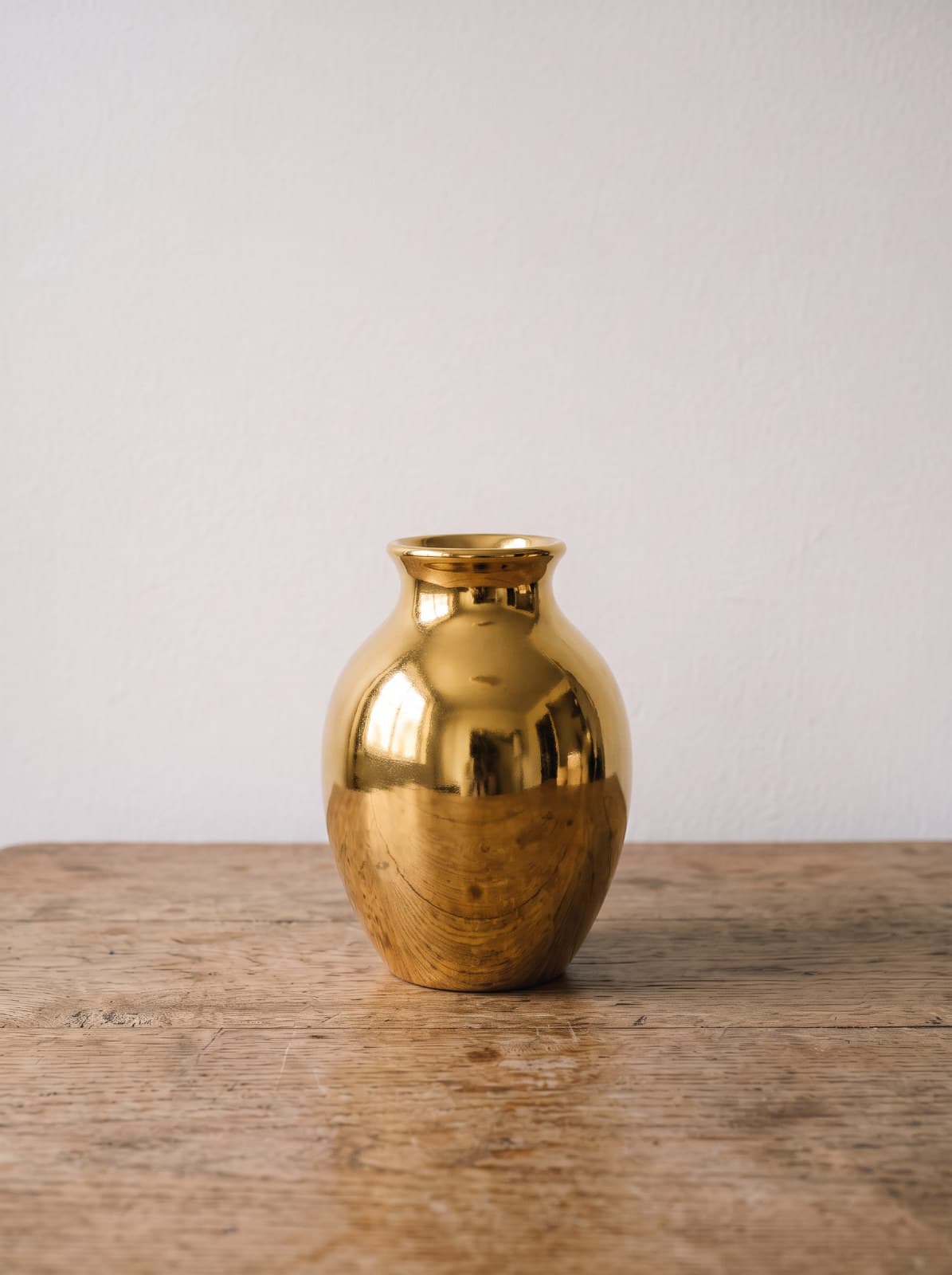
Change Material
Remake an object in glass, gold, marble, wood or chrome.
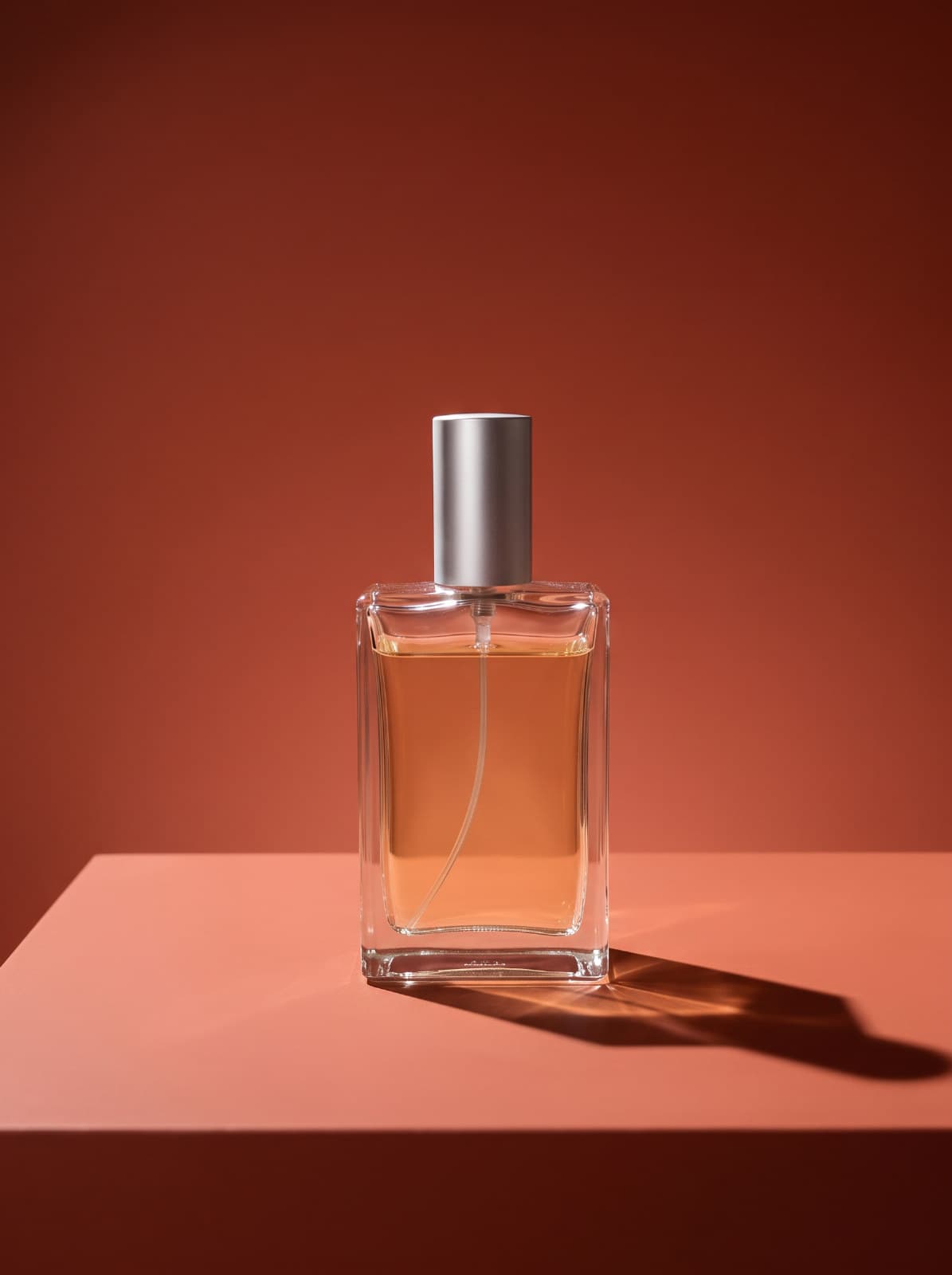
Studio Product Shot
Relight a product like a studio shoot - softbox, hard light or reflection.
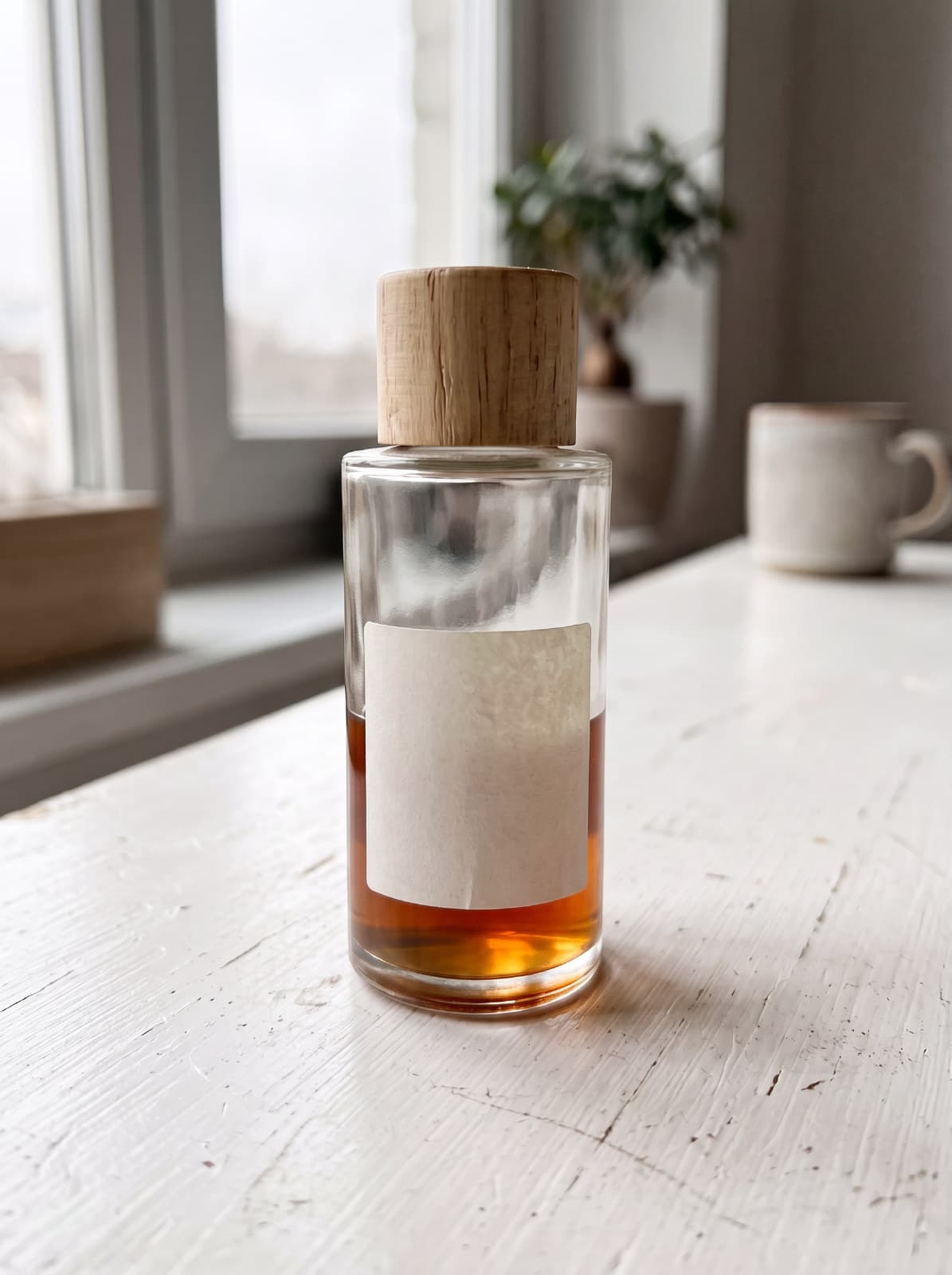
Product Enhancer
Clean up a product photo and make its details crisp.
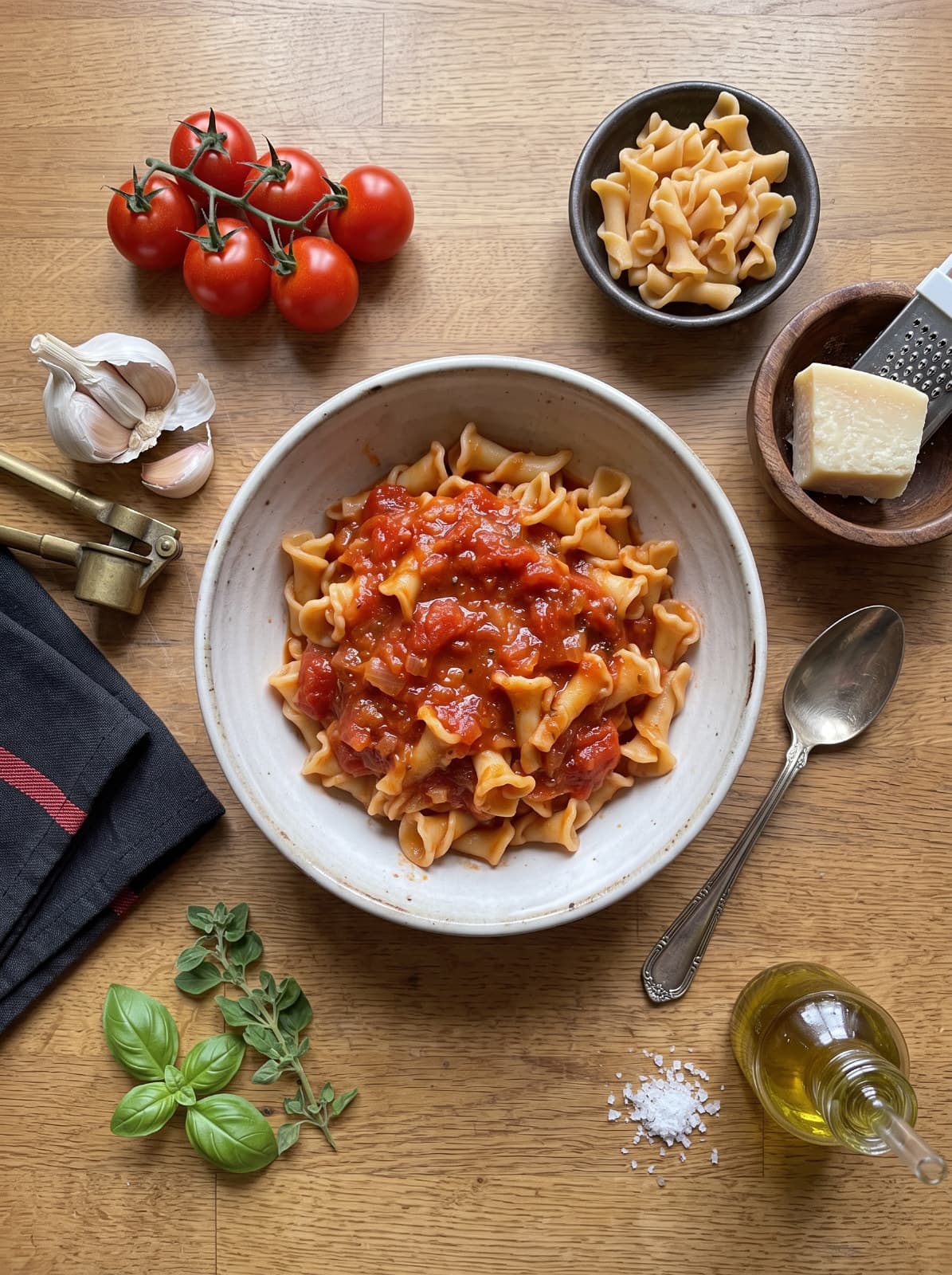
Food Styling
Style a food photo like a restaurant or cookbook shot.
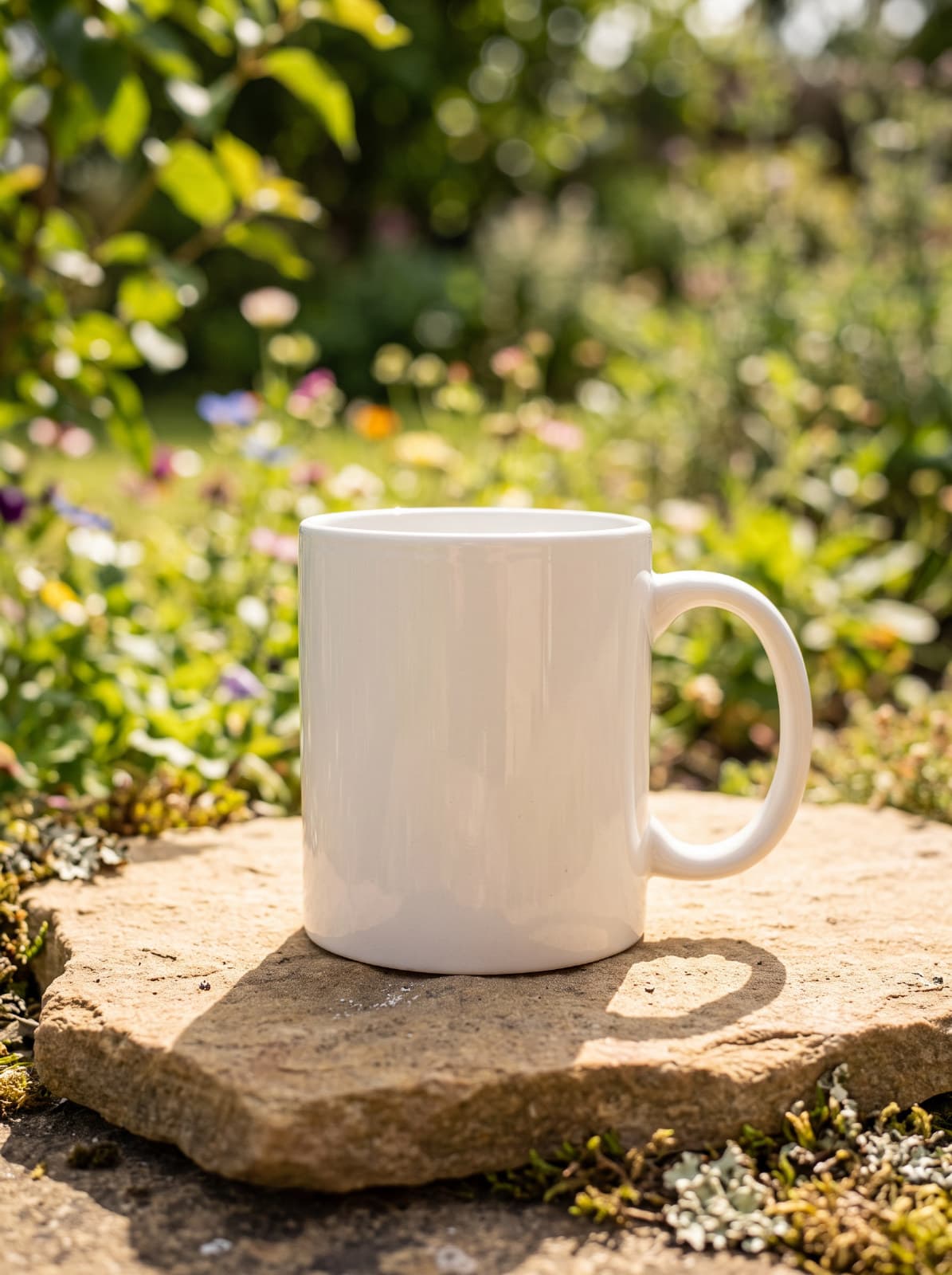
Product Background
Put a product on marble, wood, a pastel set or outdoors.
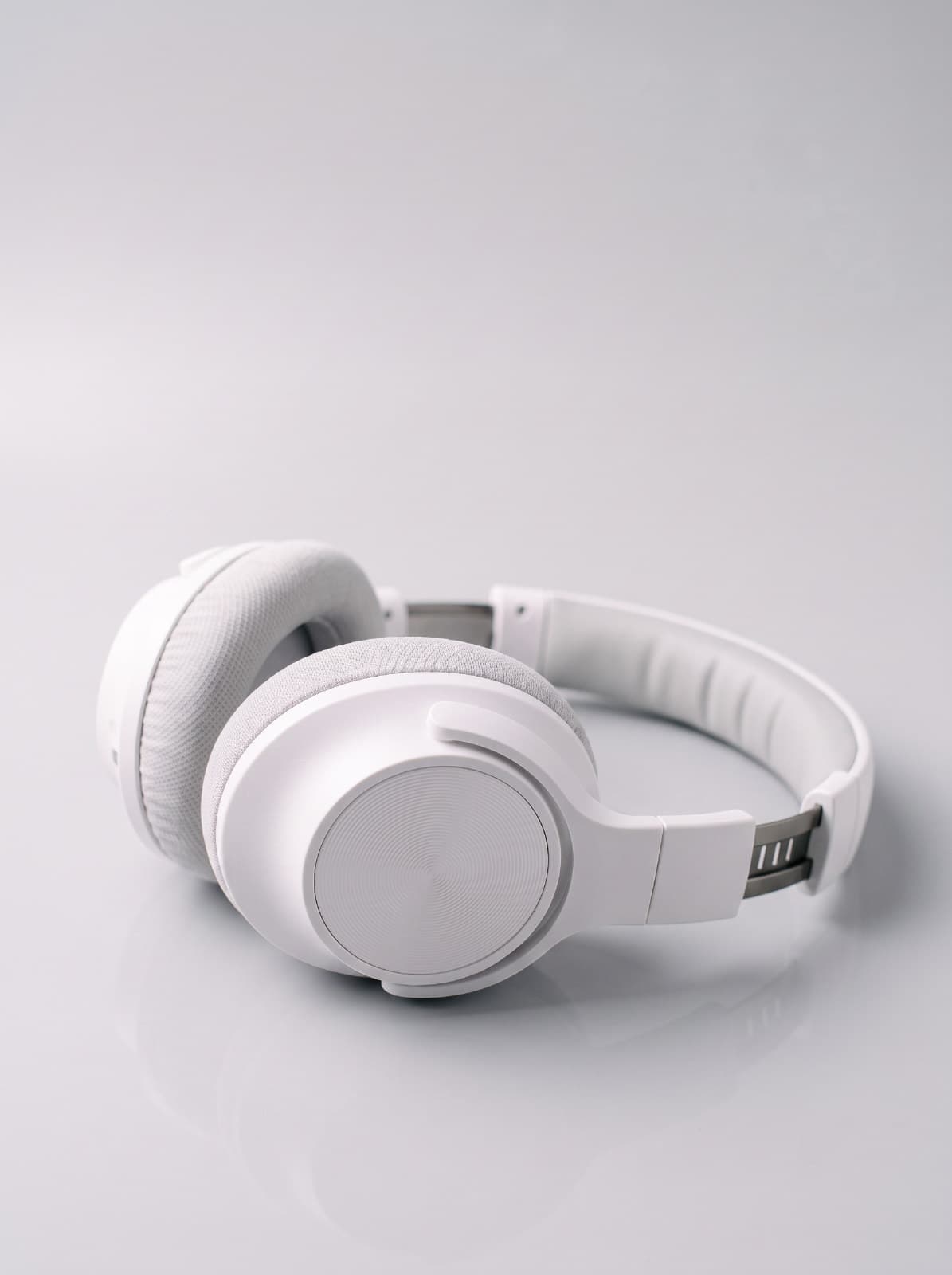
Recolor Product
Show a product in another color, keeping every reflection, shadow and angle from the shoot.
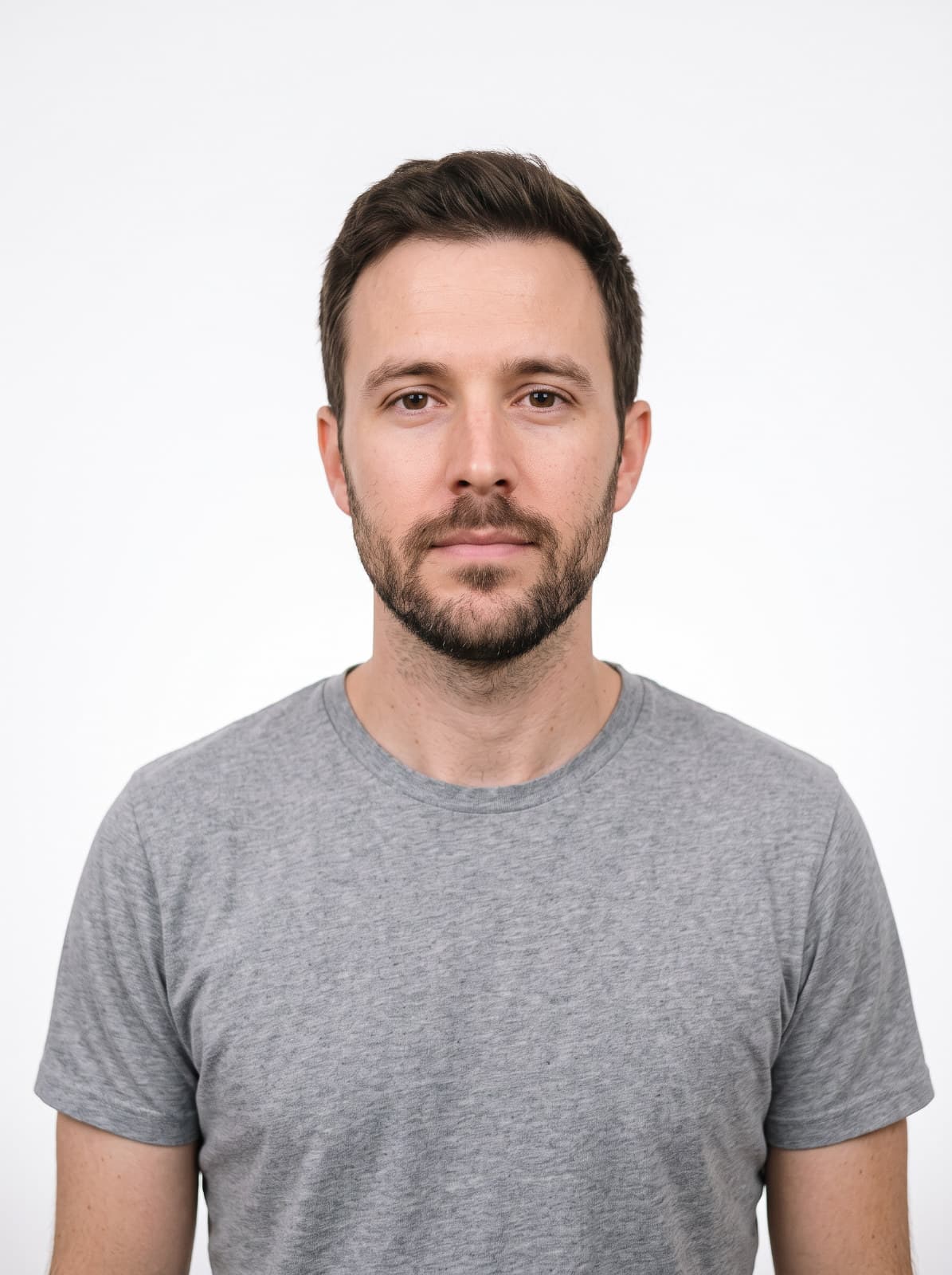
ID Photo
Turn a portrait into a clean, front-facing ID-style photo.
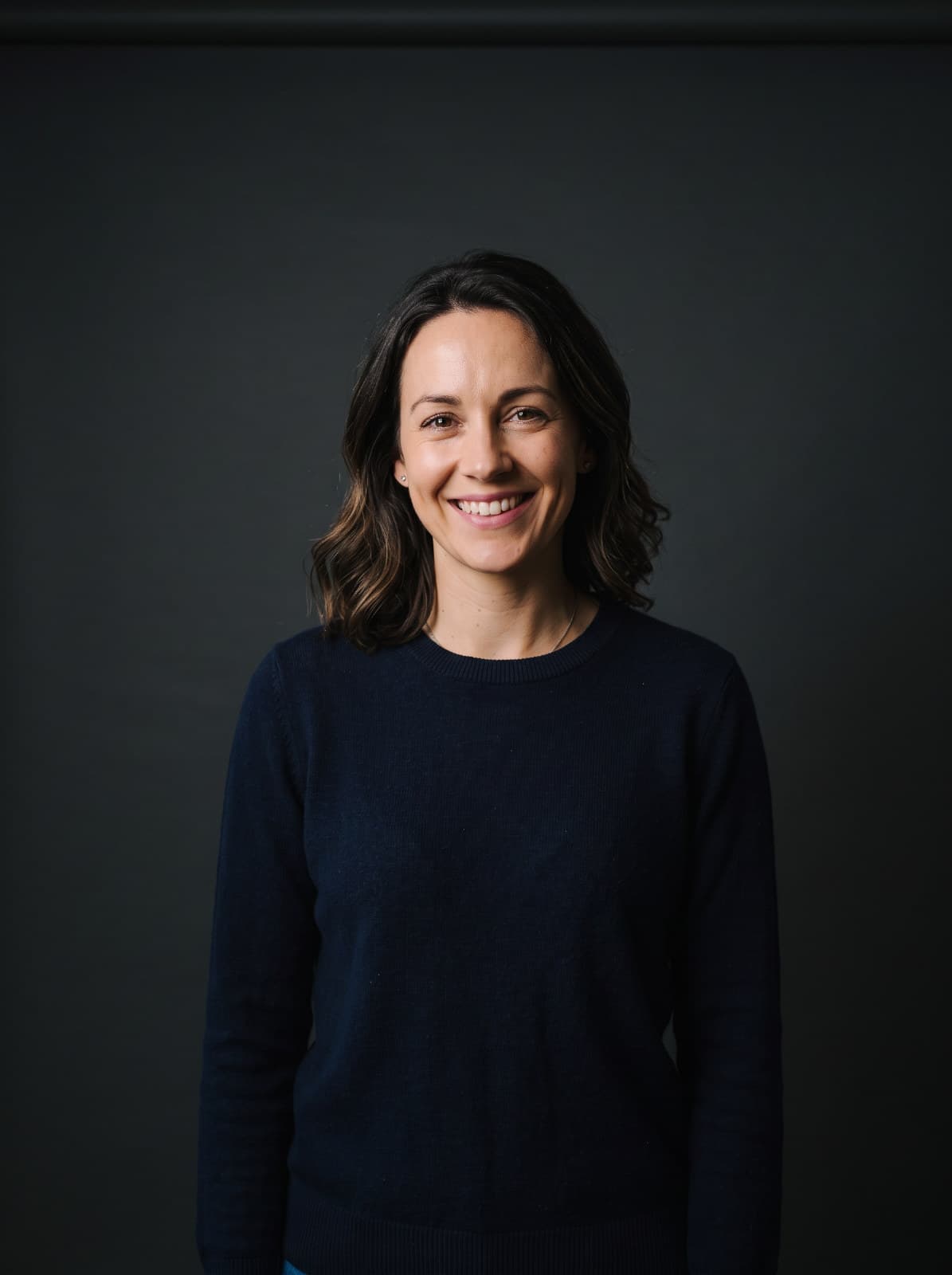
Portrait Studio
Move the person into a new setting, from a clean studio to a city or a meadow.
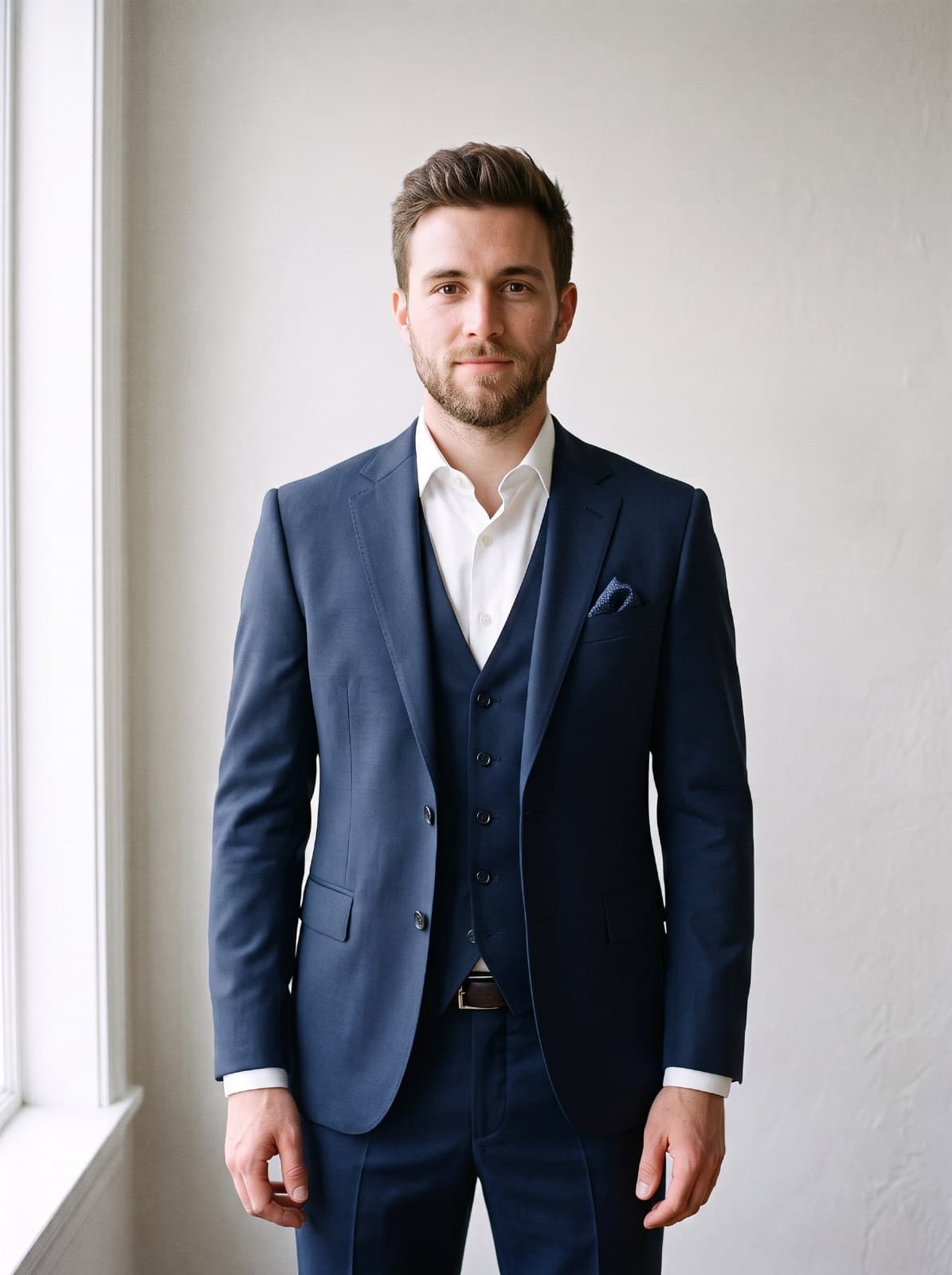
Outfit Change
Dress the person in a new outfit in the color you choose.
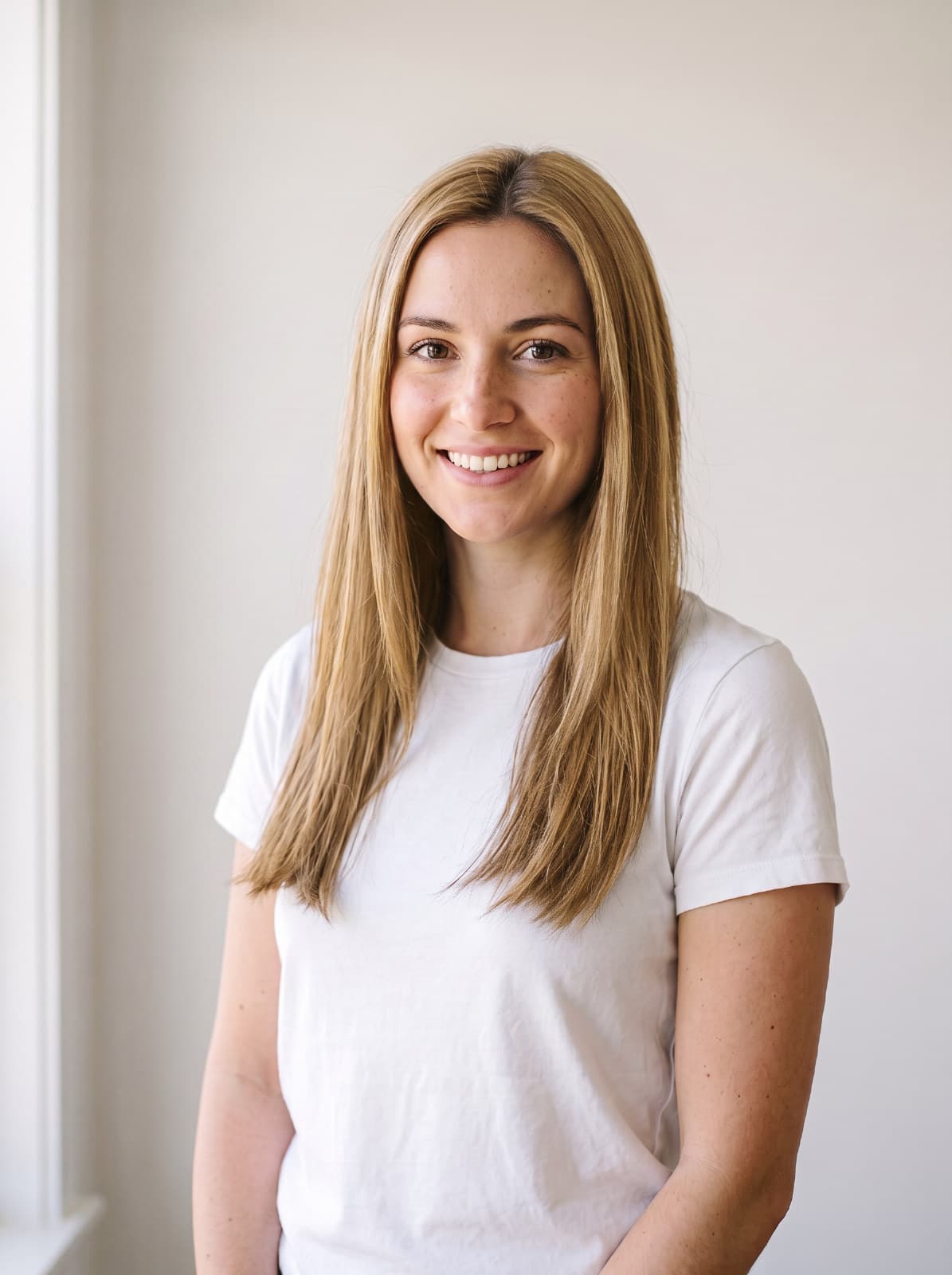
Hair Color
Try a new hair color while keeping the hairstyle.
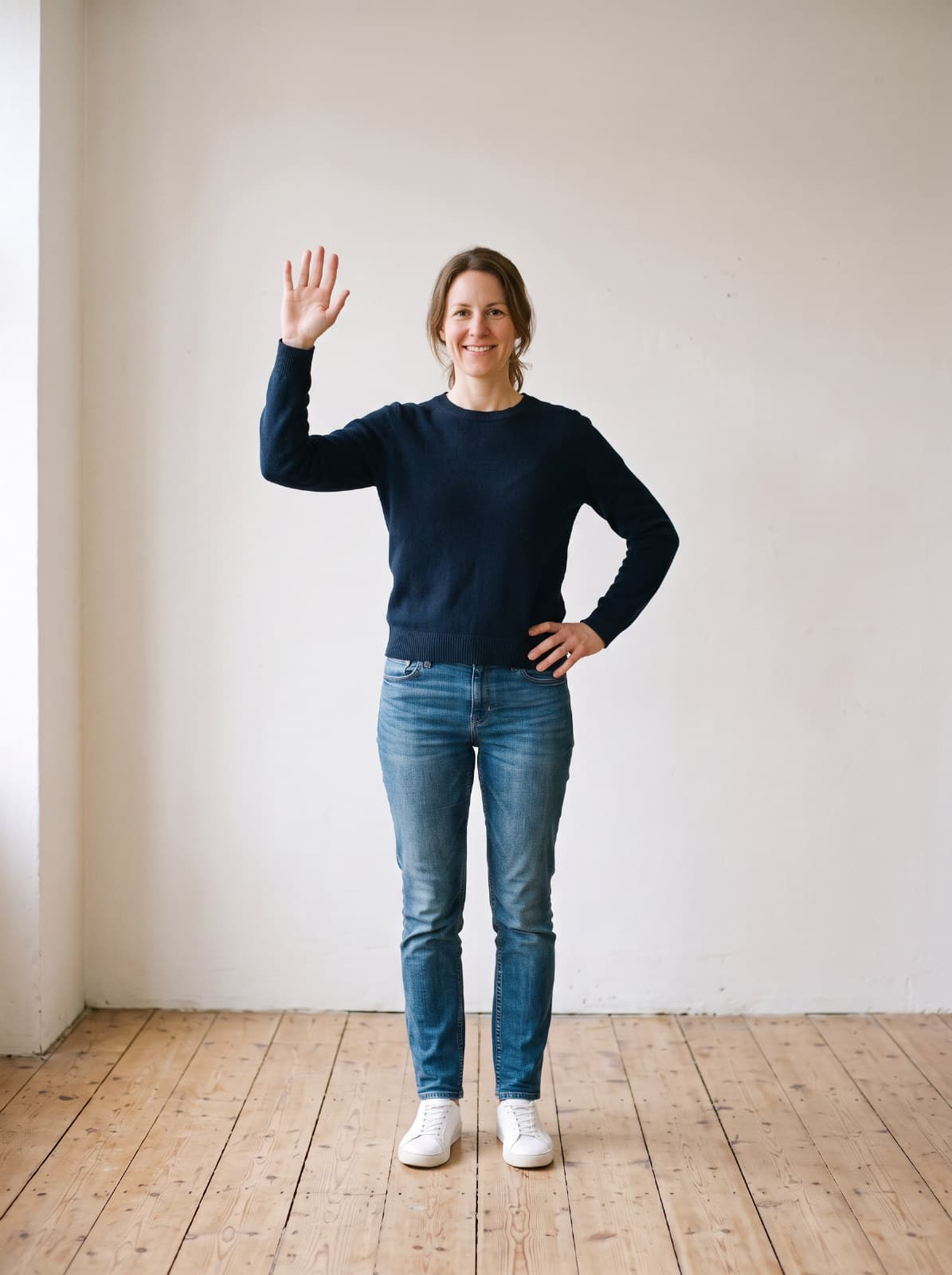
Copy Pose
Match the pose from a reference photo, keeping the person the same.
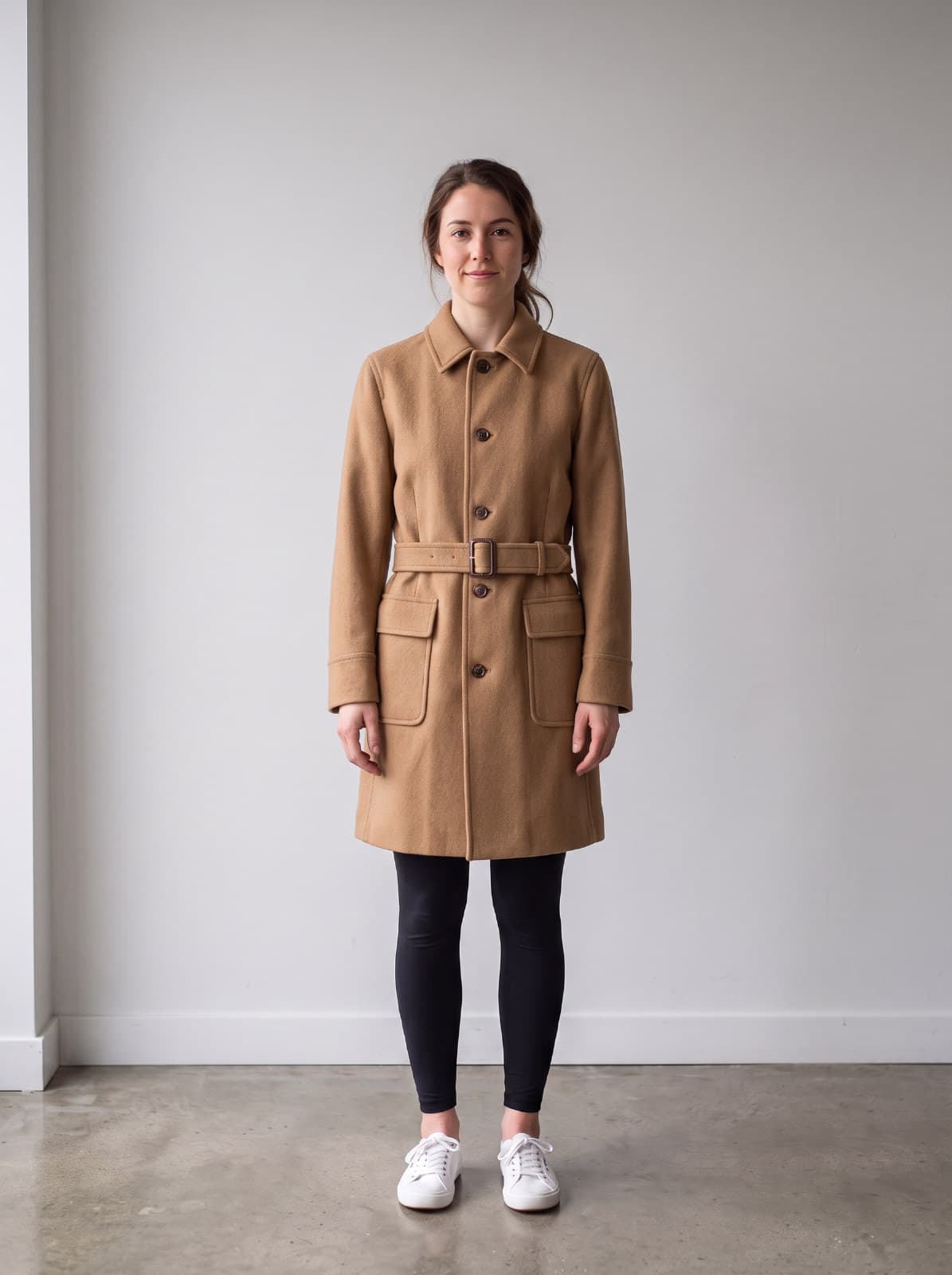
Outfit Try-on
Dress the person in the clothes from a reference photo.
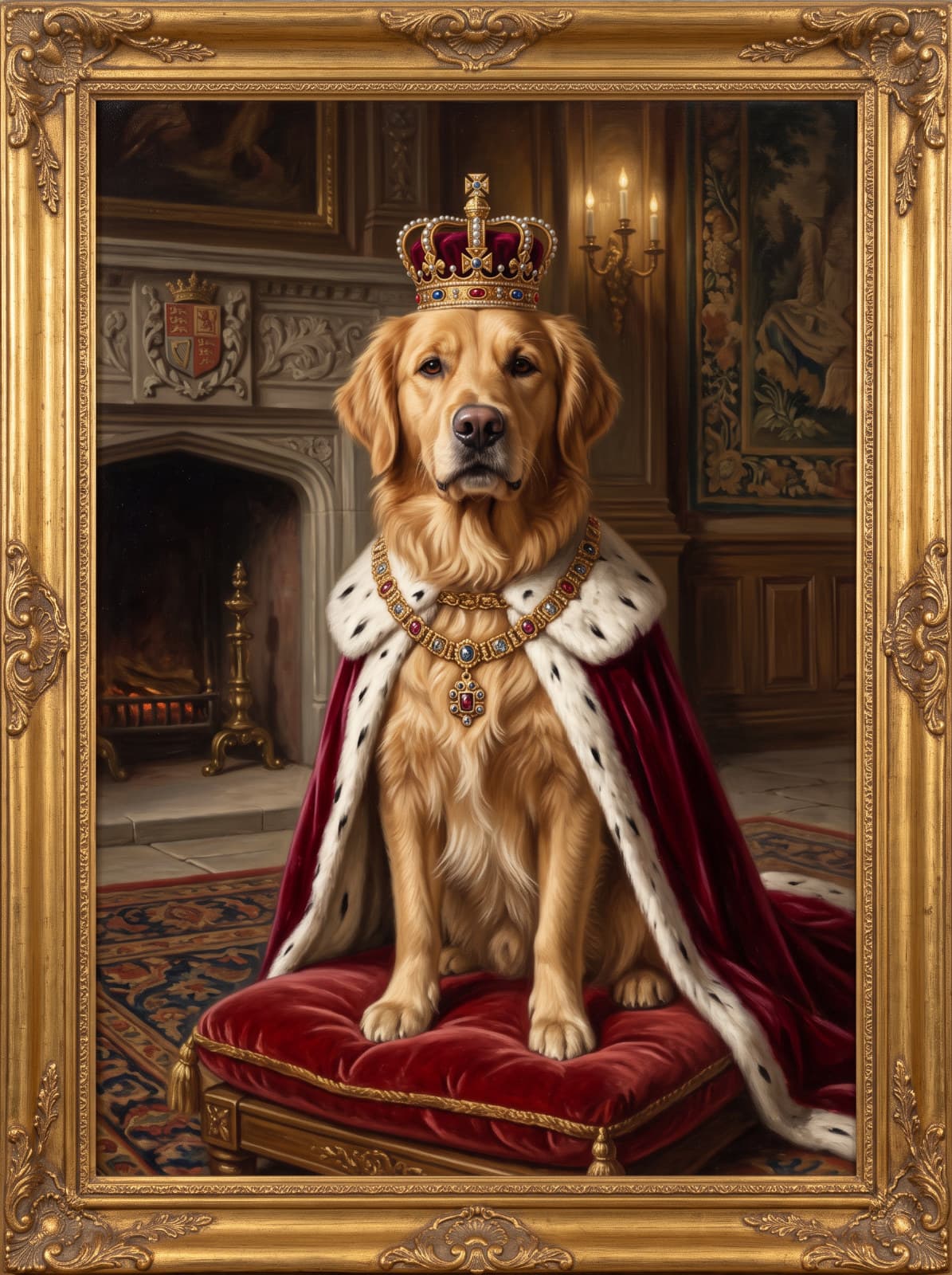
Pet Portrait
Turn a pet photo into a portrait - royal, painted or in costume.
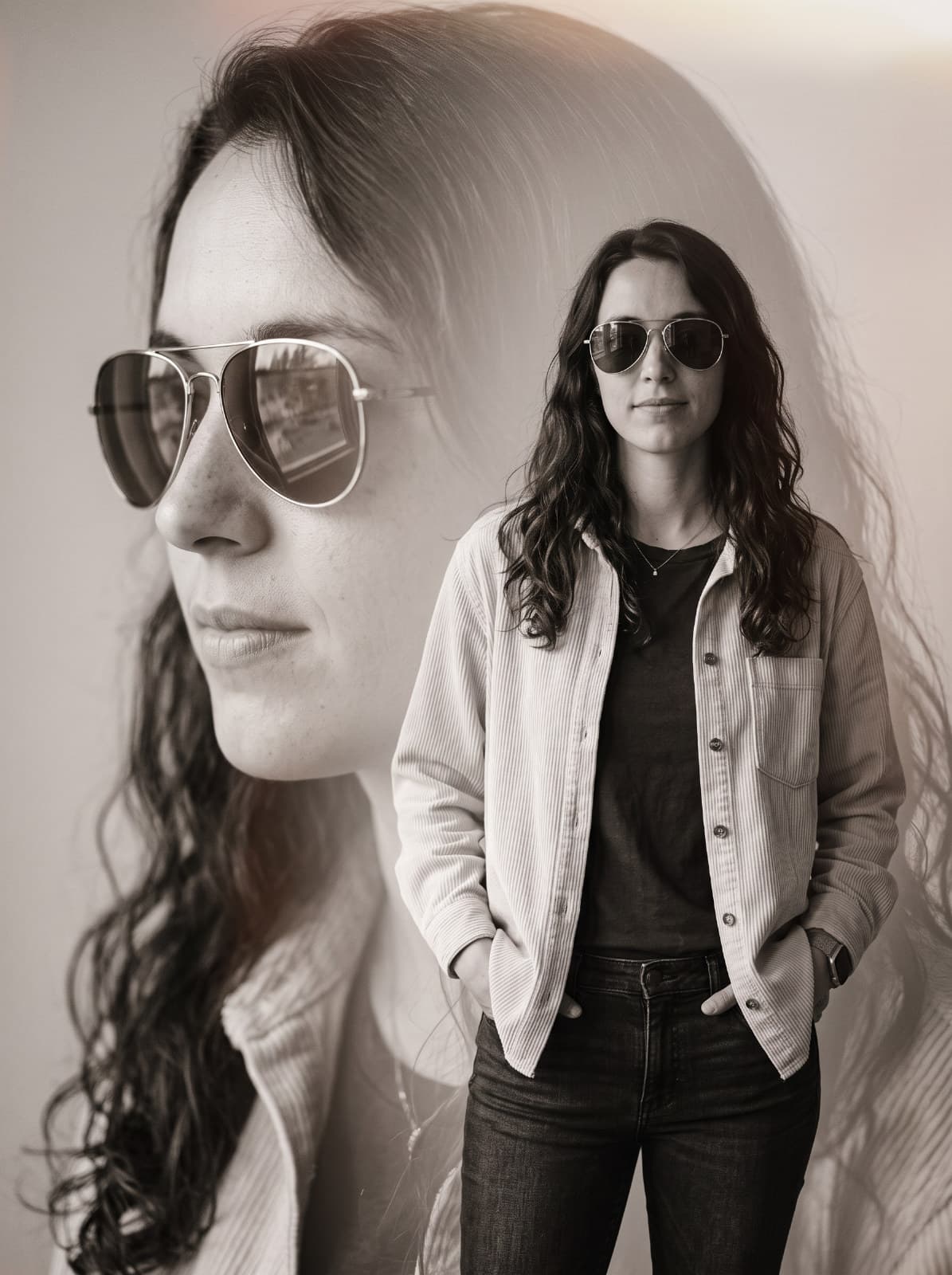
Double Exposure Portrait
Turn a portrait into a cinematic double exposure - a large profile beside the full figure.
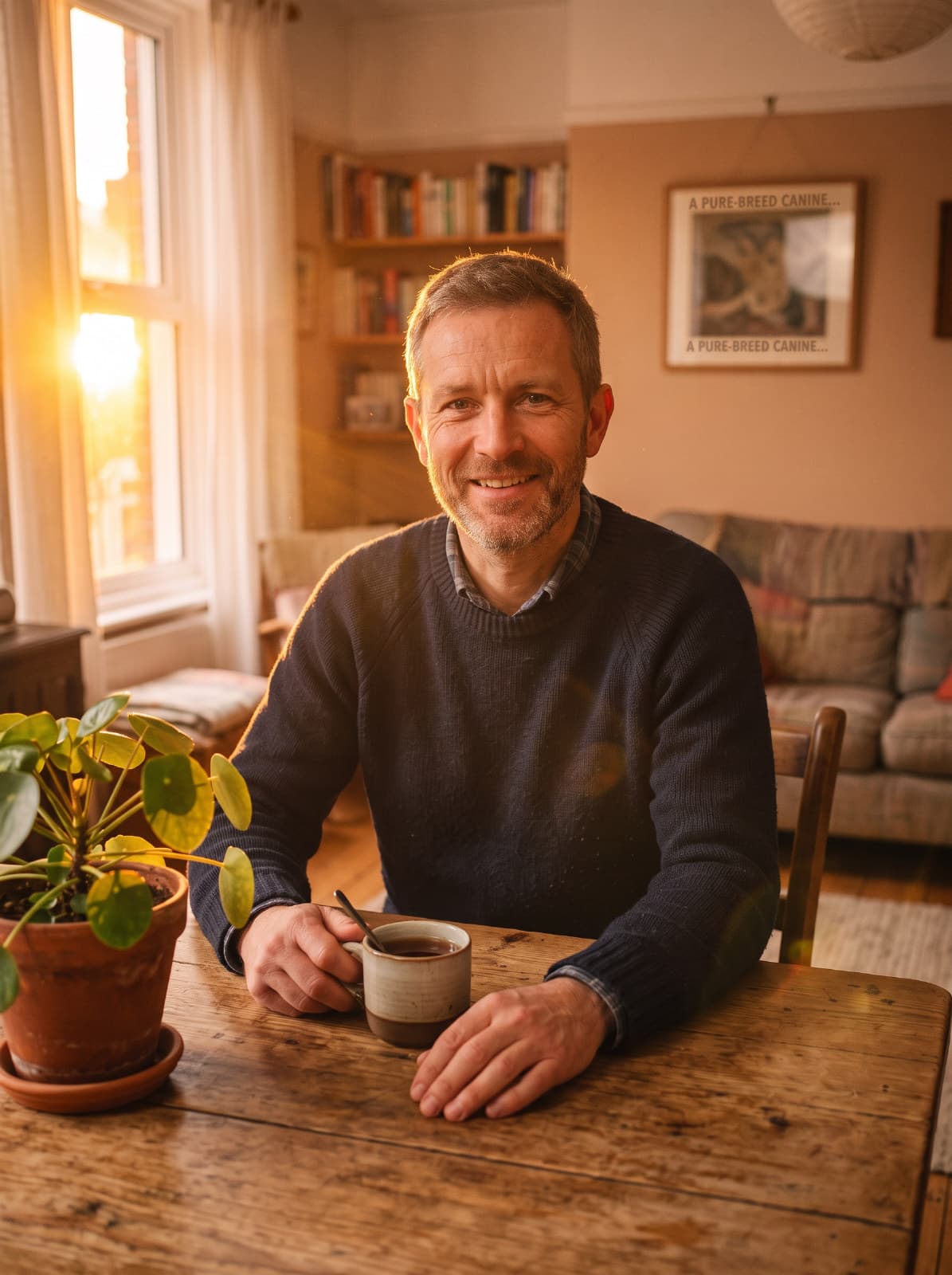
Lighting
Relight a photo with window light, golden hour, neon and more.

Weather
Change the weather in a scene - snow, rain, fog or a storm.
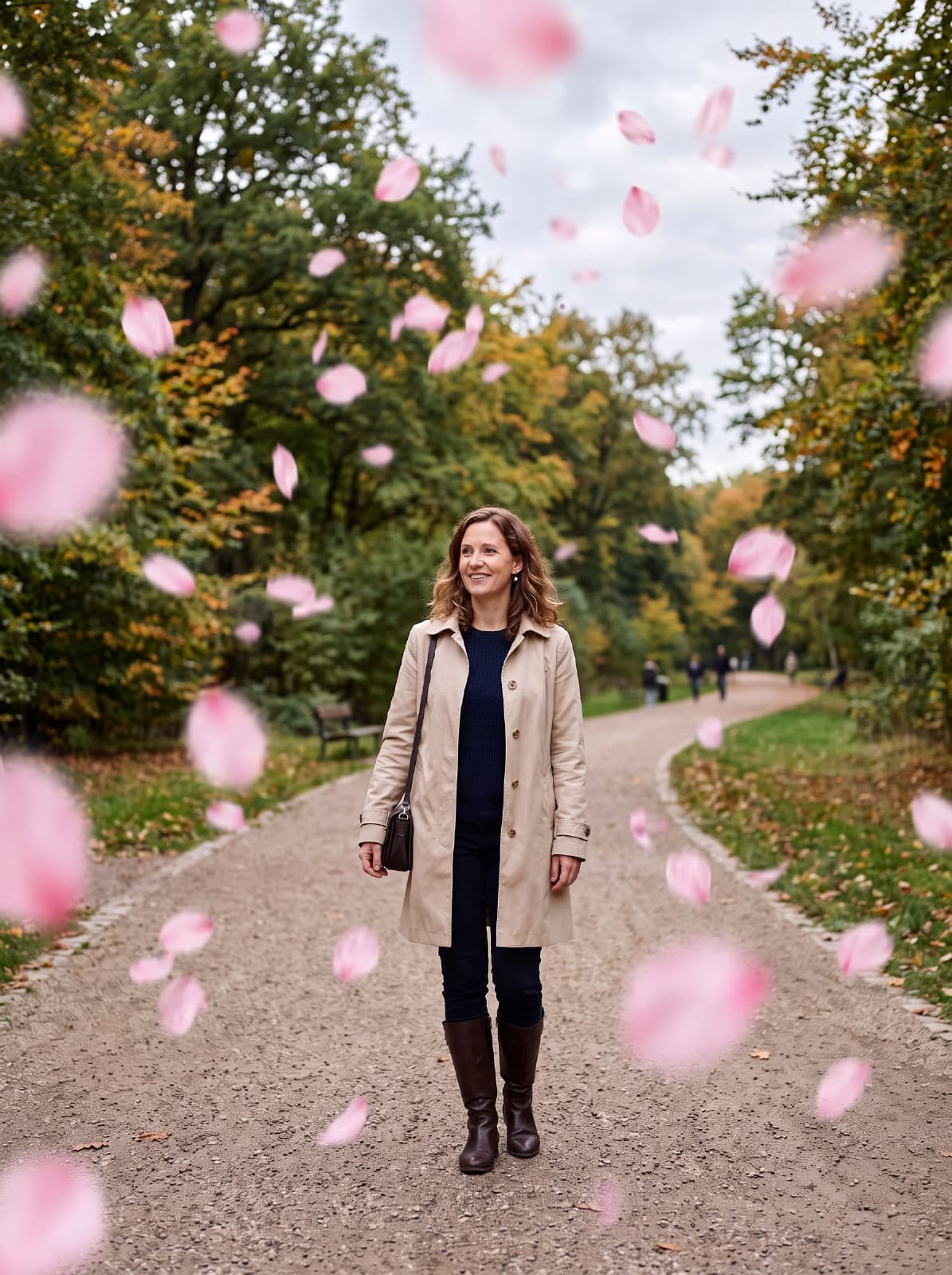
Falling Effects
Add petals, leaves, snowflakes or confetti drifting through the frame.
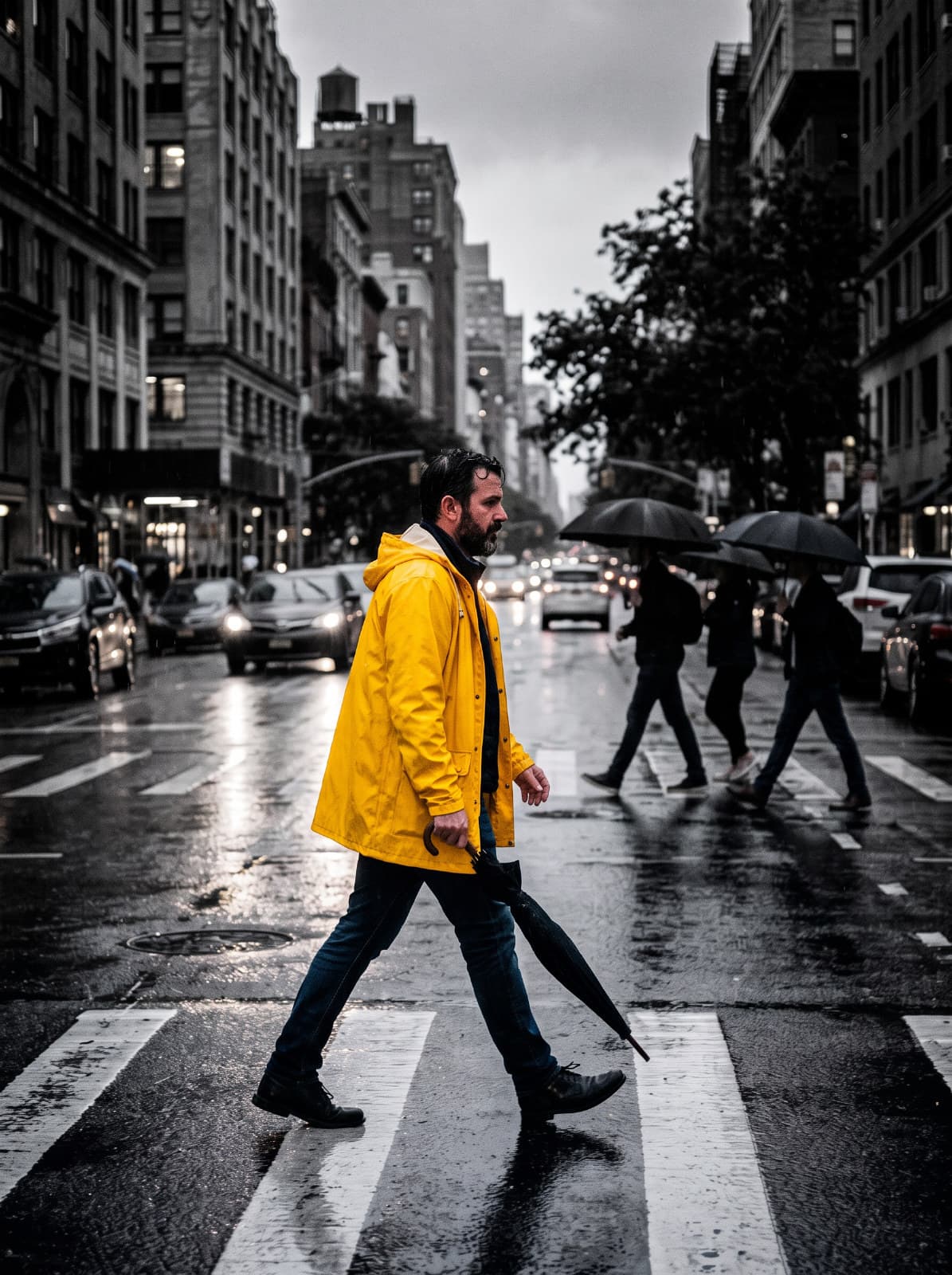
Color Splash
Turn the photo monochrome and keep one subject in full color.
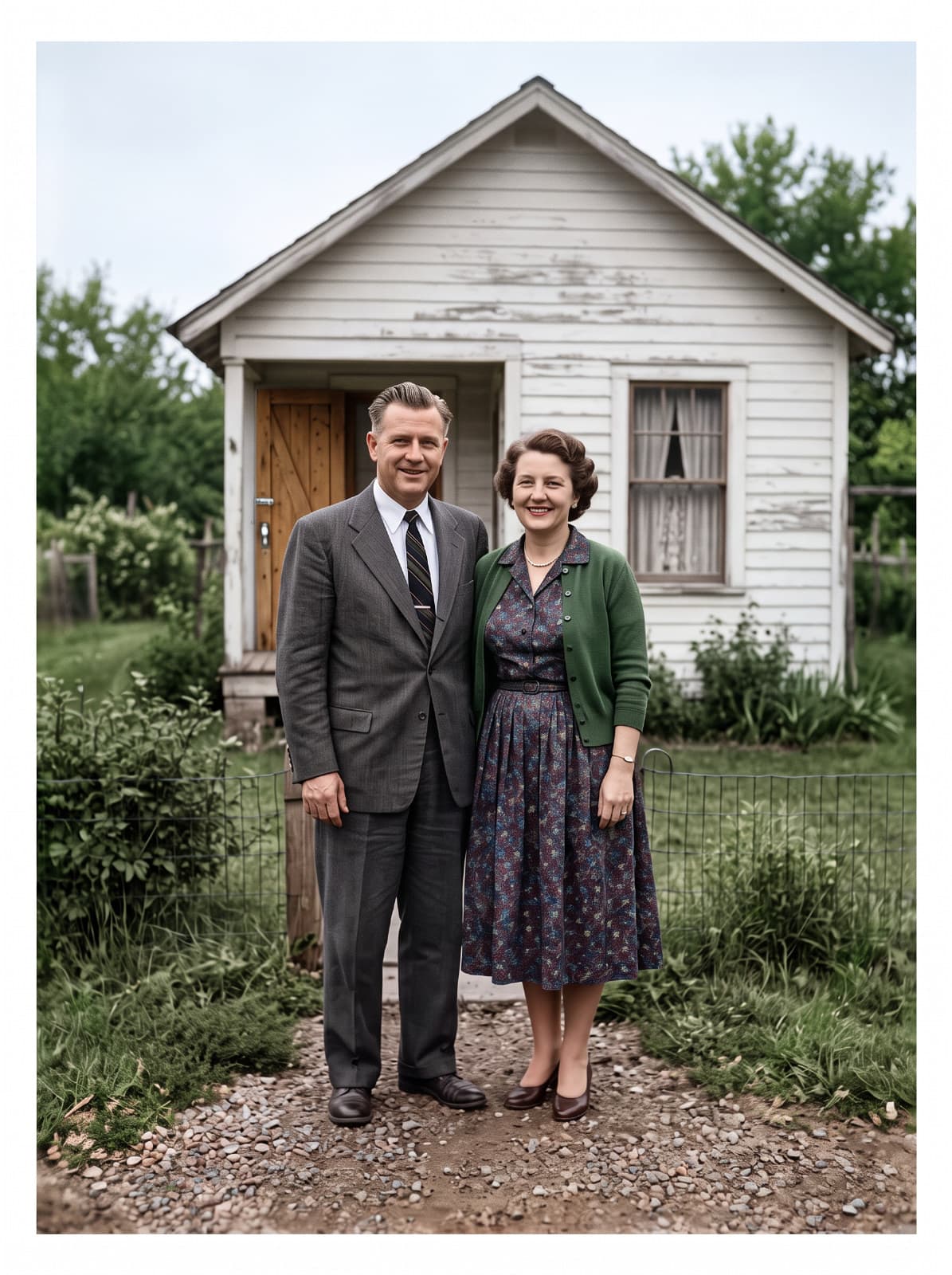
Restore & Colorize
Repair old photos: scratches, fading and grain, with optional color.
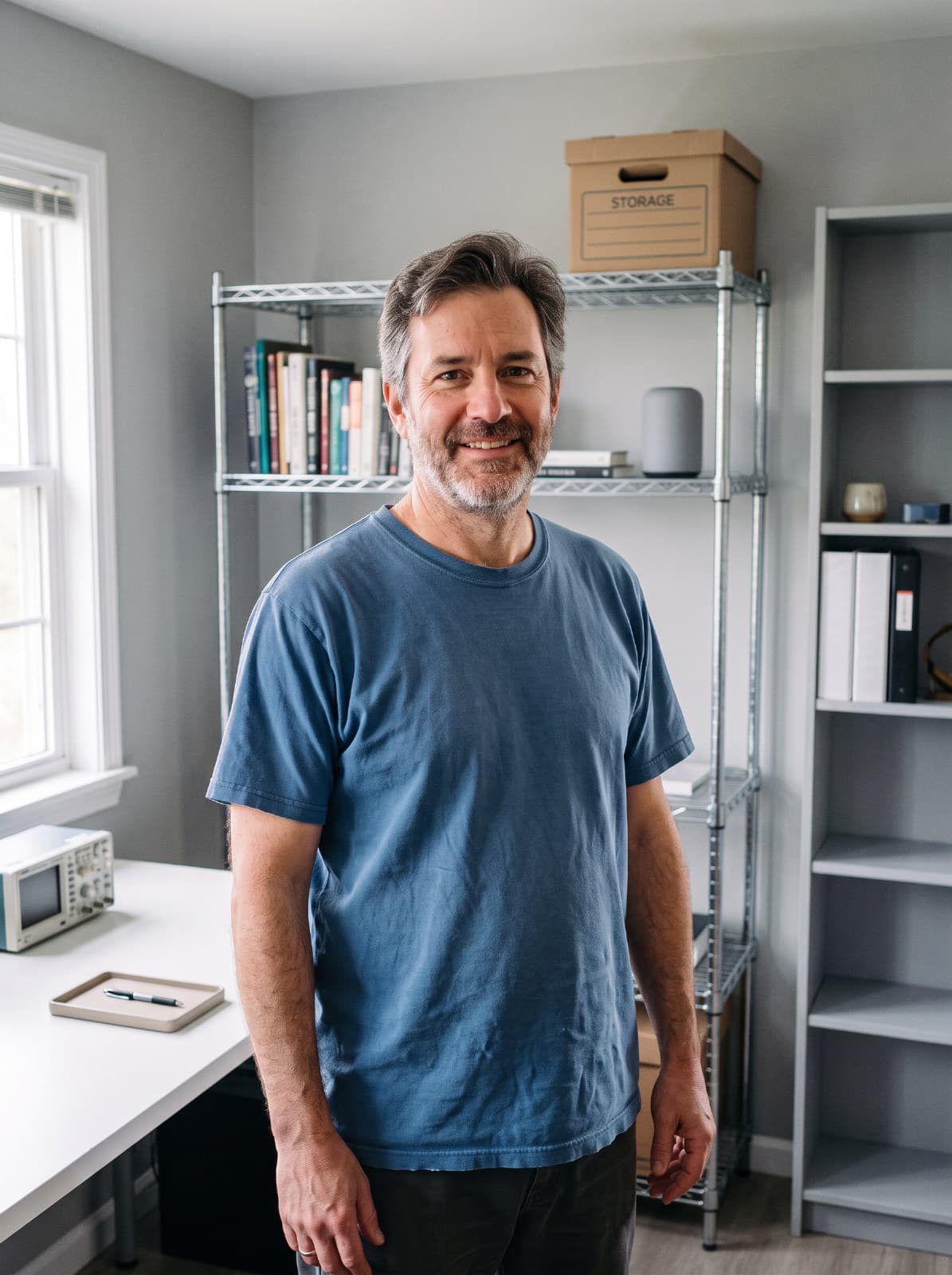
Clean Up Background
Remove clutter, people or wires, or softly blur the background.
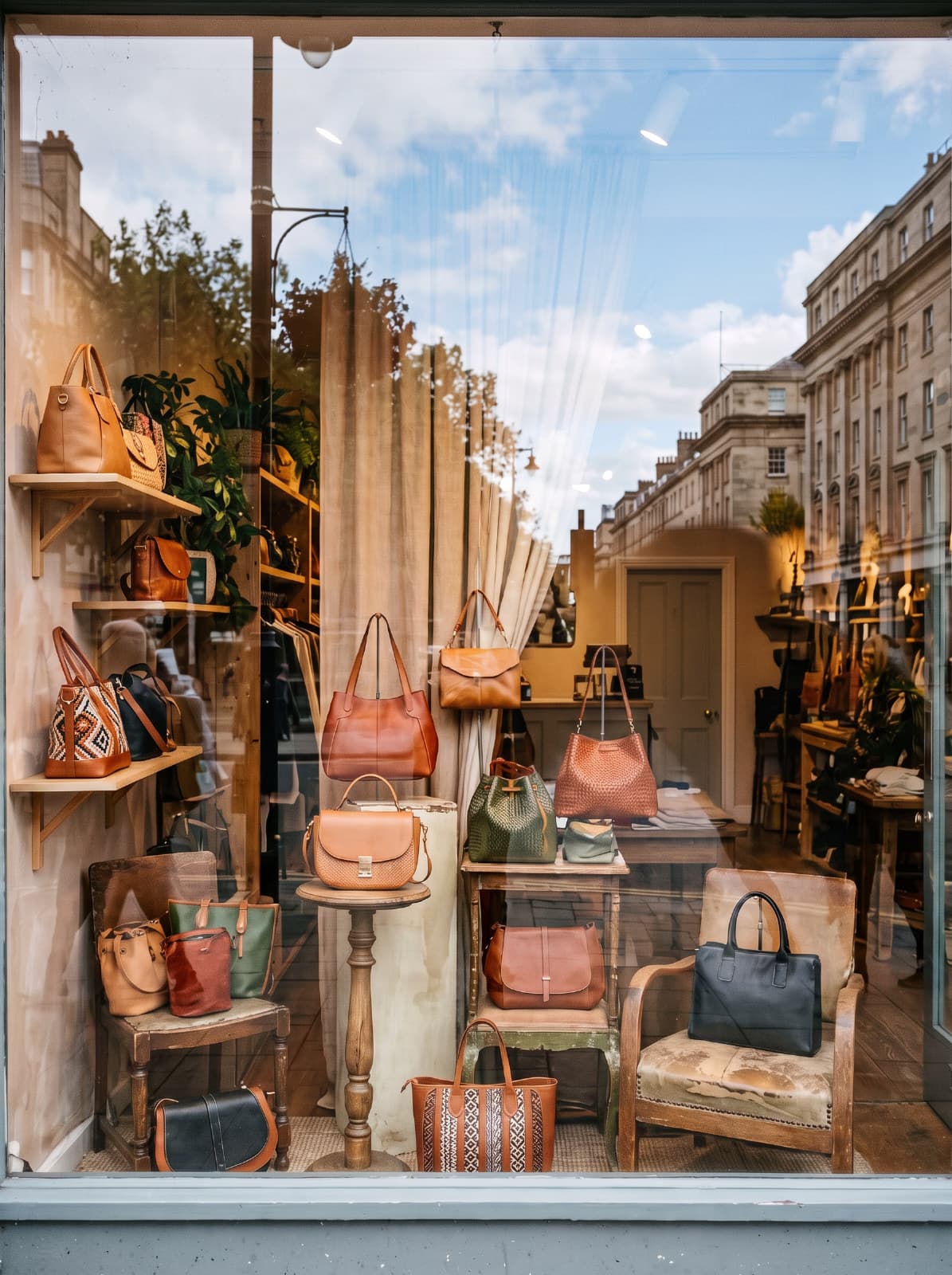
Reflection Removal
Remove reflections and glare from glass, glasses and screens.
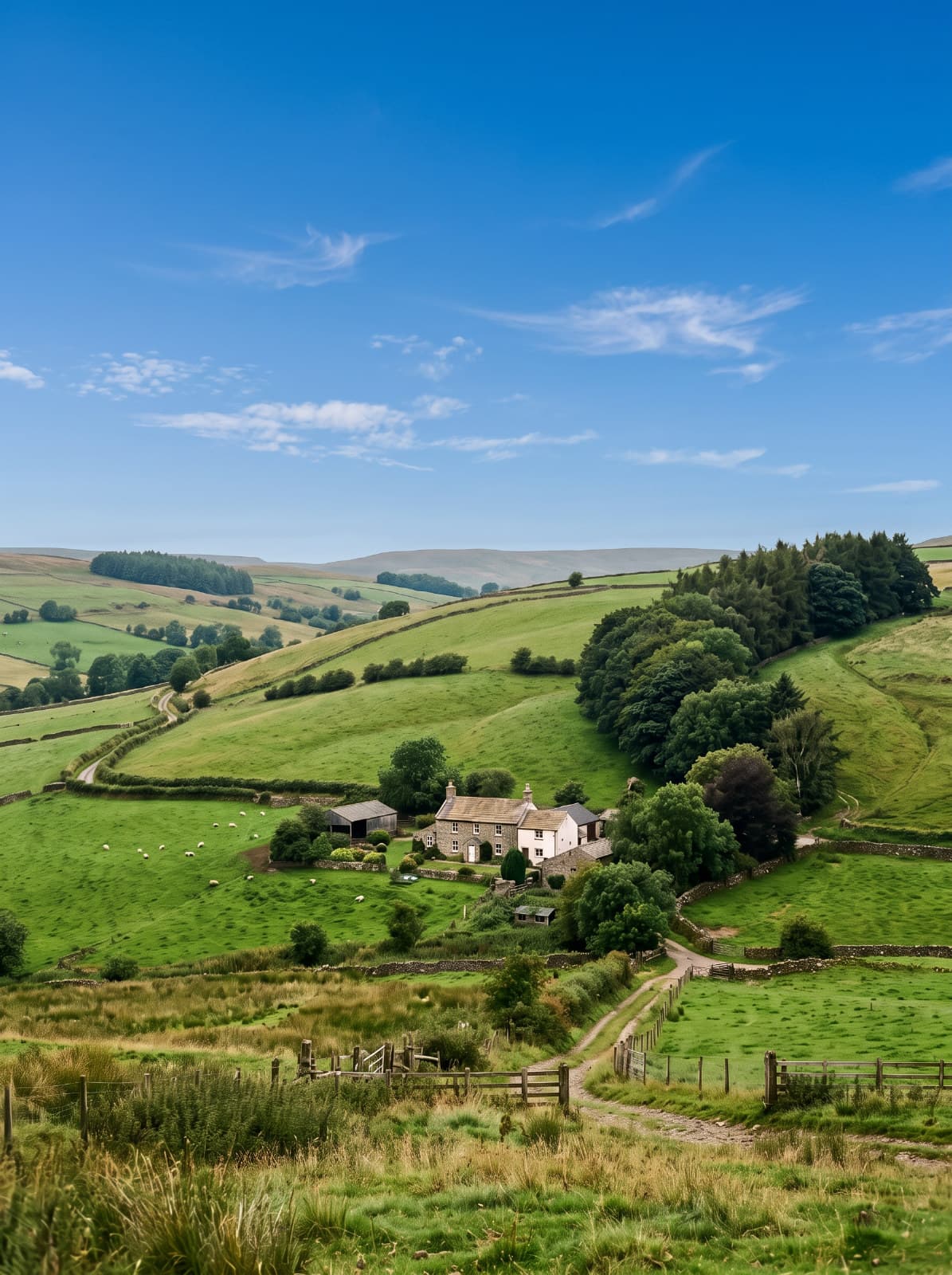
Sky Replace
Swap the sky for a clear blue day, a sunset, clouds or the stars.
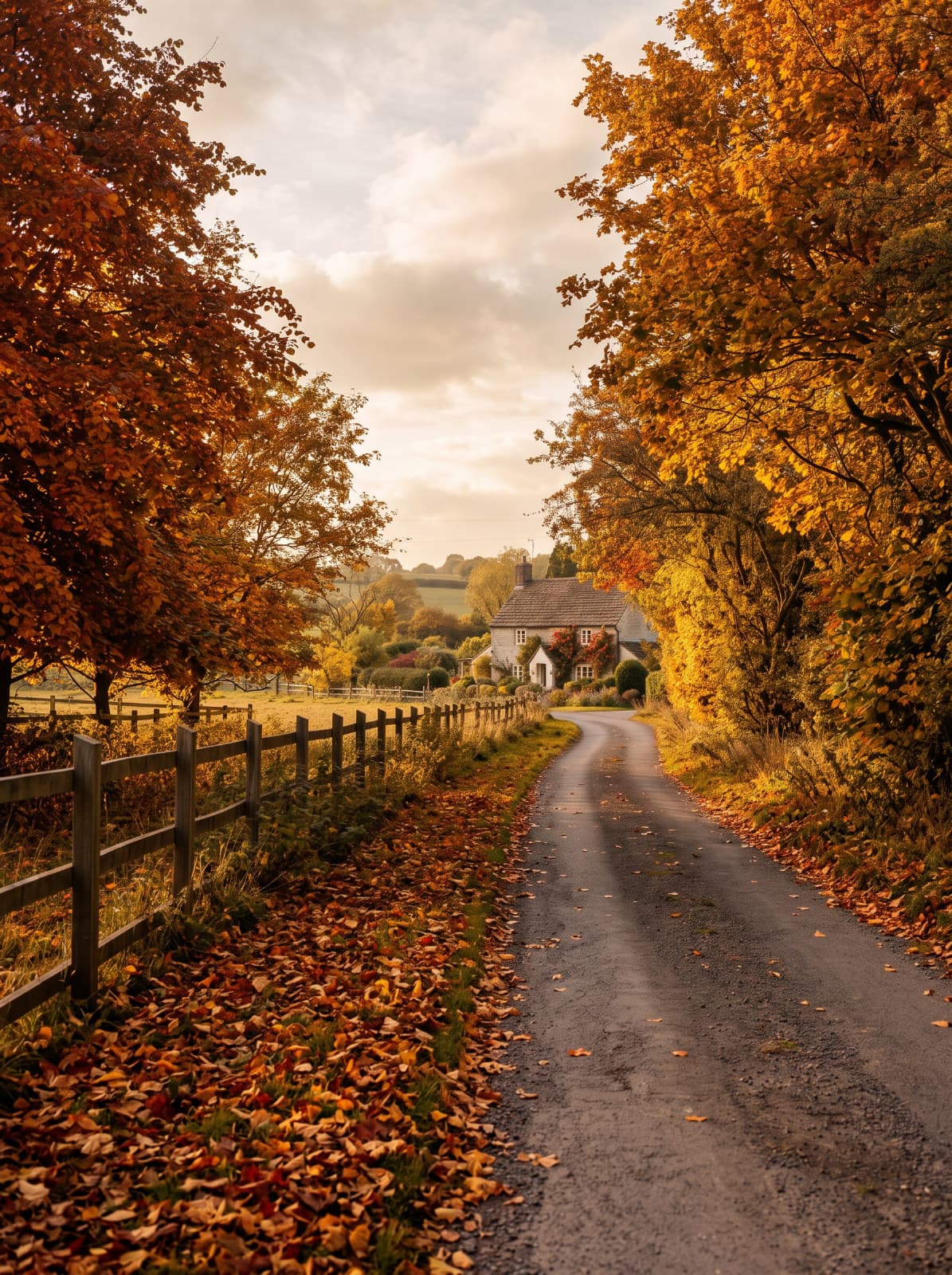
Season Change
Show the same place in spring, summer, autumn or winter.
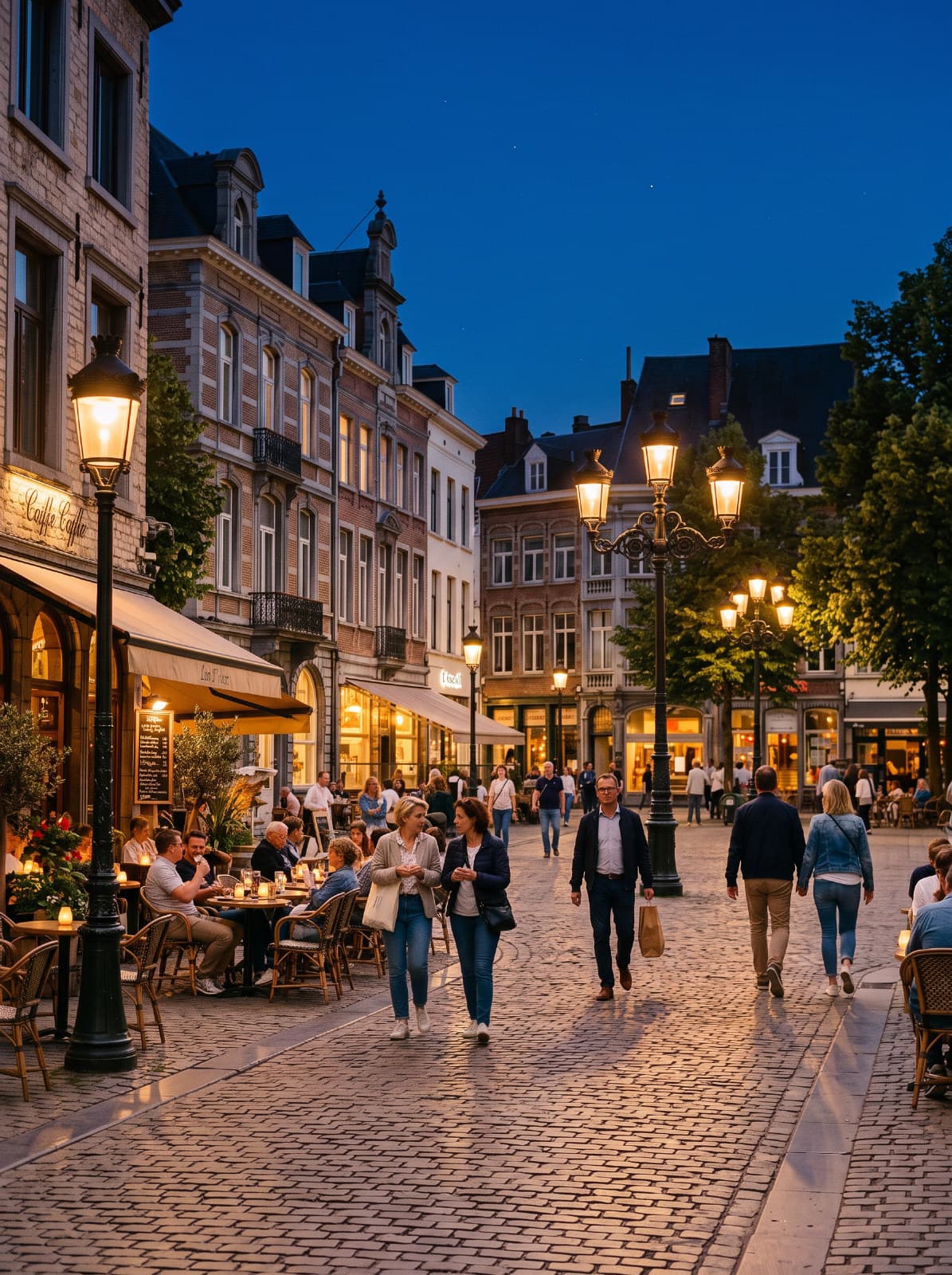
Day to Night
Turn a daytime scene into dusk, blue hour or a lit-up night.
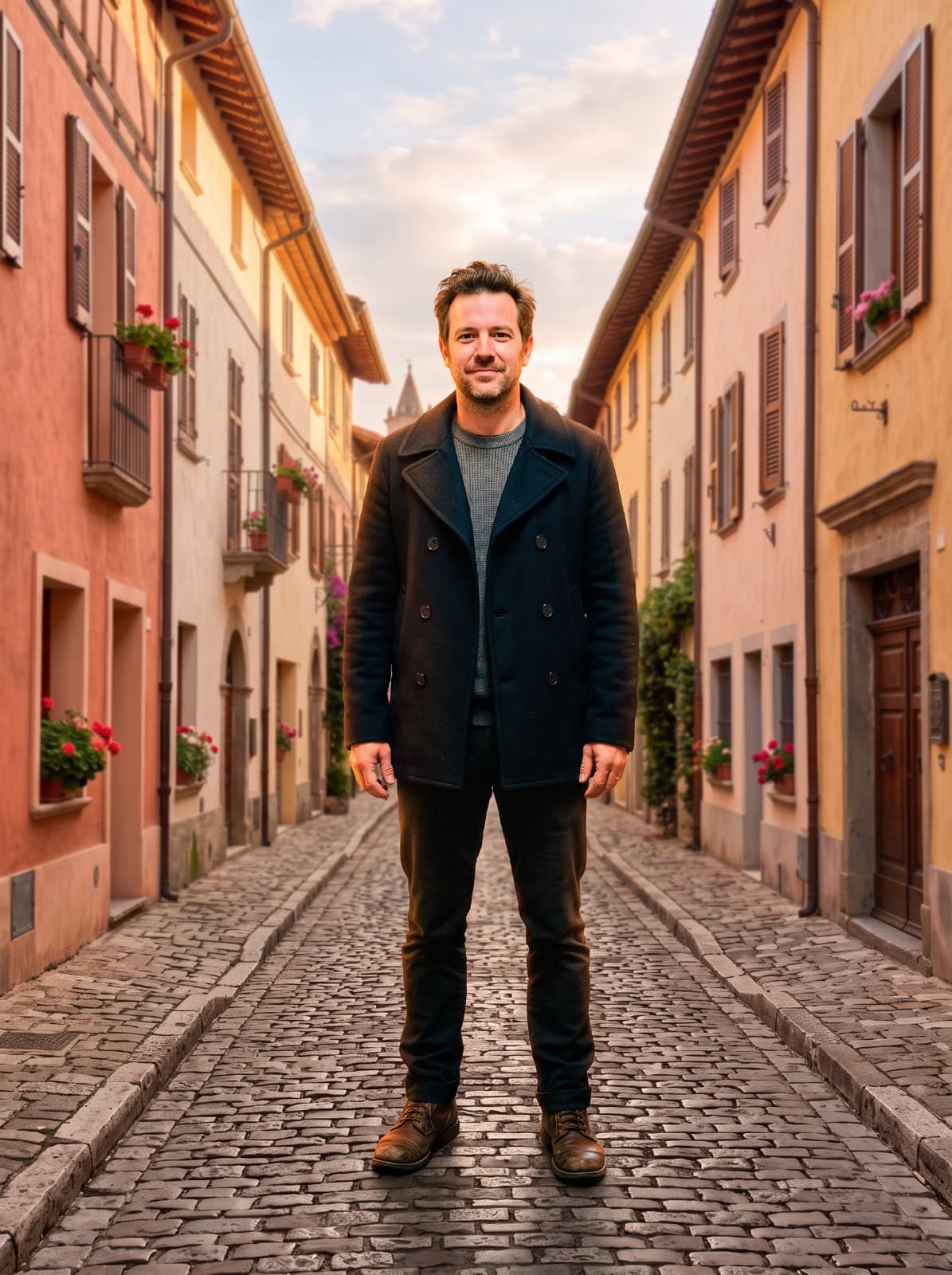
Background Replace
Put the subject in front of the background from a photo you choose.
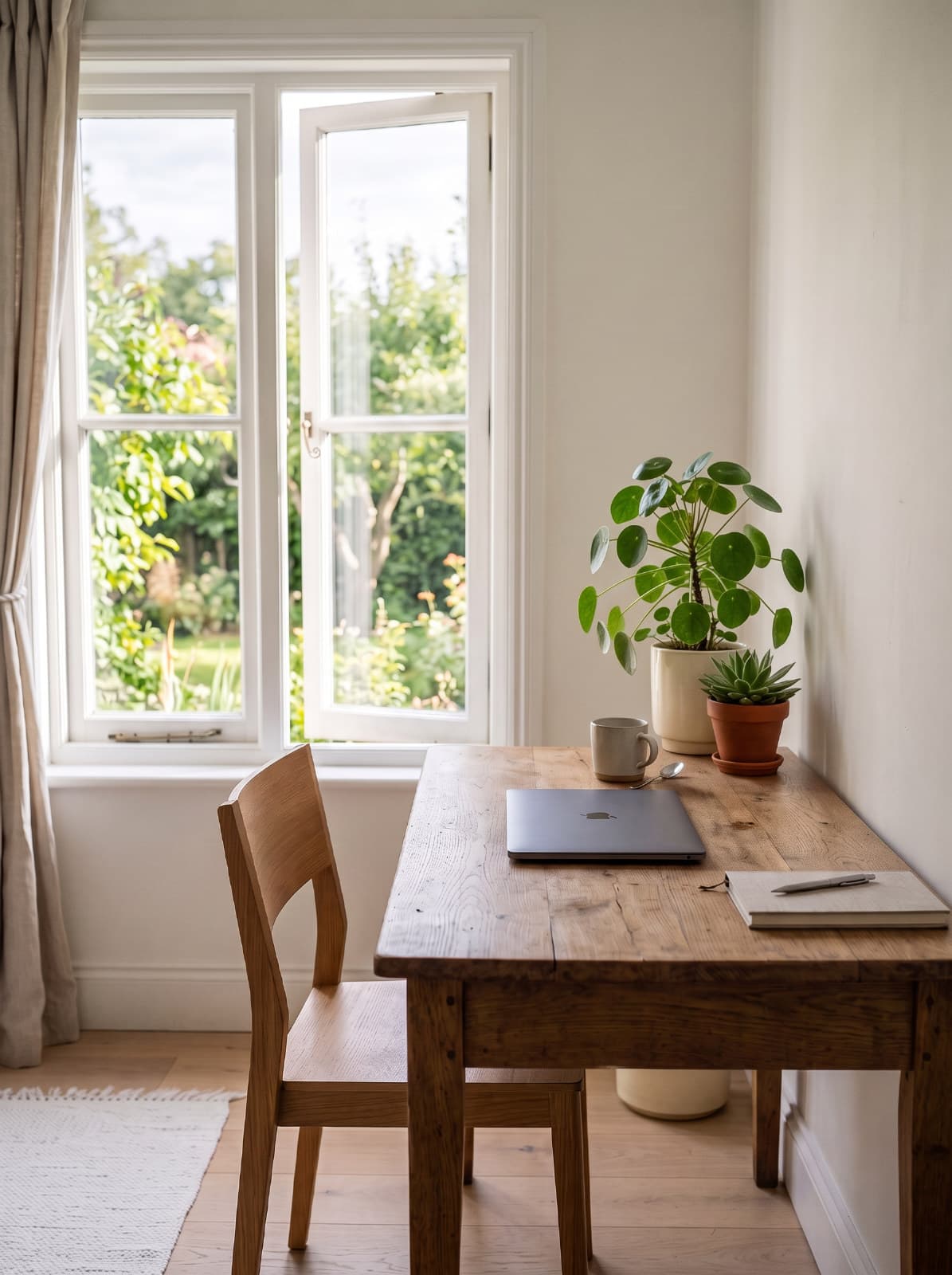
Add Object
Add an object to your photo and blend it into the scene.
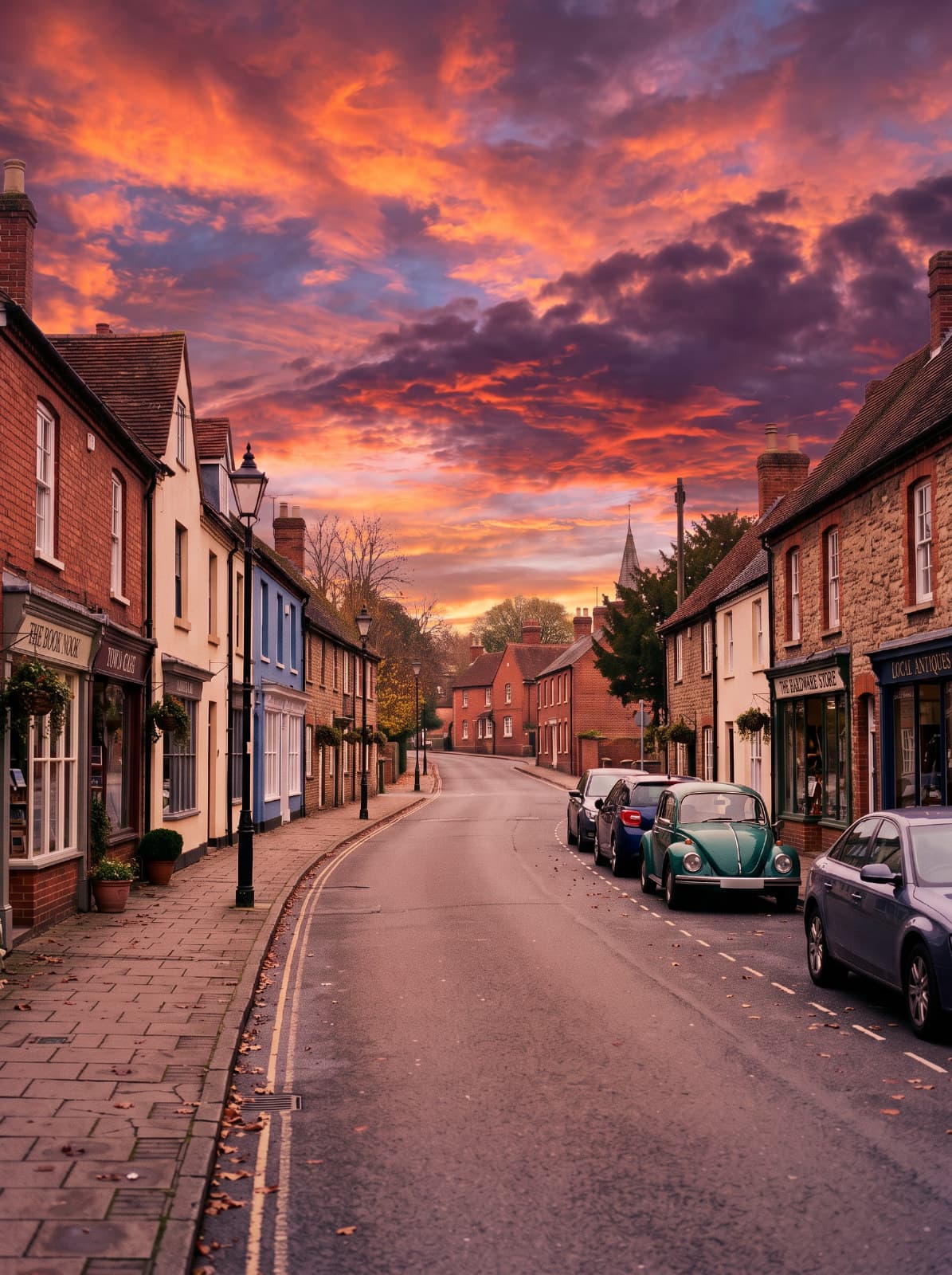
Match Sky
Swap in the sky from your own photo and match the scene to its light.
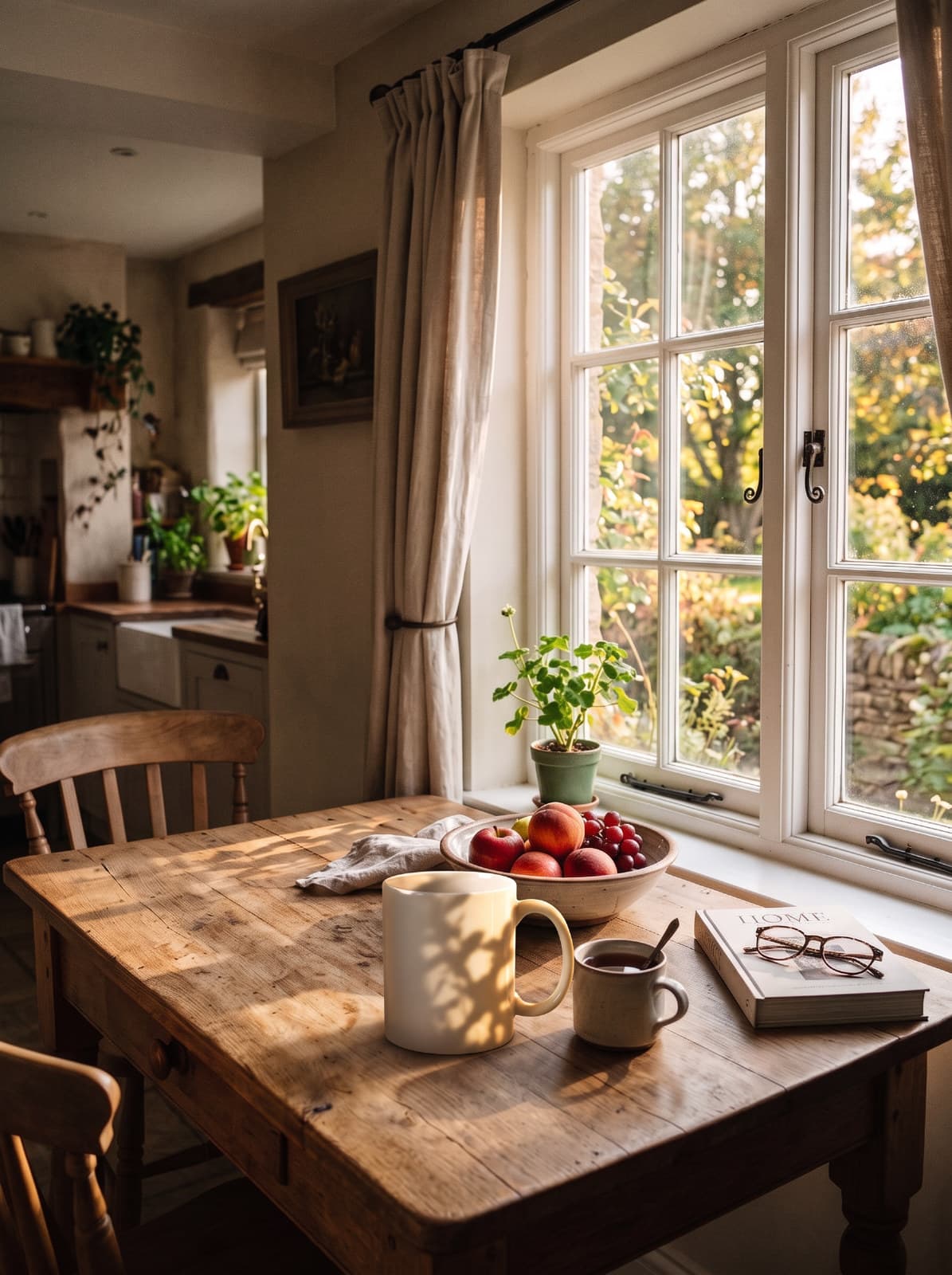
Harmonize
Make a placed object look like it was photographed in the scene behind it.
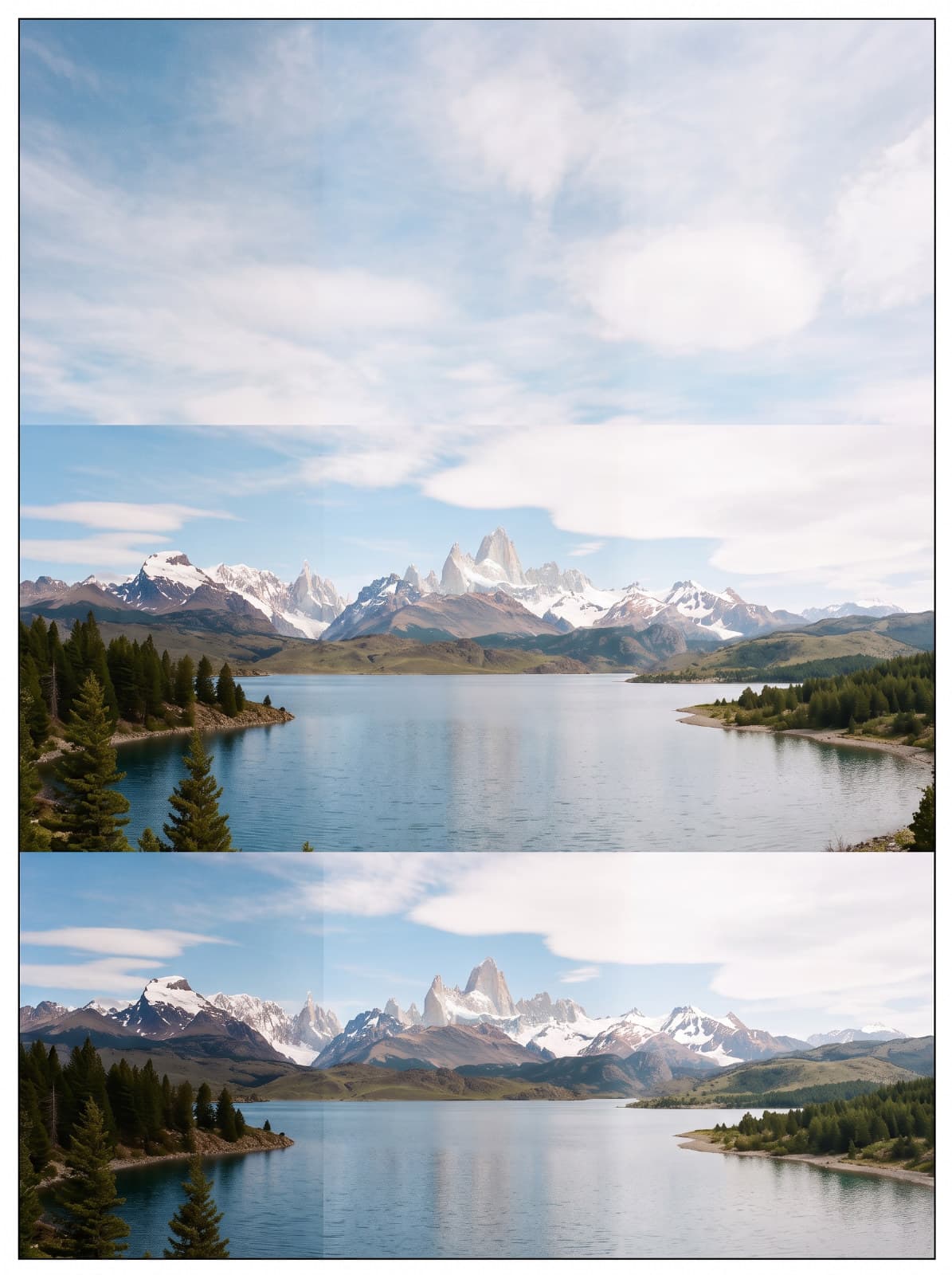
Panorama Fix
Hide seams, even out exposure and fill empty edges in a stitched panorama.
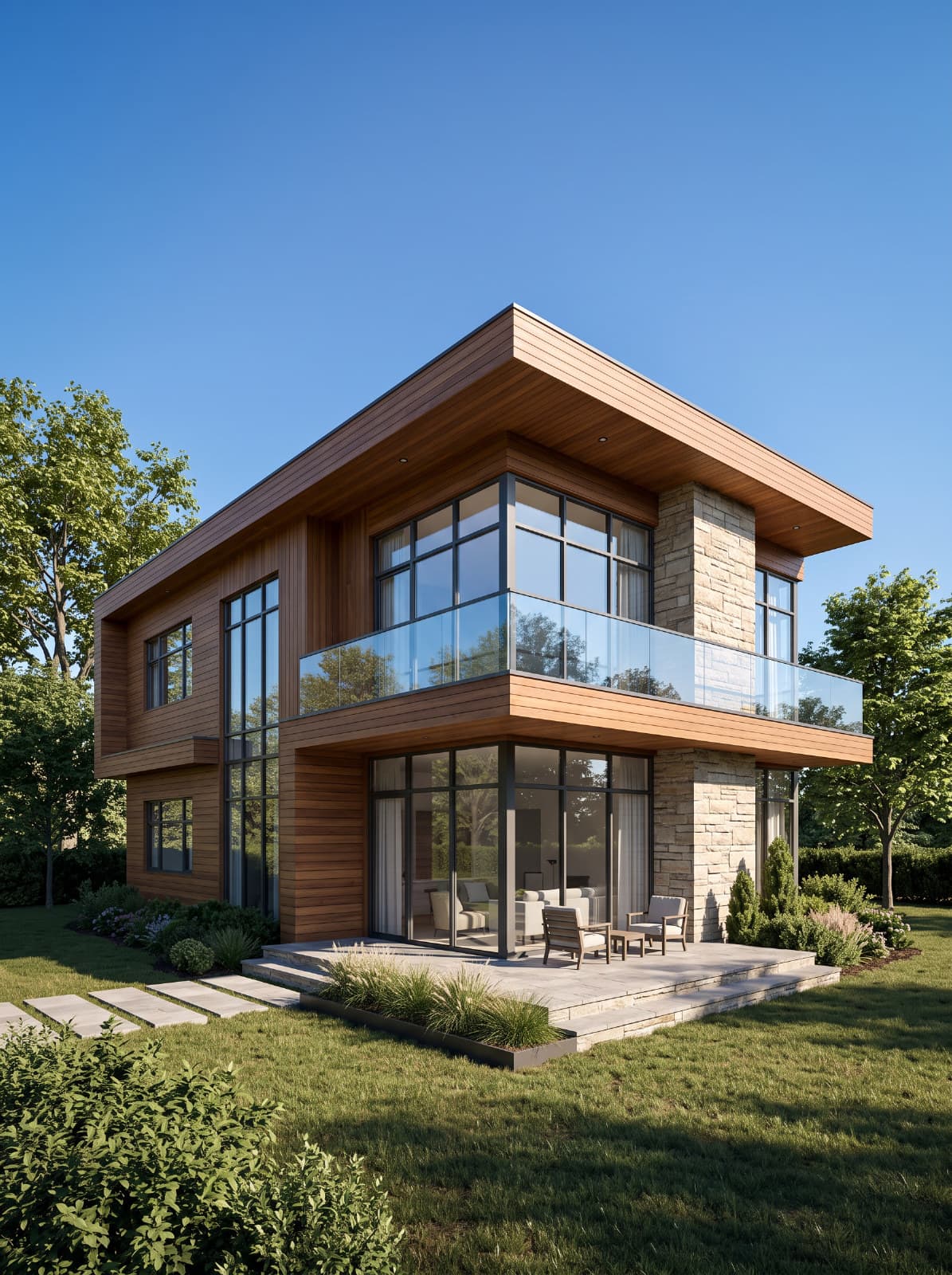
Sketch to Render
Turn an architectural sketch into a realistic render.
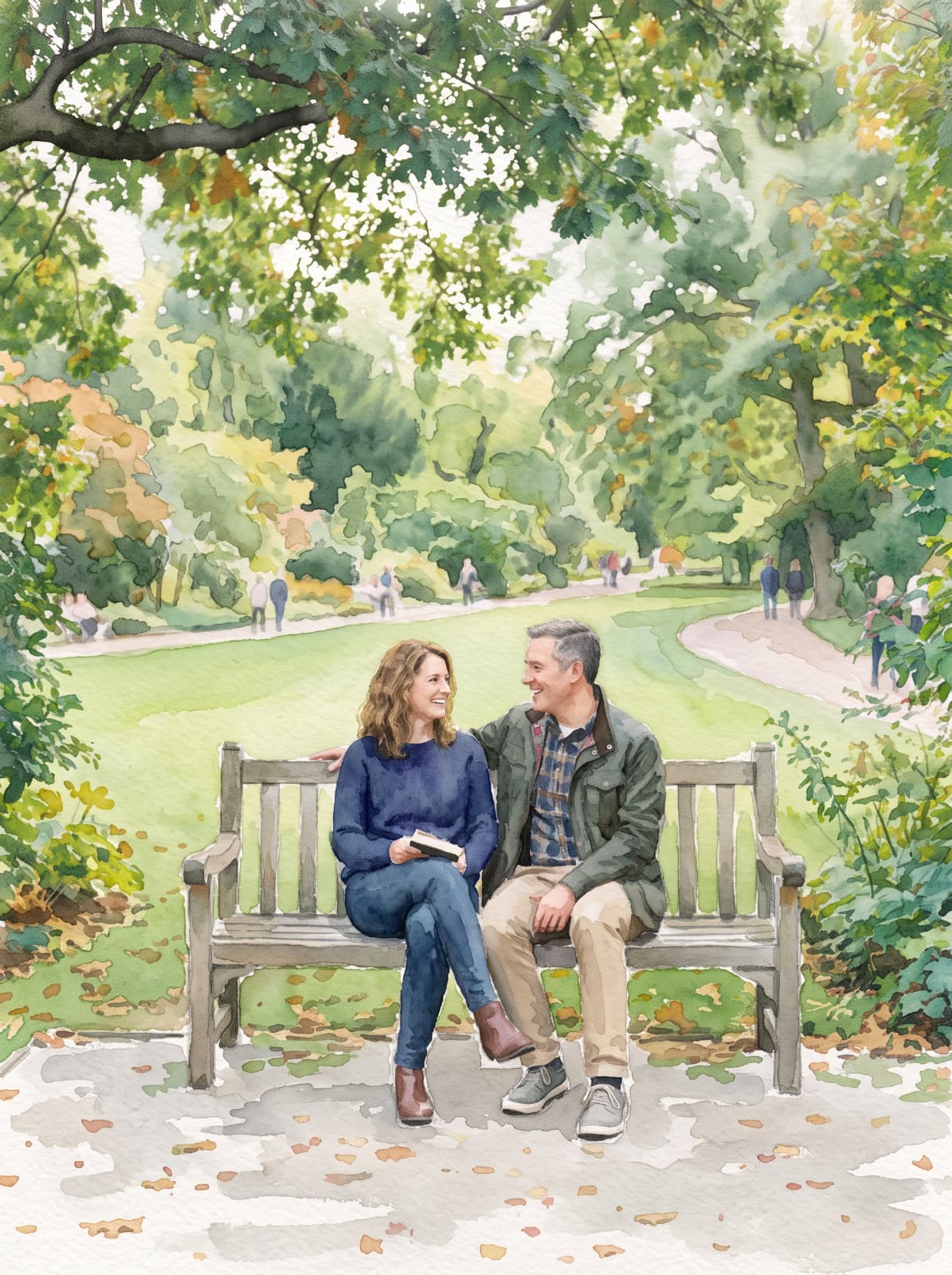
Art Style
Redraw a photo as a watercolor, oil painting, sketch and more.
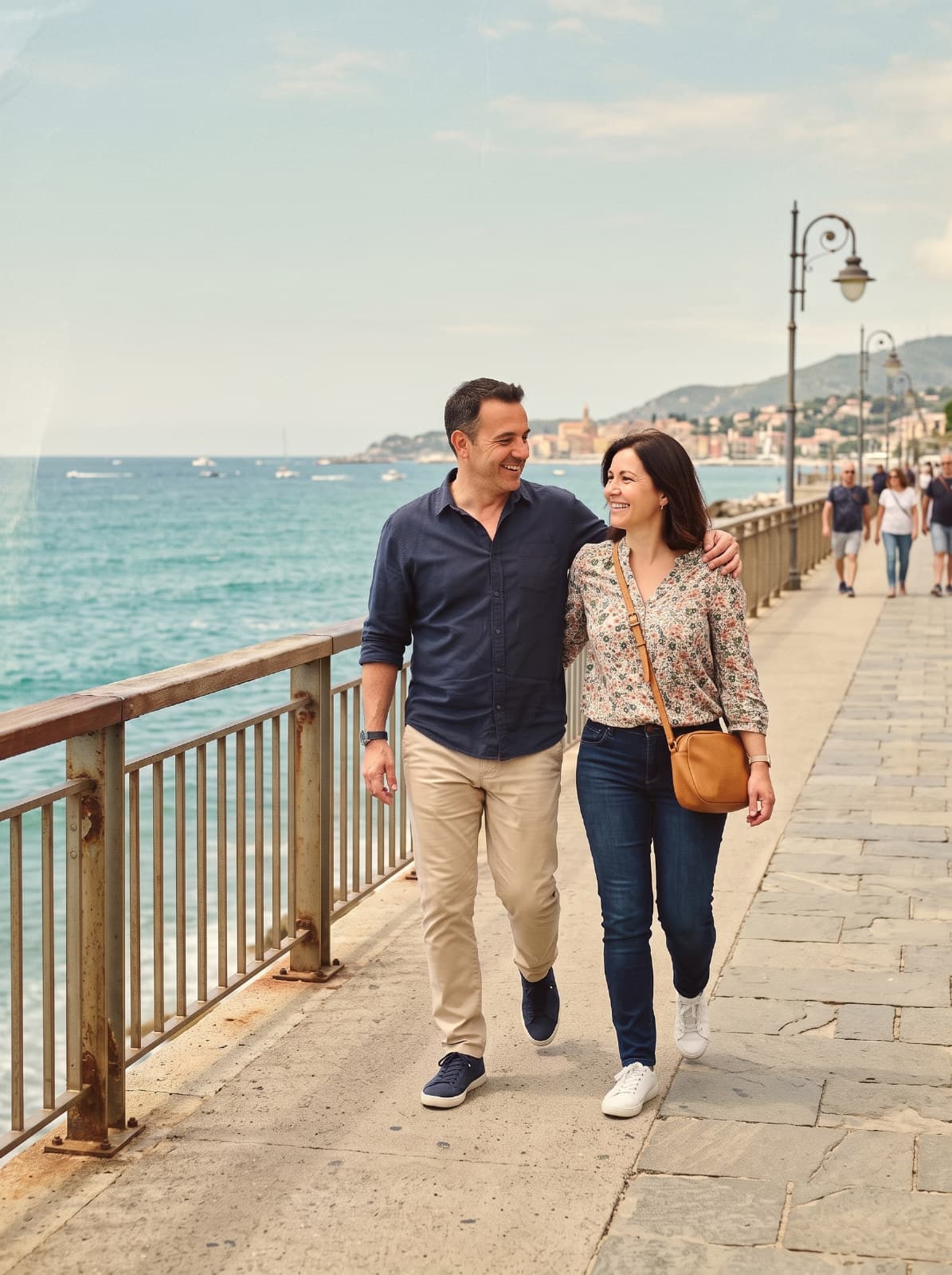
Vintage Film
Give a photo the look of old film, from the 70s to instant prints.
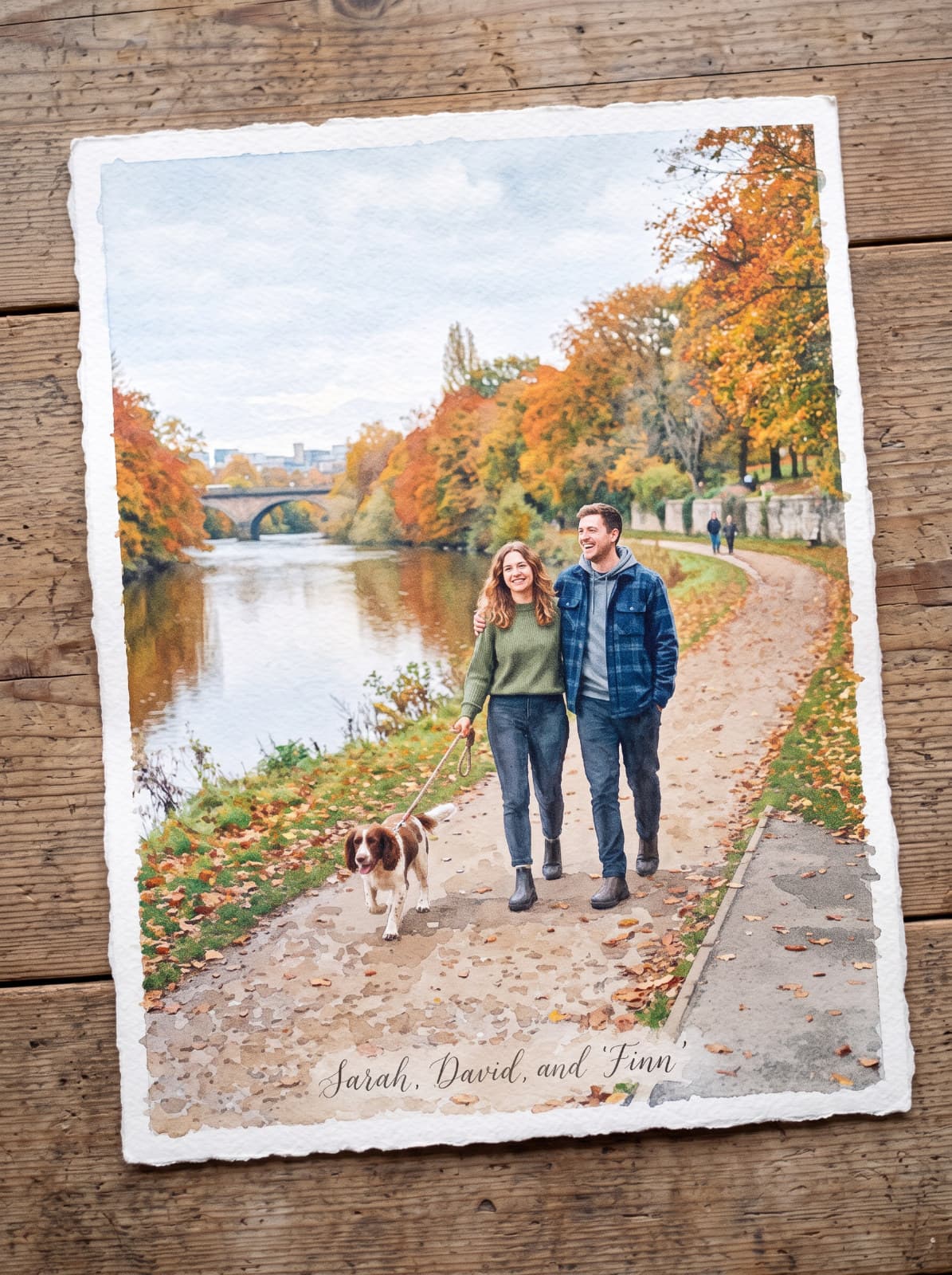
Style Match
Redraw your photo in the style of a reference image you pick.

Photo to Figurine
Turn a person or pet into a collectible figure, toy or plush.
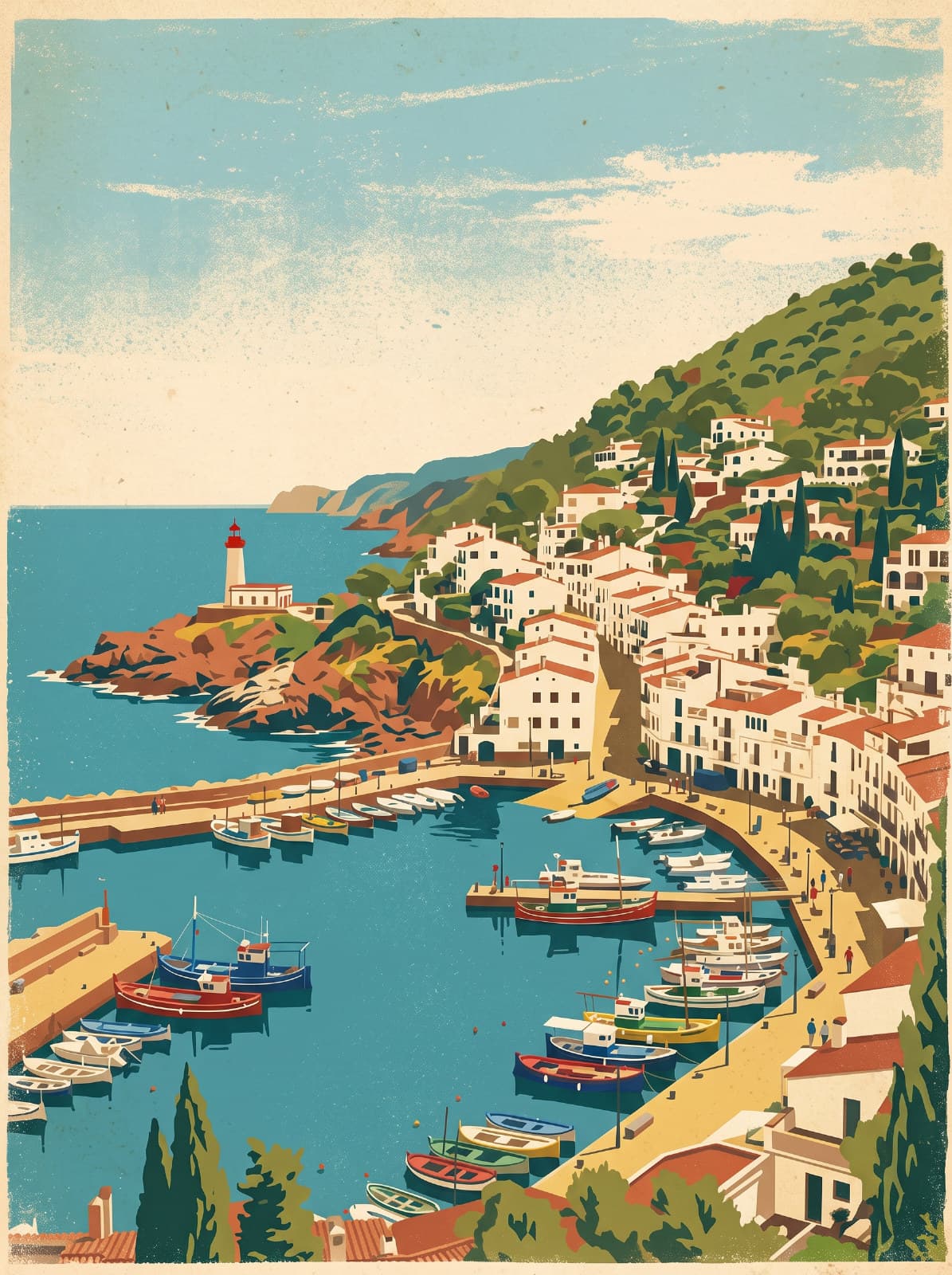
Poster Style
Redraw a photo as a printed poster - vintage travel, art deco, screen print and more.
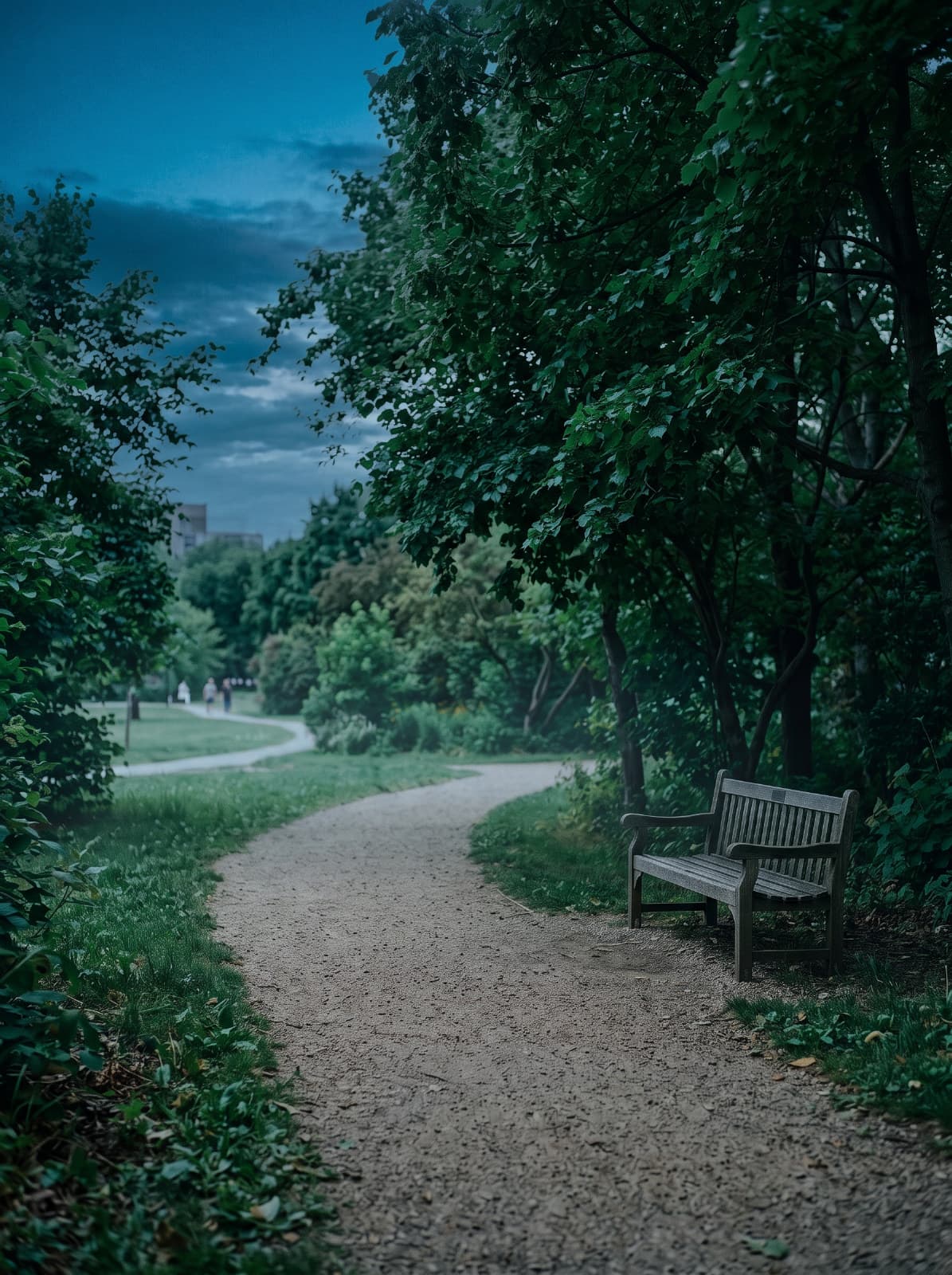
Match Look
Give your photo the colours and tone of another photo, and nothing else.
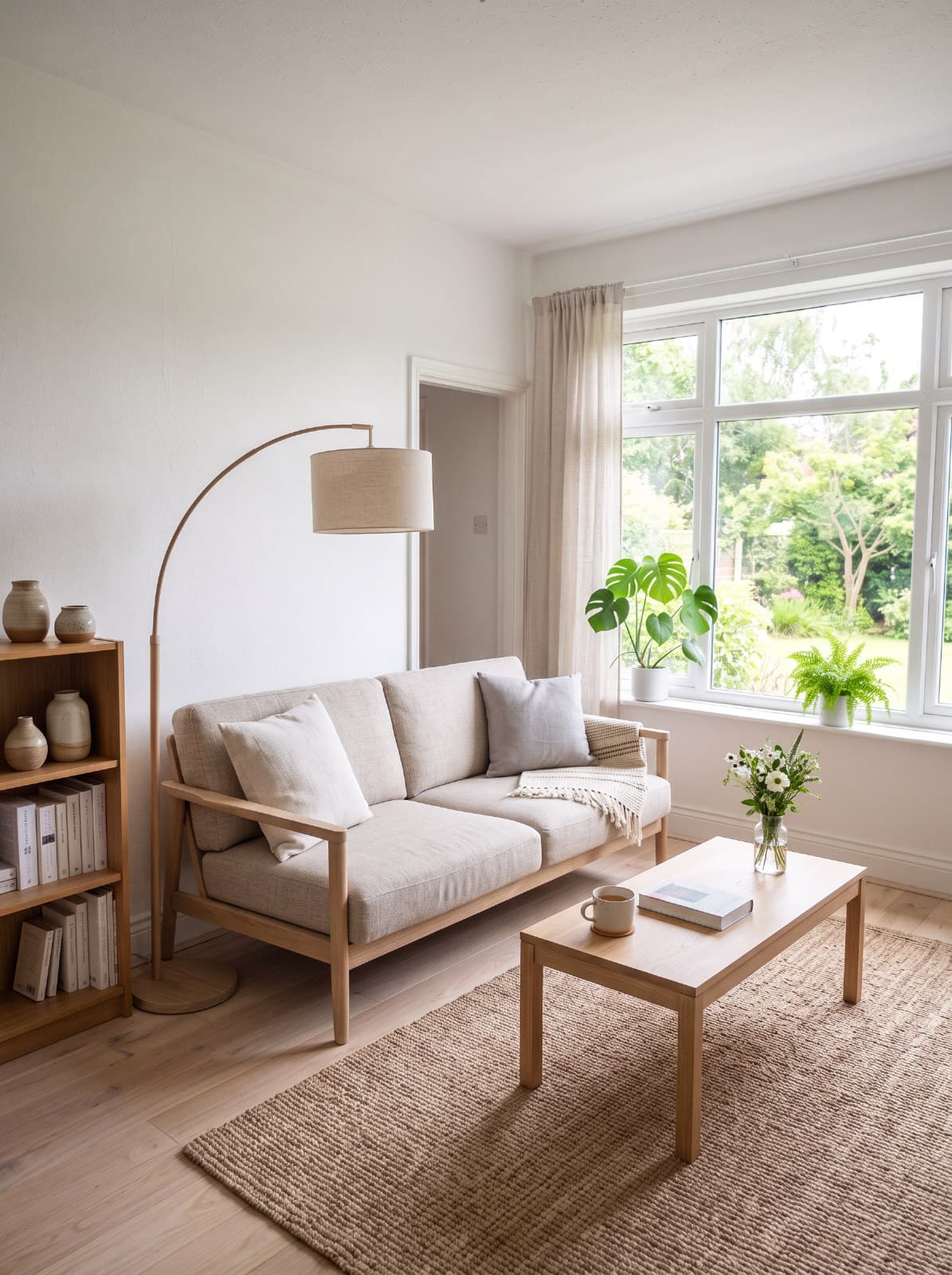
Interior Restyle
Restyle a room while keeping its layout, walls and windows.
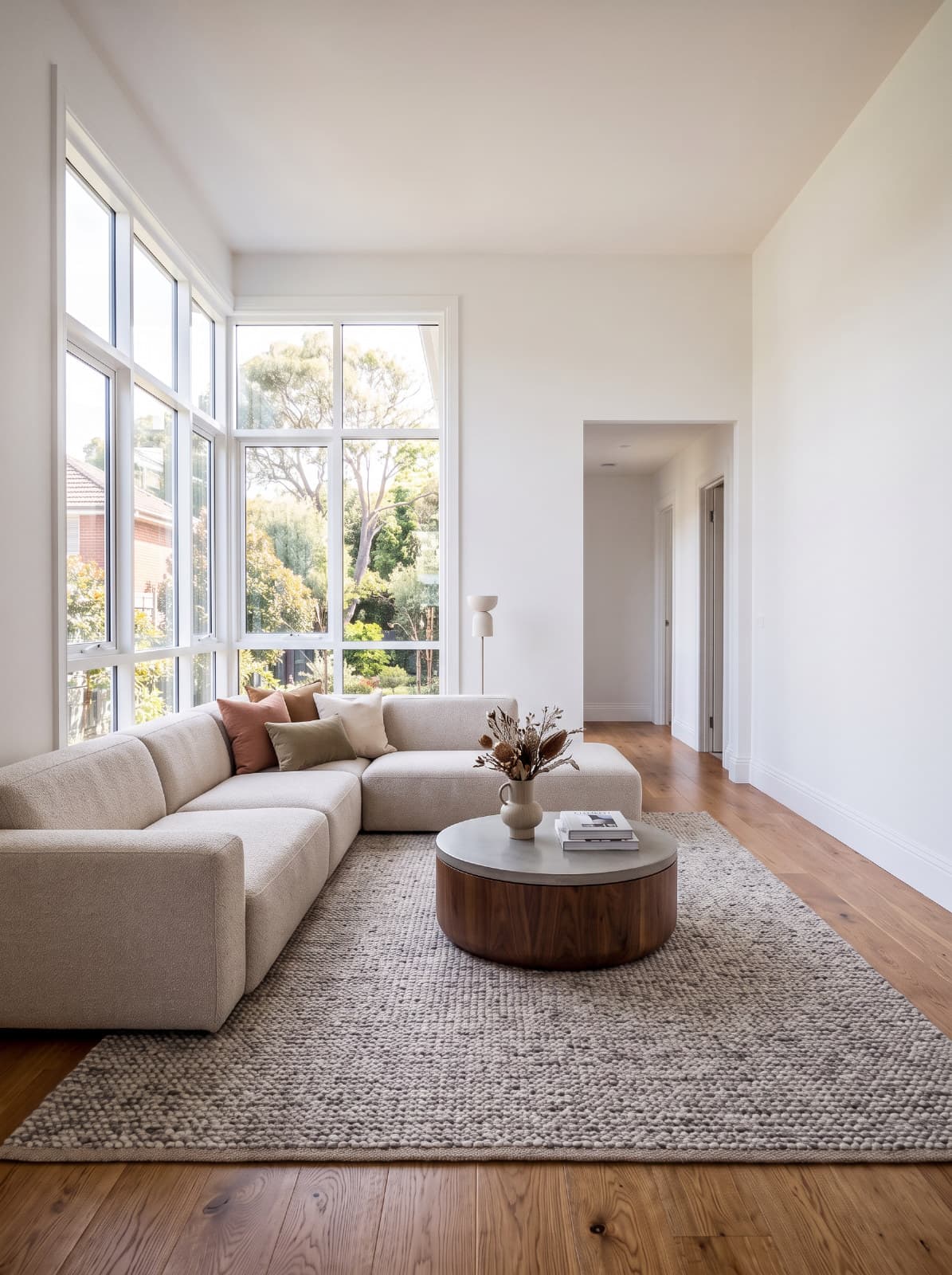
Room Staging
Furnish an empty room in the style you choose.
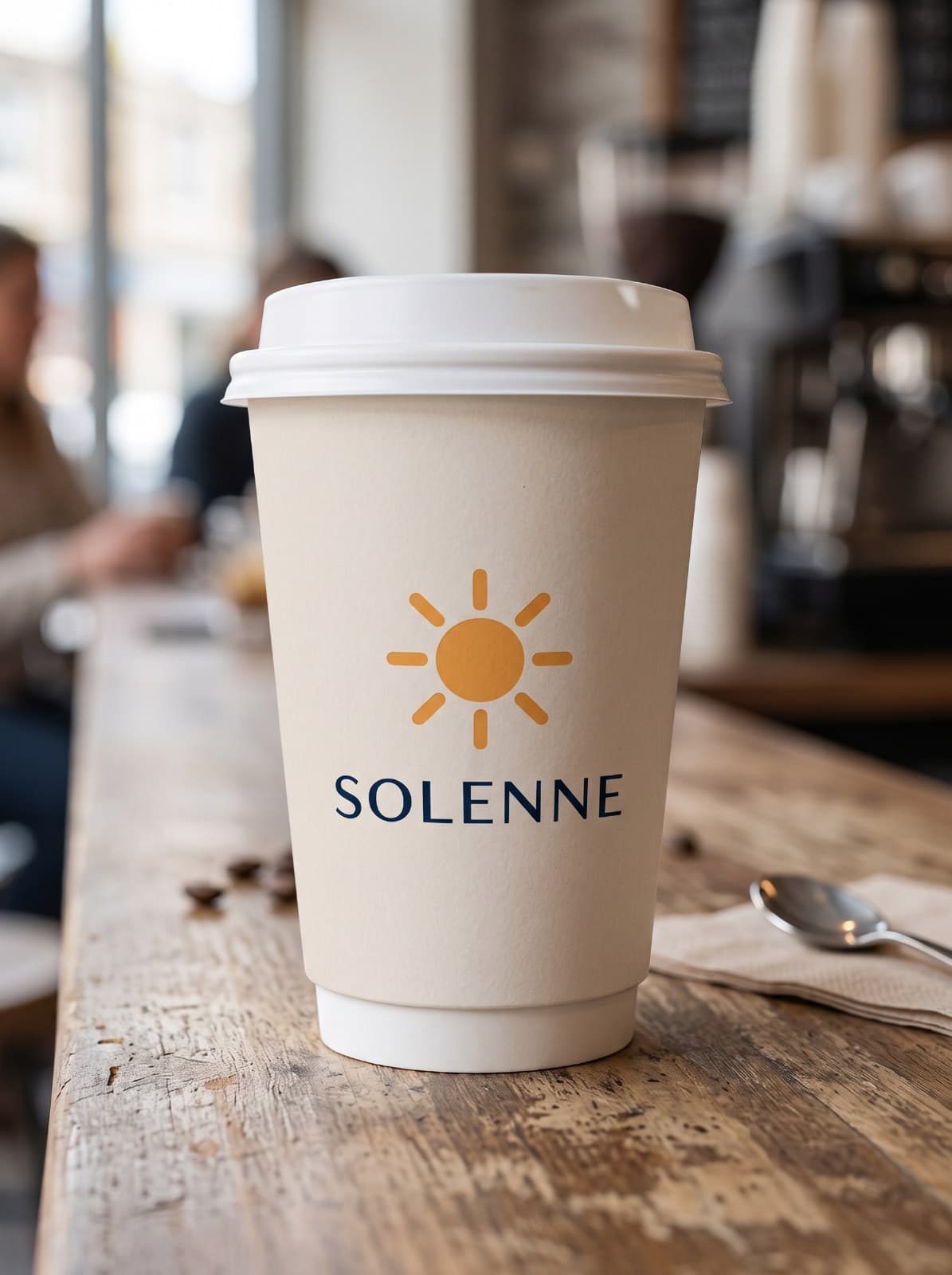
Packaging Mockup
Put your artwork or logo on a box, cup, can, bag or shirt.
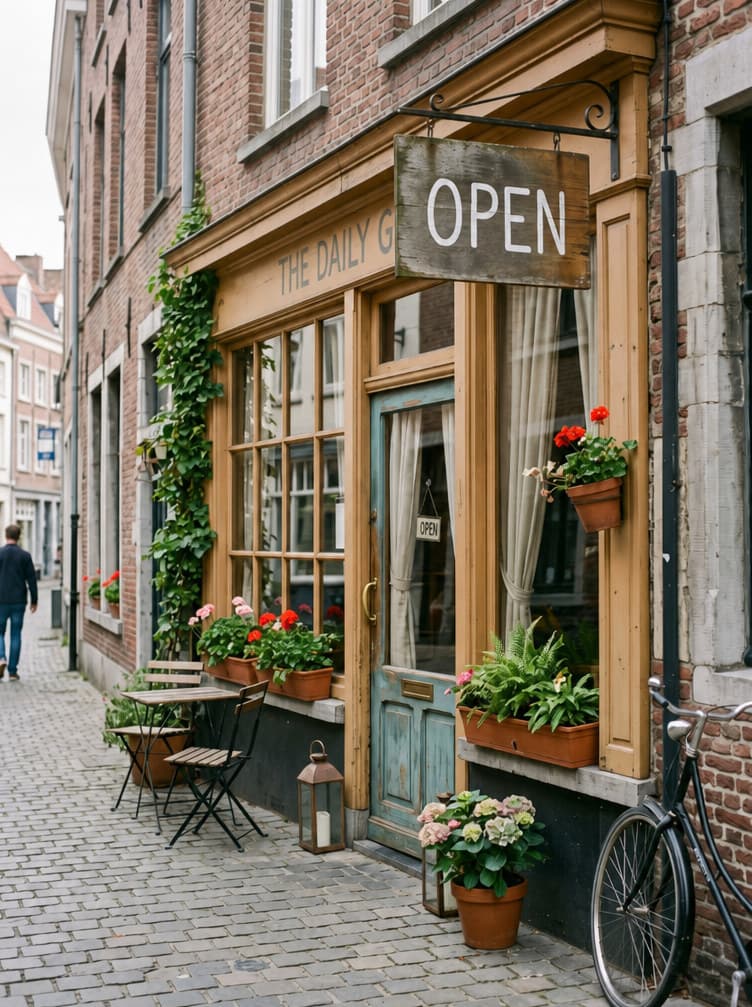
Change Text
Change the words on a sign, label or poster in your photo.
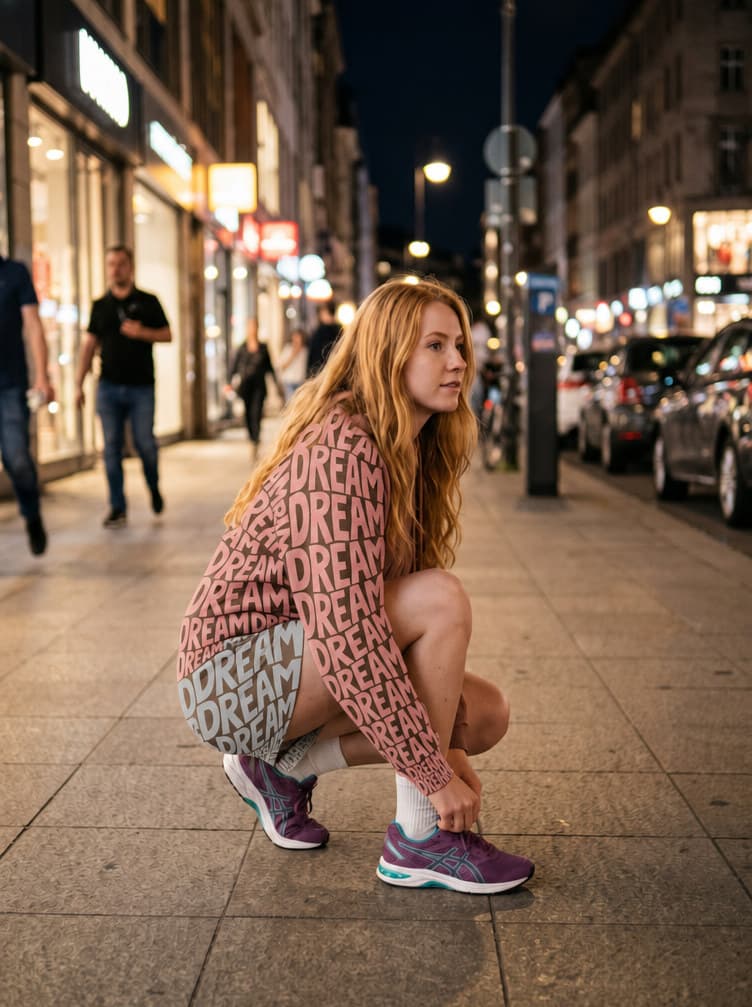
Text Outfit
Rebuild the clothes out of your own word, with the scene showing through the letters.
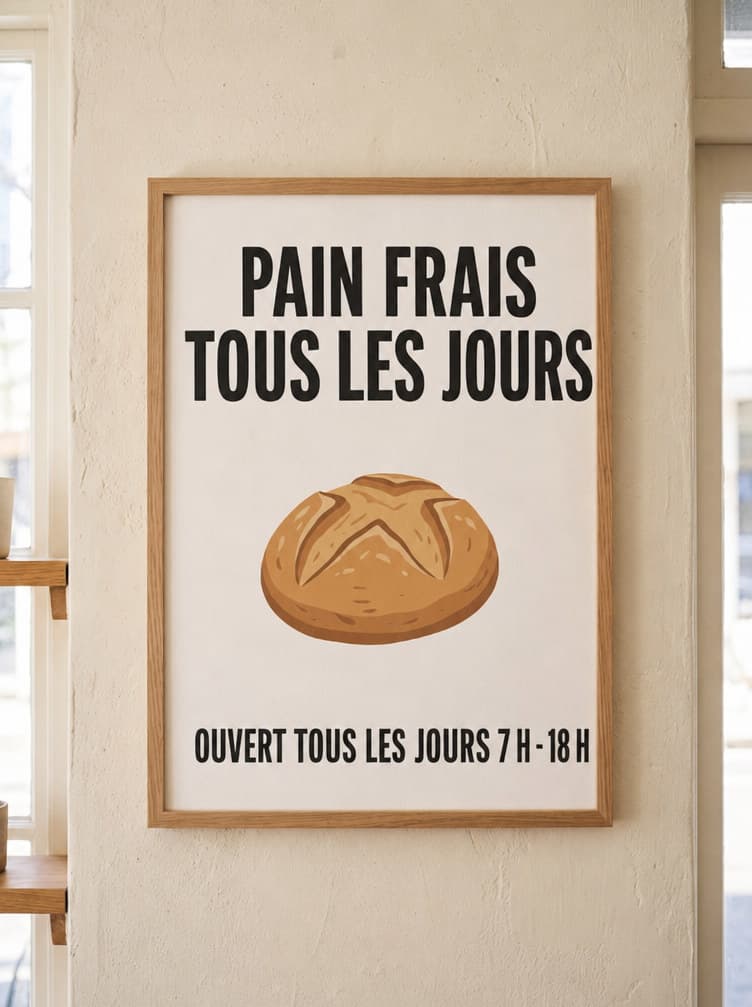
Translate Text
Translate the words in a poster, menu or sign into another language, keeping the layout.
Edit a photo
A tool for every job.
Weather, light, restoration, products, rooms, style - each tool knows one job and does it well.
- 1
Pick a tool
Browse by category or search. Every card shows the before and after.
- 2
Drop a photo
Drag a photo onto the tool, or choose one. It opens as its own document.
- 3
Choose a preset, press Generate
Presets and a few fields shape the edit. Nothing runs until you press Generate.
Your original stays. The result is added as a new layer above it - hide it, mask it, or undo in one step.
Create from prompt
Start from a picture that already works.
Pick a finished idea, then make it yours.
- 1
Pick an idea
Posters, social posts, logos, product shots and more.
- 2
Change a few words
Swap the headline, the colour or the photo. No prompt writing needed - or edit it as text if you want to.
- 3
Generate, then design
Add the result to the canvas and keep going with layers, type and templates.
- Posters & type
- Social posts
- Product shots
- Logos & icons
- Illustration
- Photography
- Characters
- Backgrounds
- Infographics
Or write your own.
The AI Generator makes images, photos, illustrations, transparent objects and stickers. Pick from a choice of image models - the credit price is on each one - and every result you paid for stays in the panel until you're done.
- Image
- Photo
- Illustration
- Transparent object
- Sticker
AI Creative Workspace
AI Studio is the front door. The AI goes all the way through.
- On-device
Relight & depth
Move the light, blur the background or add haze - Peakloom reads the scene in 3D on your machine.
- On-device
Object Eraser
Brush over a distraction and the scene is rebuilt behind it.
- On-device
Remove Background
One pass finds the subject and leaves a clean transparent layer.
- Cloud
Generative Fill & Expand
Paint in things that were never there, or stretch the canvas past the frame.
- On-device + cloud
Restore & Super Resolution
Repair scratches, restore faded colour and rebuild detail for larger prints.
- On-device + cloud
Magic Layer
Turn a flat image back into layers you can move and edit.
- Your AI agent
AI Connection
Let your own AI agent open, edit and export in Peakloom over MCP.
Questions about AI Studio
Is AI Studio free?
Browsing is free. Generating an edit or an image uses AI credits and needs Pro.
Does it need an internet connection?
Generating does - AI Studio runs in the cloud. Peakloom's on-device AI and editing tools work offline.
What happens to my photo?
Only the photo, reference or prompt the edit needs is sent, encrypted. It's used for your request, deleted after processing, and never used to train AI models.
Can I edit the result?
Yes. Edits land as a new layer above your original, and created images go onto a normal canvas with layers, text and masks.
How often do new tools arrive?
Regularly. Tools and ideas are added by the Peakloom team and show up without updating the app.
Bring a photo. Leave with a design.
AI Studio is in Peakloom for Mac and Windows. Download it free and open AI Studio from the sidebar.
Version 1.0.327 · 83.0 MB