AI Studio
Chọn công cụ. Thả ảnh vào. Giữ nguyên từng layer.
Hai lối vào AI của Peakloom. Chỉnh ảnh bằng một công cụ chuyên cho đúng một việc, hoặc bắt đầu từ một ý tưởng hoàn chỉnh rồi đổi vài chữ. Cách nào thì kết quả cũng nằm trên canvas thật để bạn chỉnh tiếp.
Phiên bản 1.0.327 · 83.0 MB
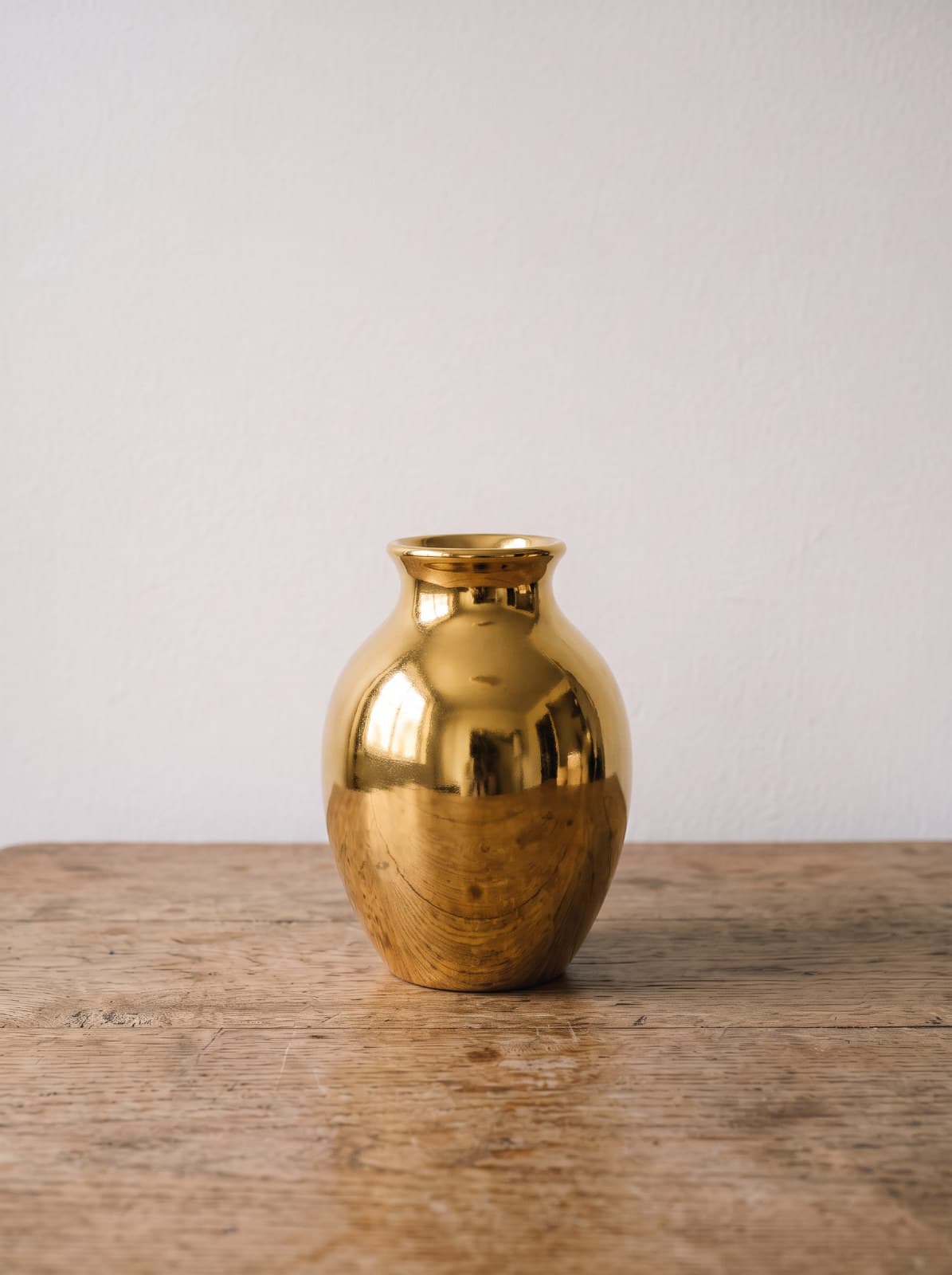
Change Material
Remake an object in glass, gold, marble, wood or chrome.
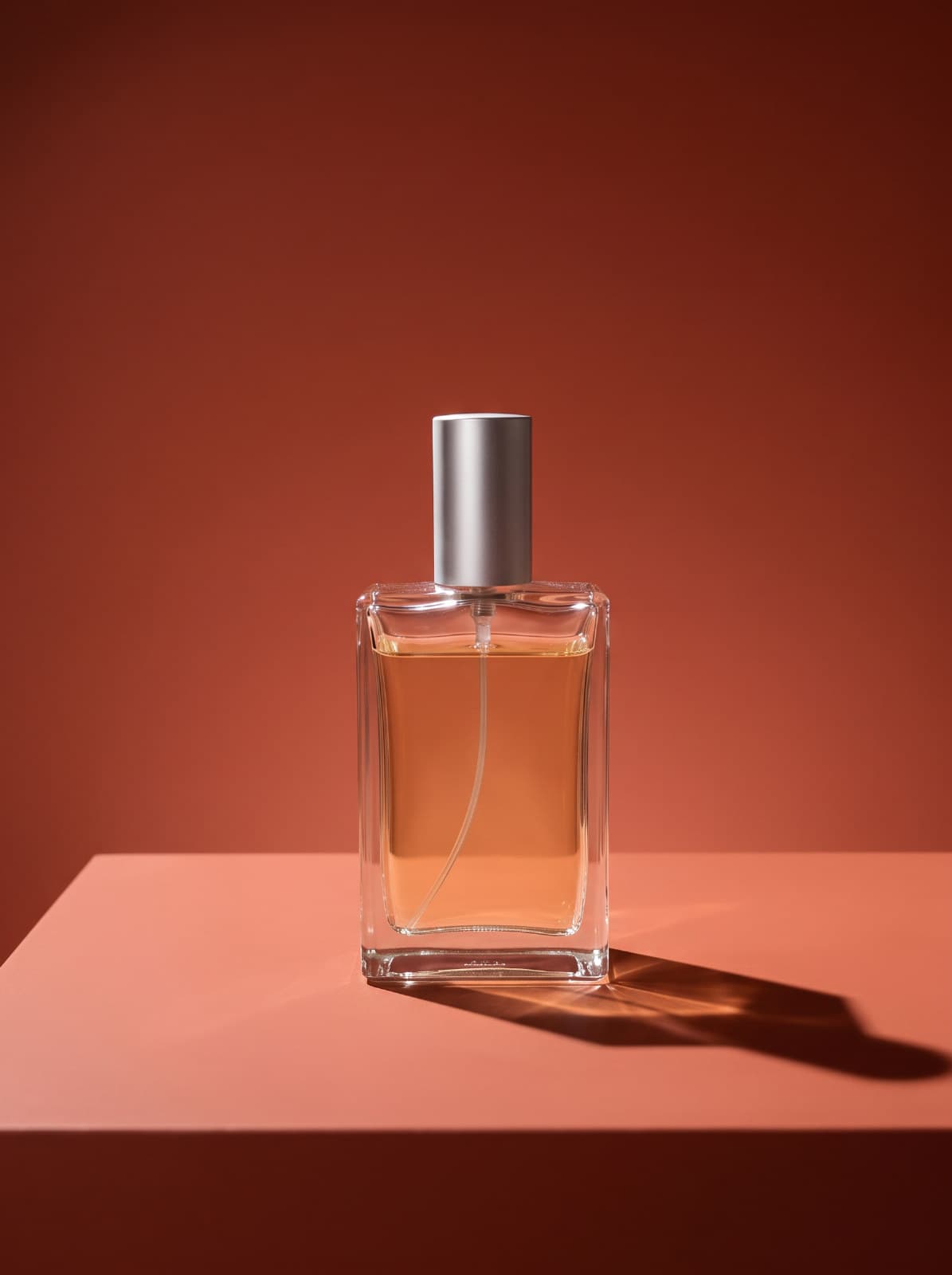
Studio Product Shot
Relight a product like a studio shoot - softbox, hard light or reflection.
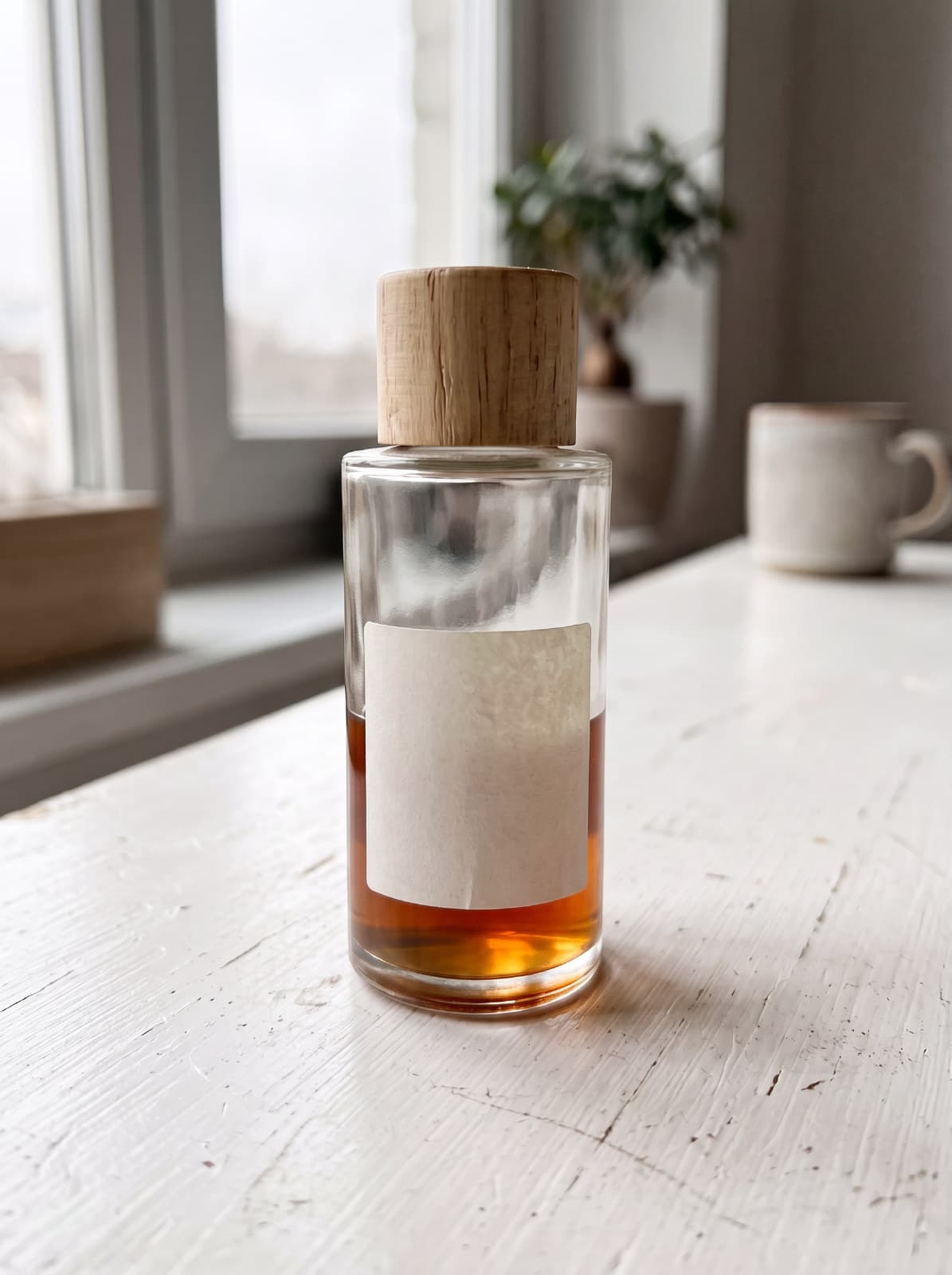
Product Enhancer
Clean up a product photo and make its details crisp.
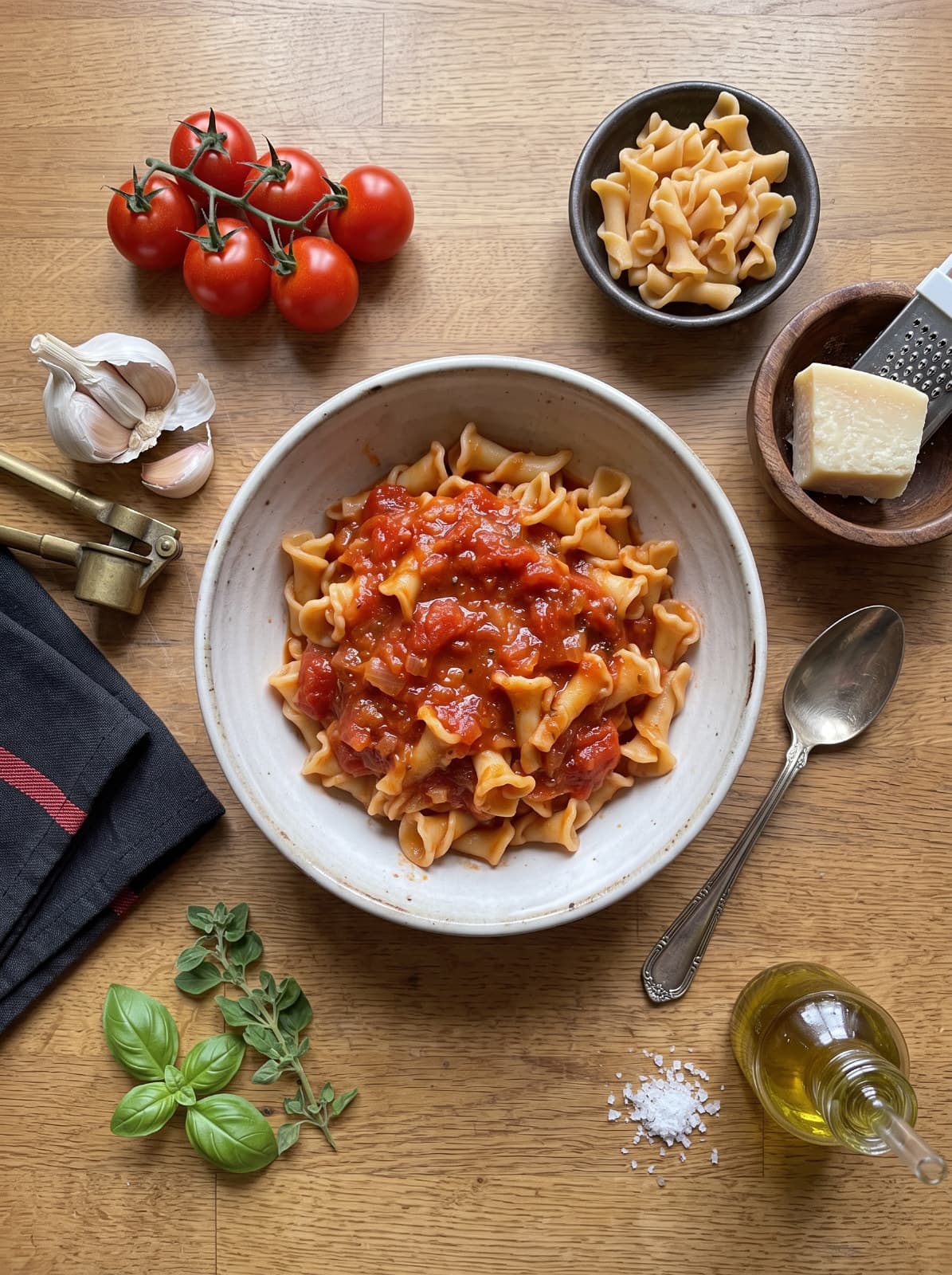
Food Styling
Style a food photo like a restaurant or cookbook shot.
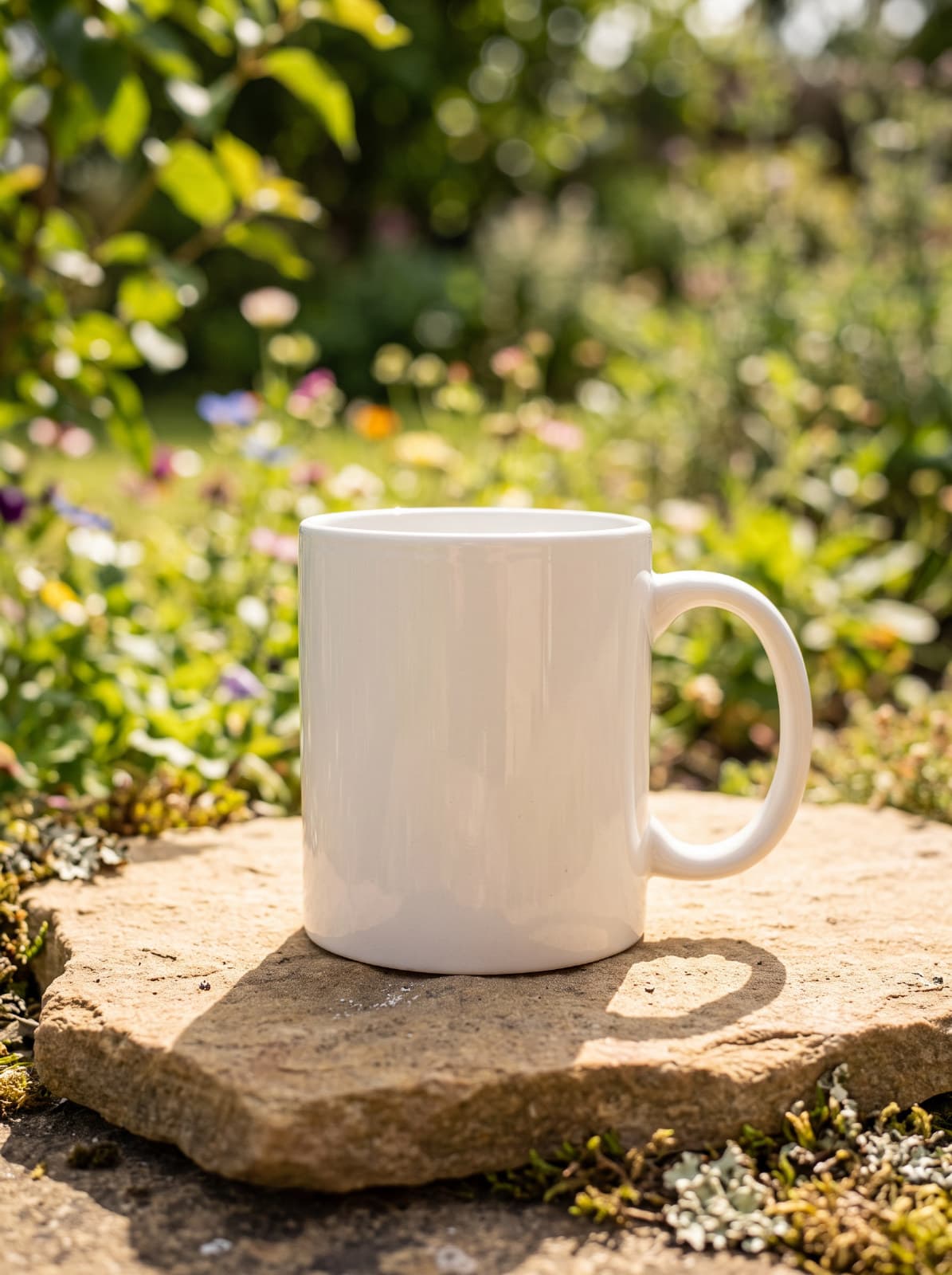
Product Background
Put a product on marble, wood, a pastel set or outdoors.
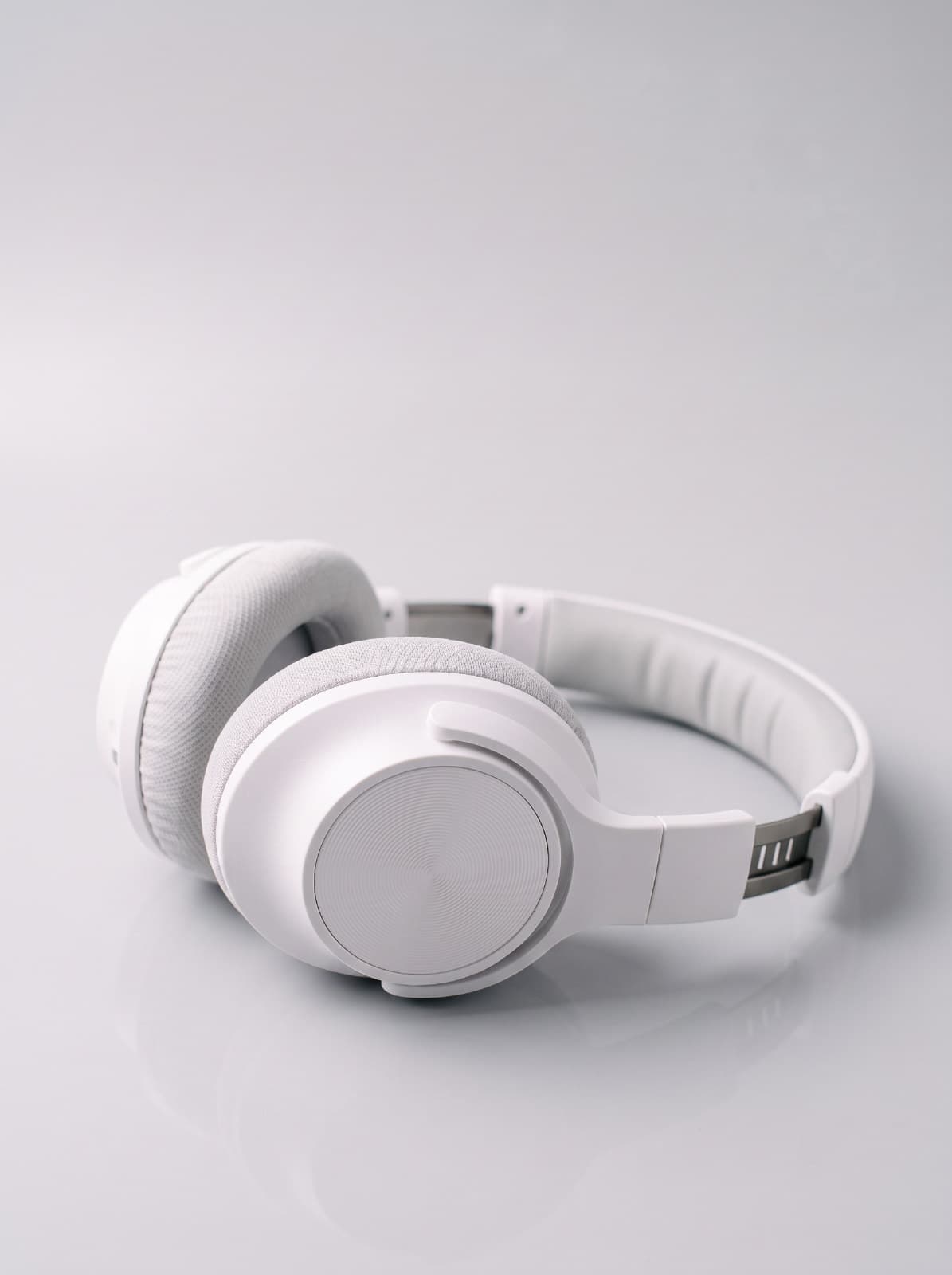
Recolor Product
Show a product in another color, keeping every reflection, shadow and angle from the shoot.
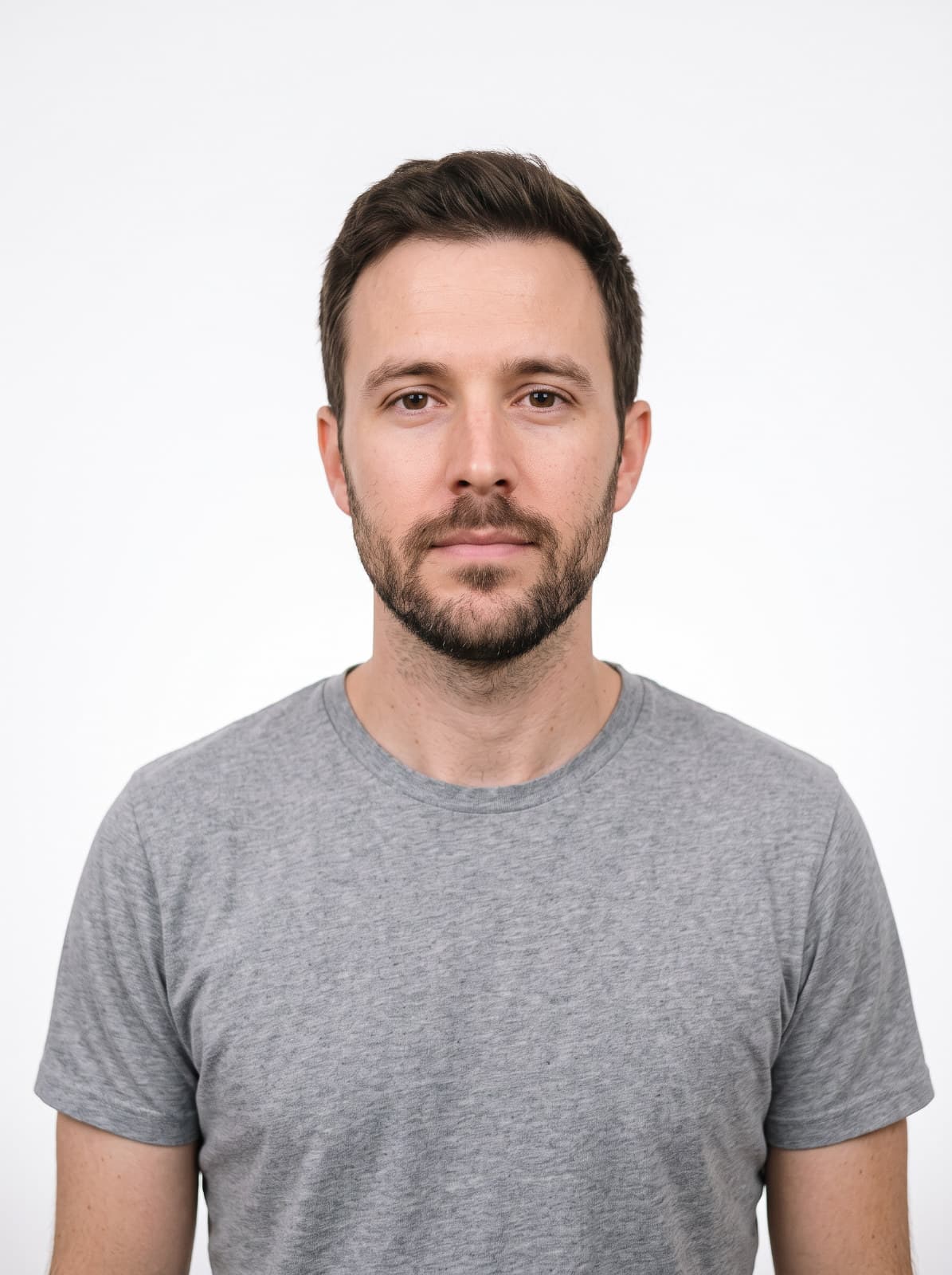
ID Photo
Turn a portrait into a clean, front-facing ID-style photo.
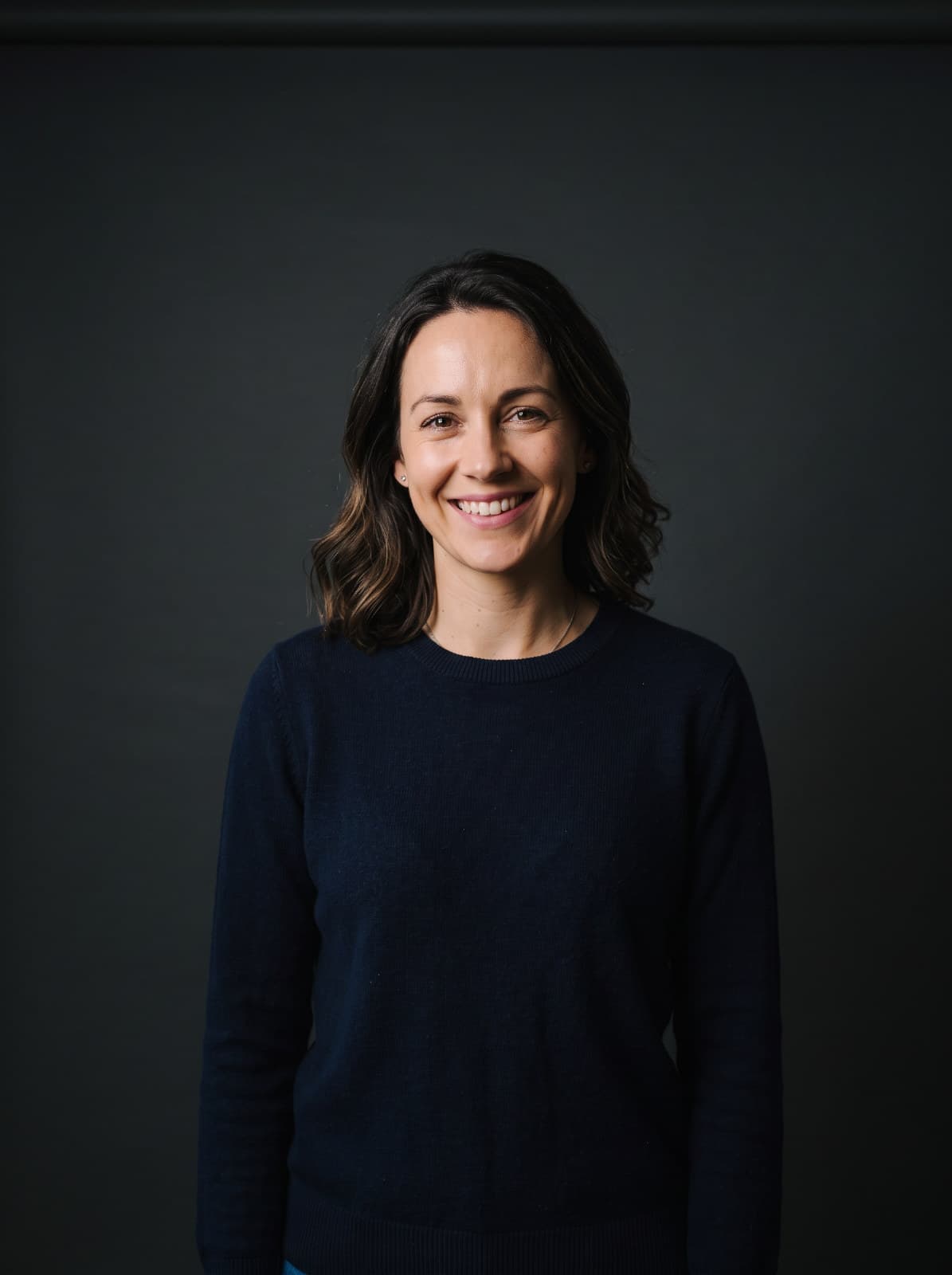
Portrait Studio
Move the person into a new setting, from a clean studio to a city or a meadow.
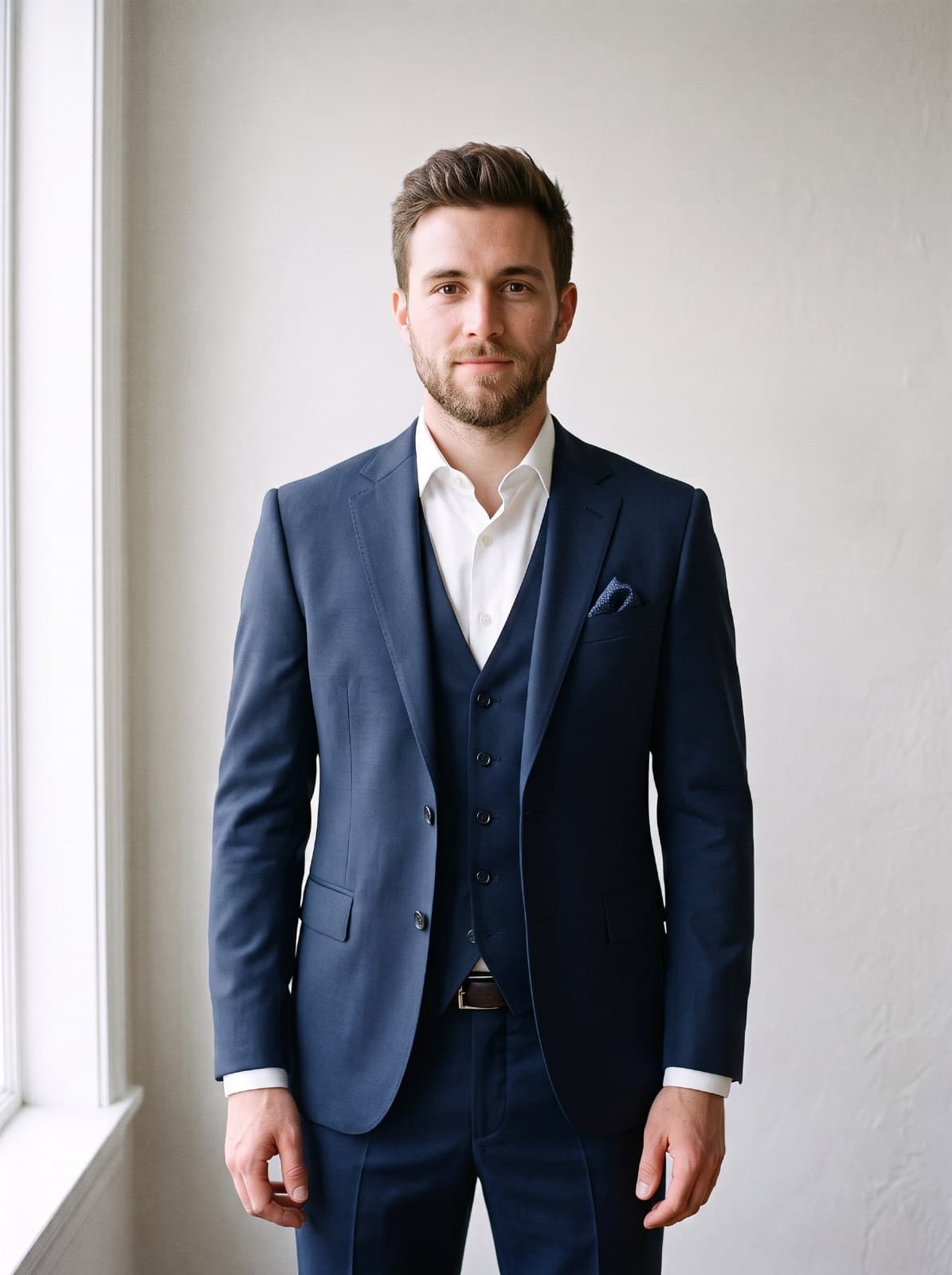
Outfit Change
Dress the person in a new outfit in the color you choose.
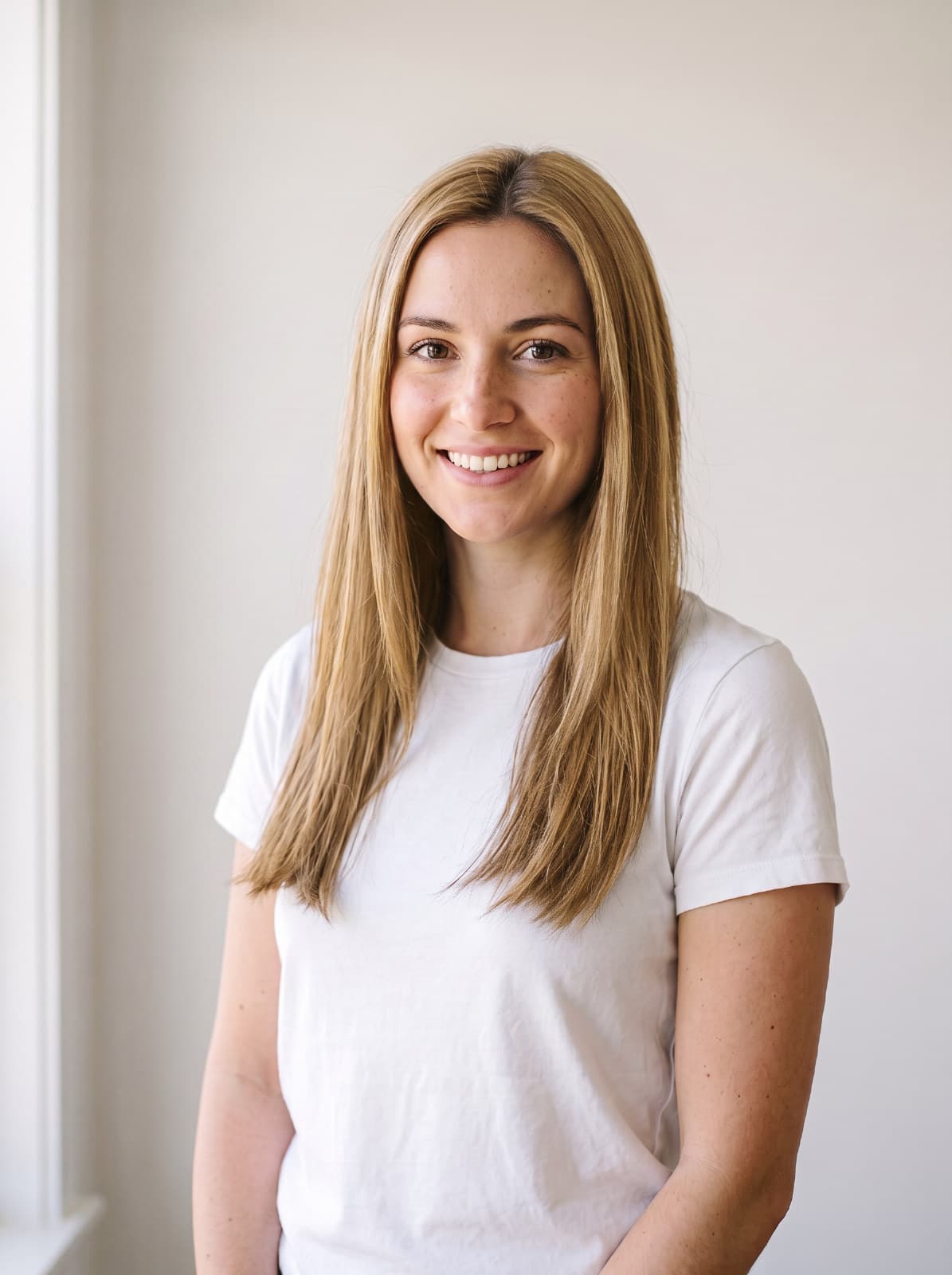
Hair Color
Try a new hair color while keeping the hairstyle.
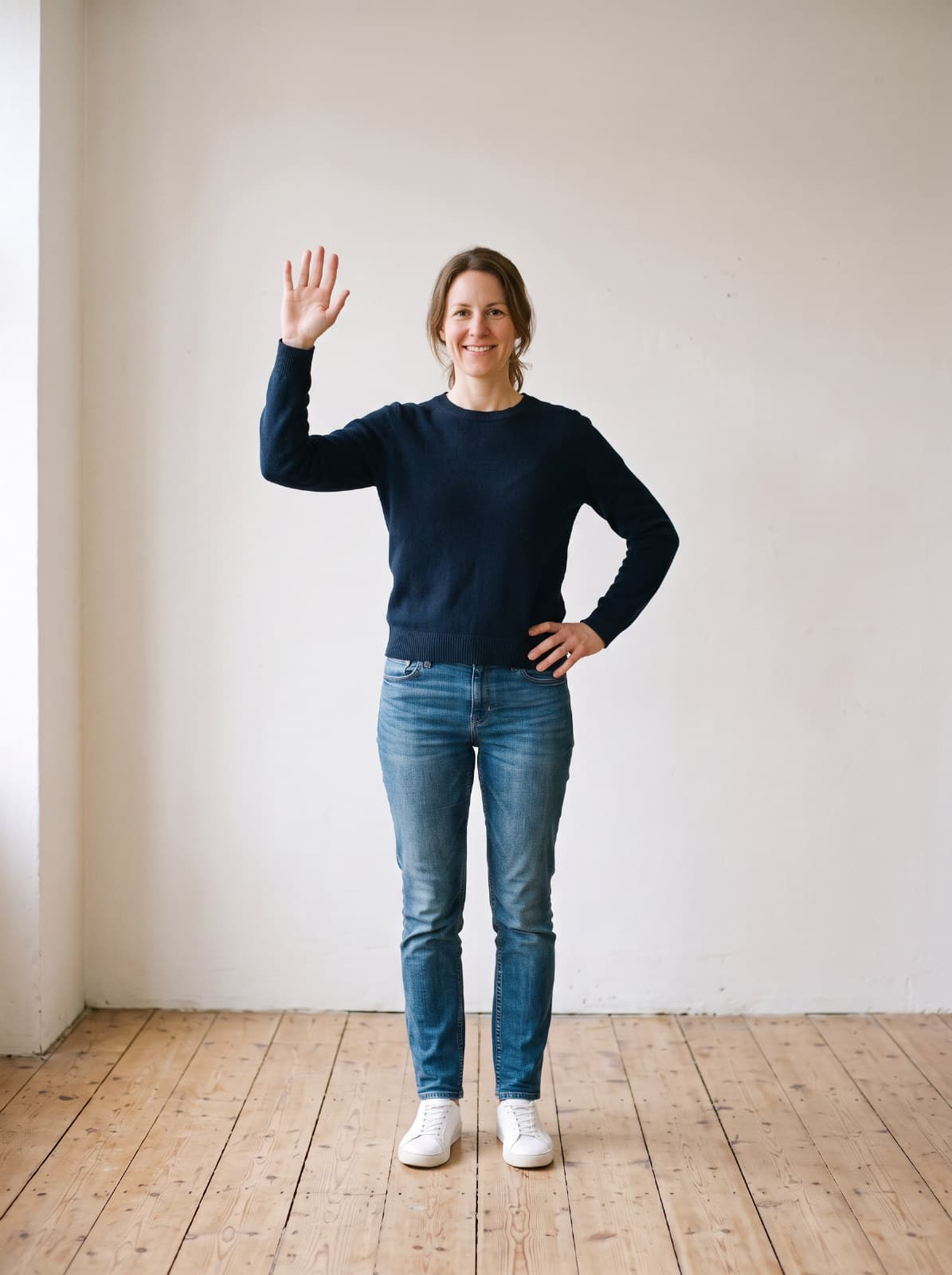
Copy Pose
Match the pose from a reference photo, keeping the person the same.
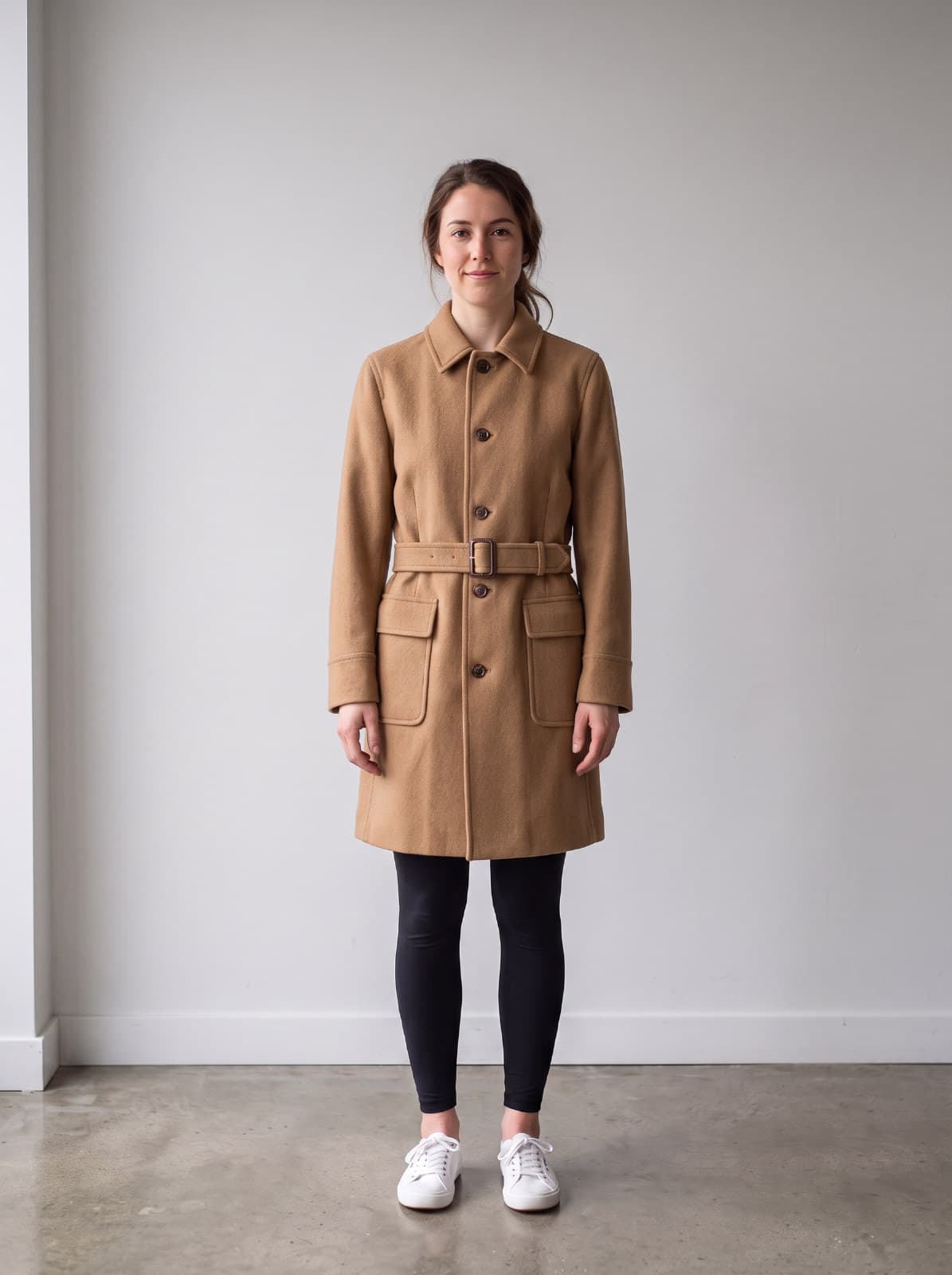
Outfit Try-on
Dress the person in the clothes from a reference photo.
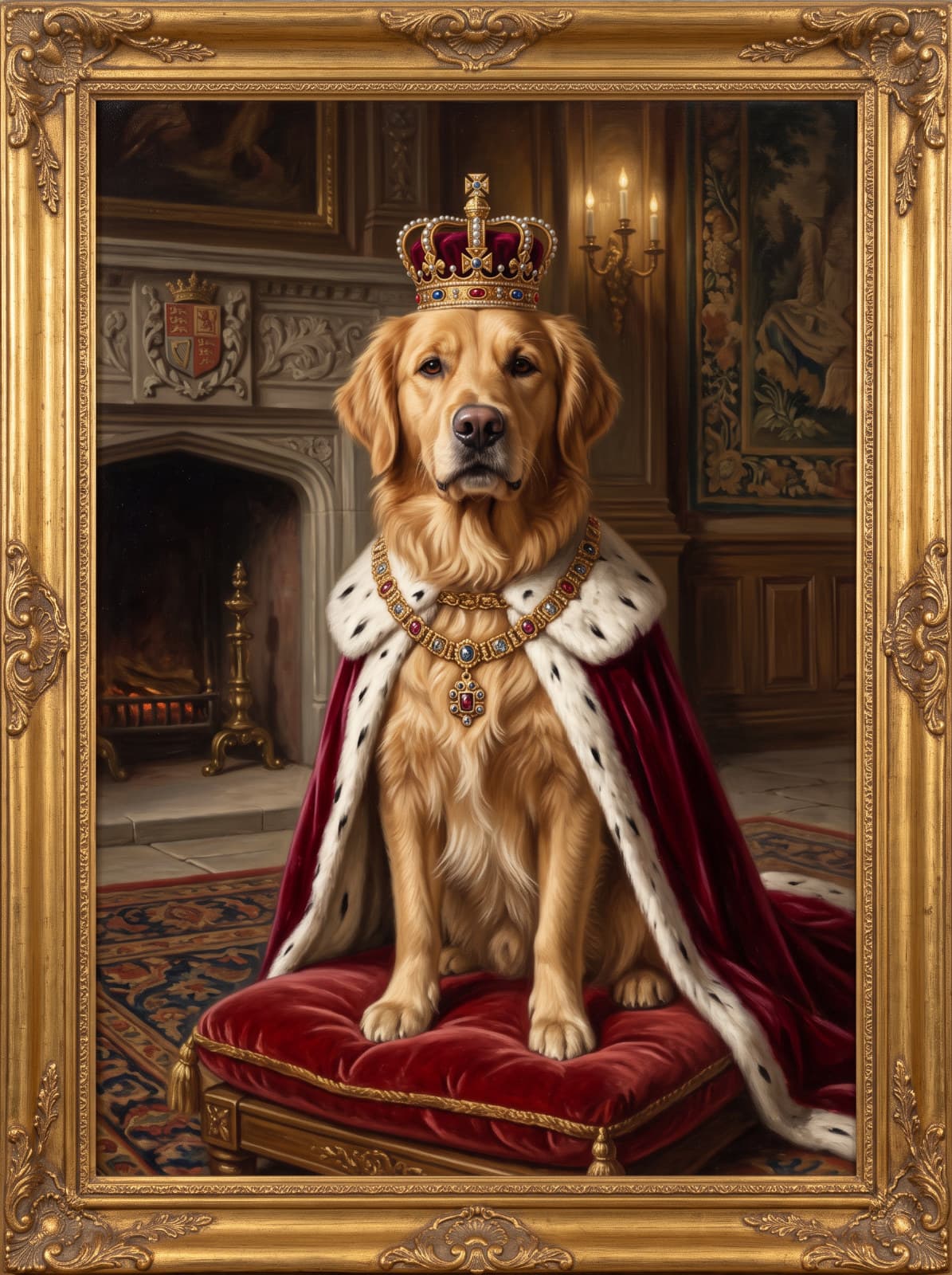
Pet Portrait
Turn a pet photo into a portrait - royal, painted or in costume.
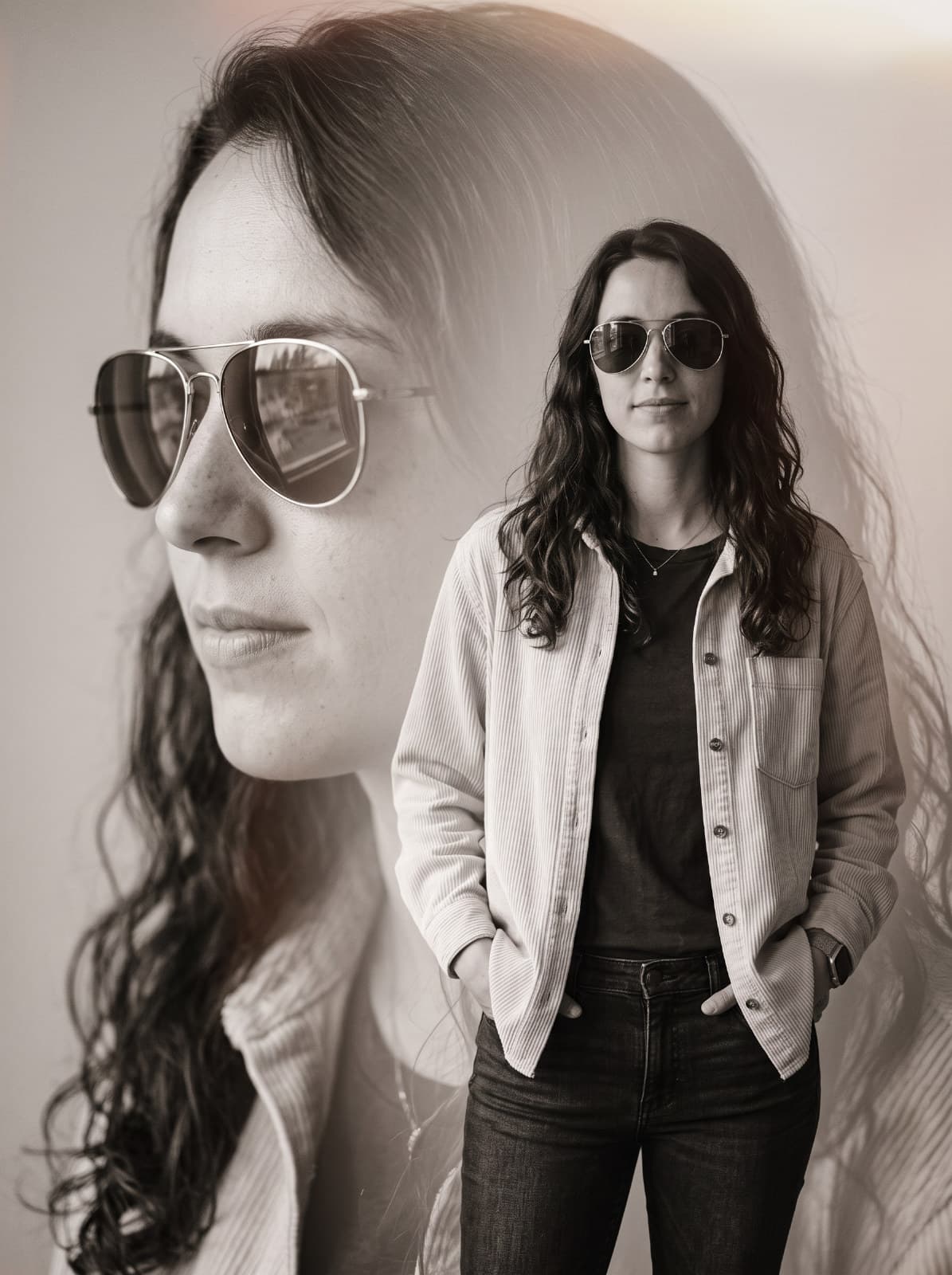
Double Exposure Portrait
Turn a portrait into a cinematic double exposure - a large profile beside the full figure.
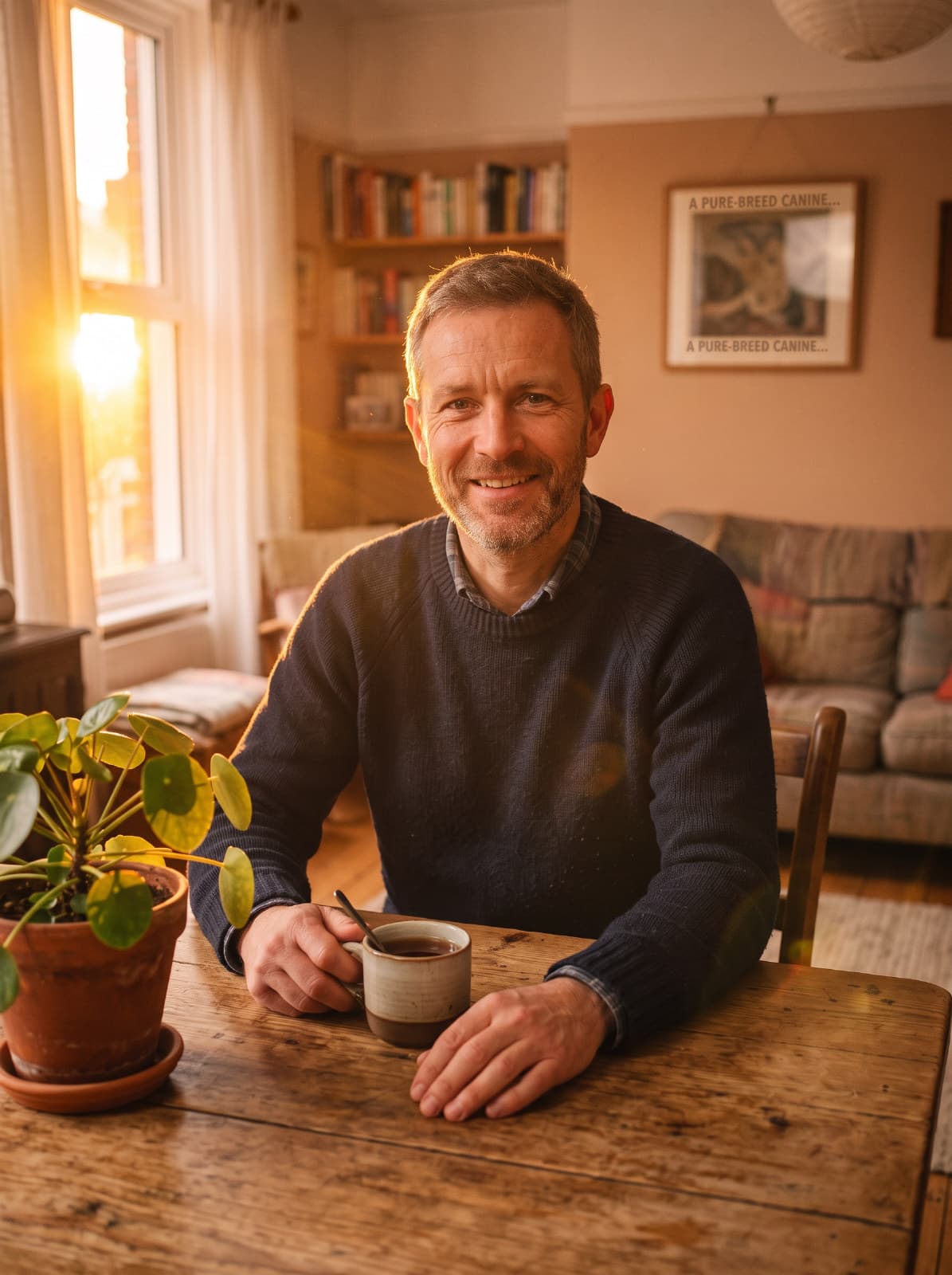
Lighting
Relight a photo with window light, golden hour, neon and more.
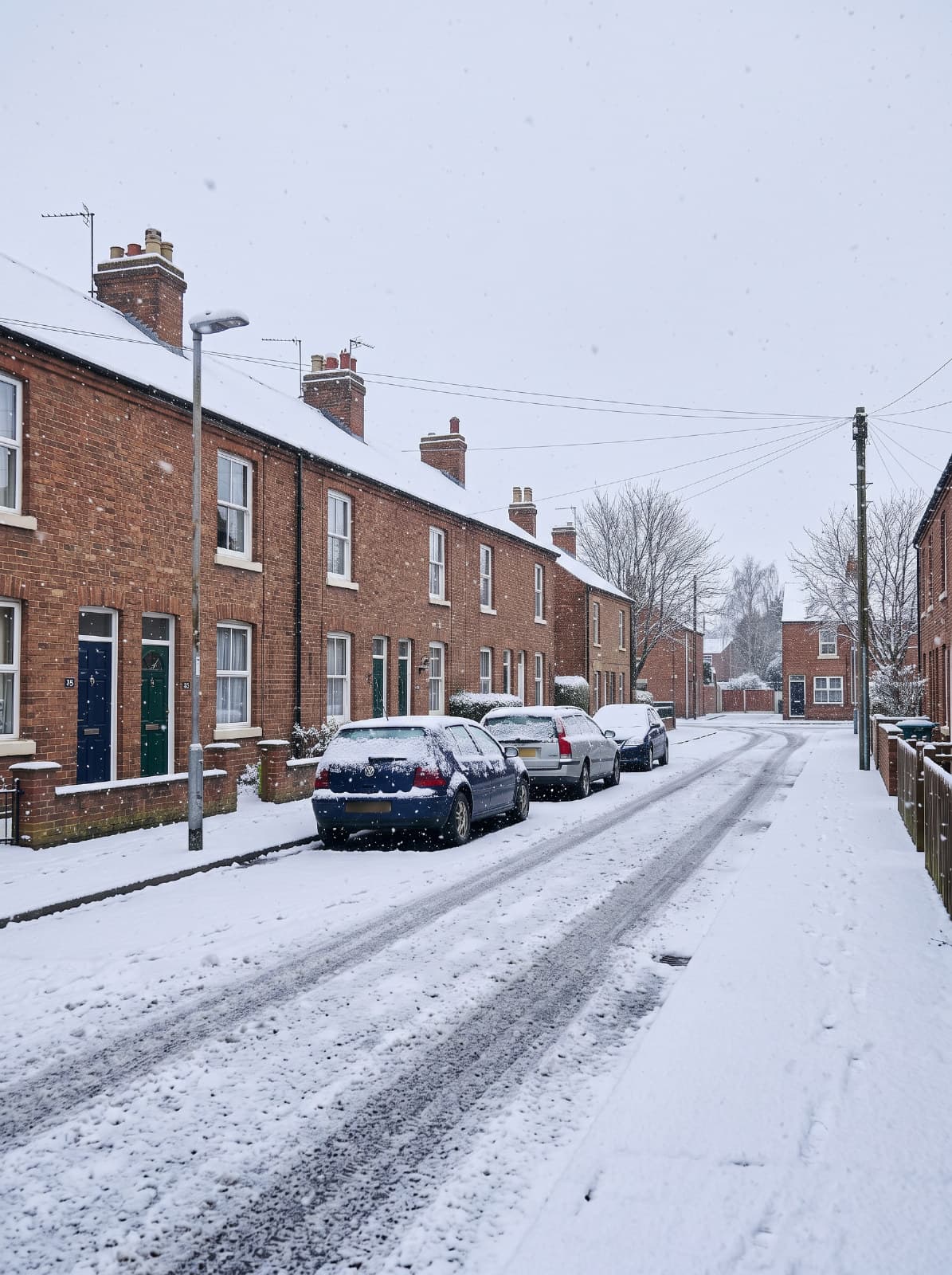
Weather
Change the weather in a scene - snow, rain, fog or a storm.
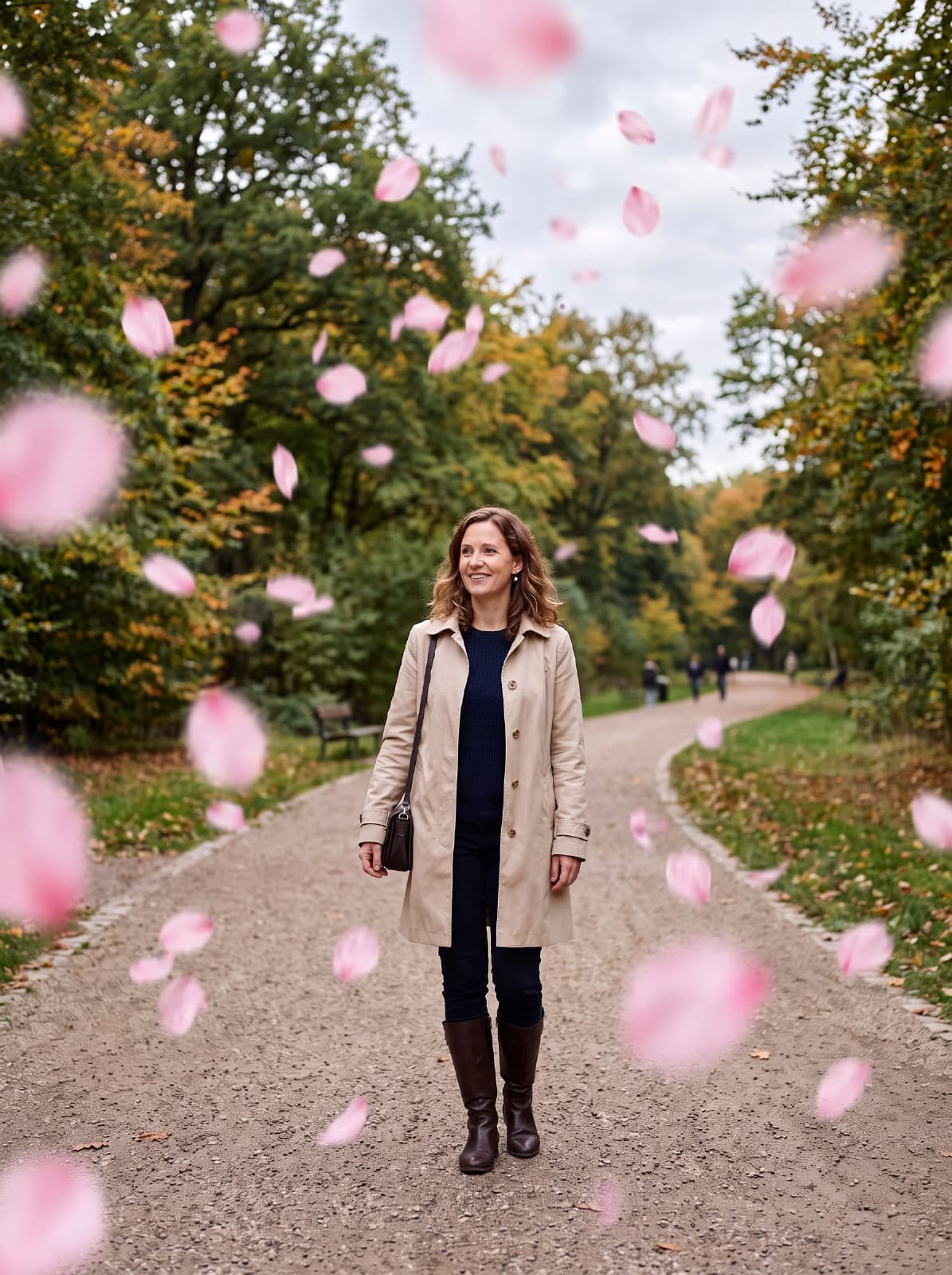
Falling Effects
Add petals, leaves, snowflakes or confetti drifting through the frame.
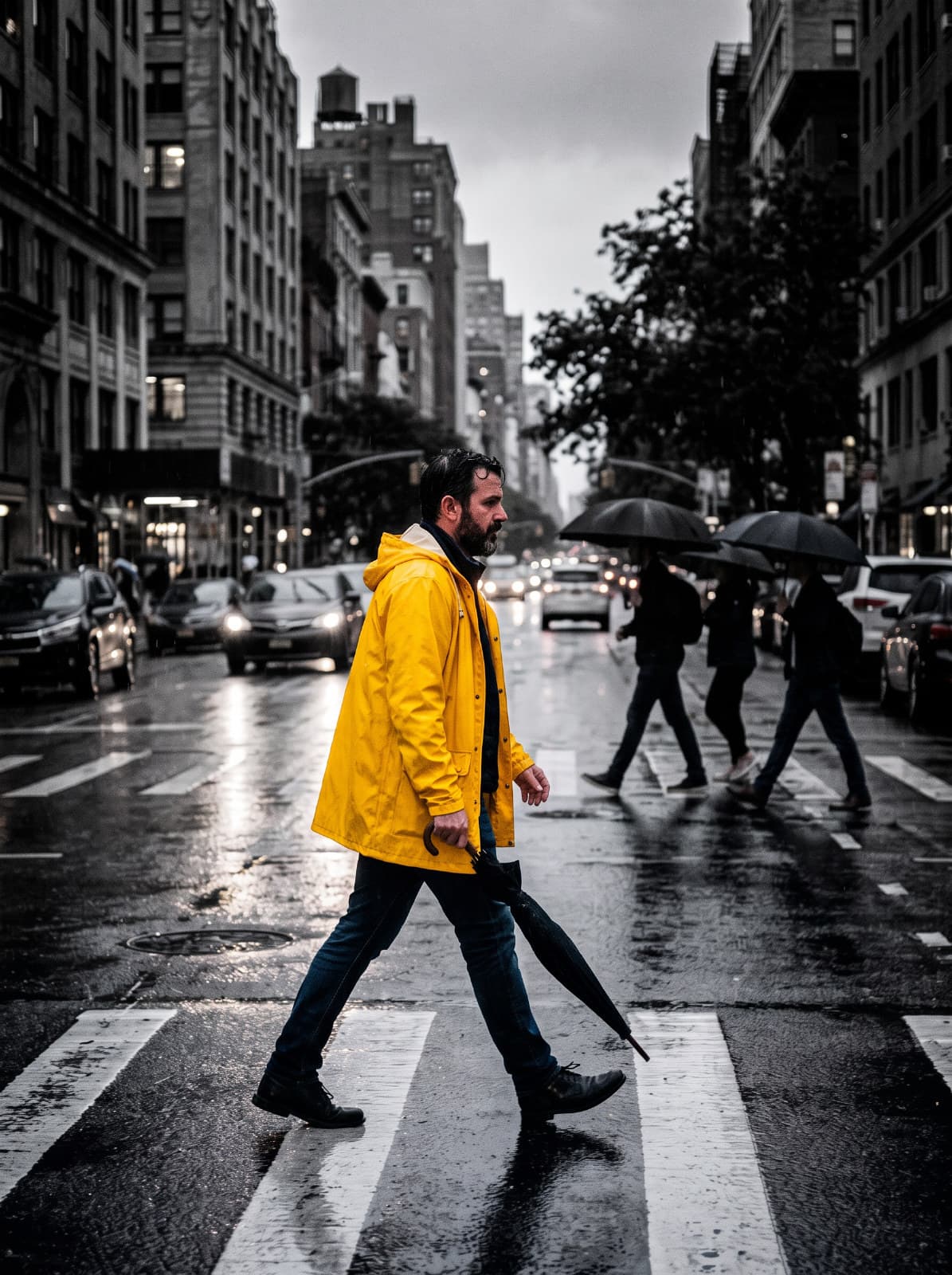
Color Splash
Turn the photo monochrome and keep one subject in full color.
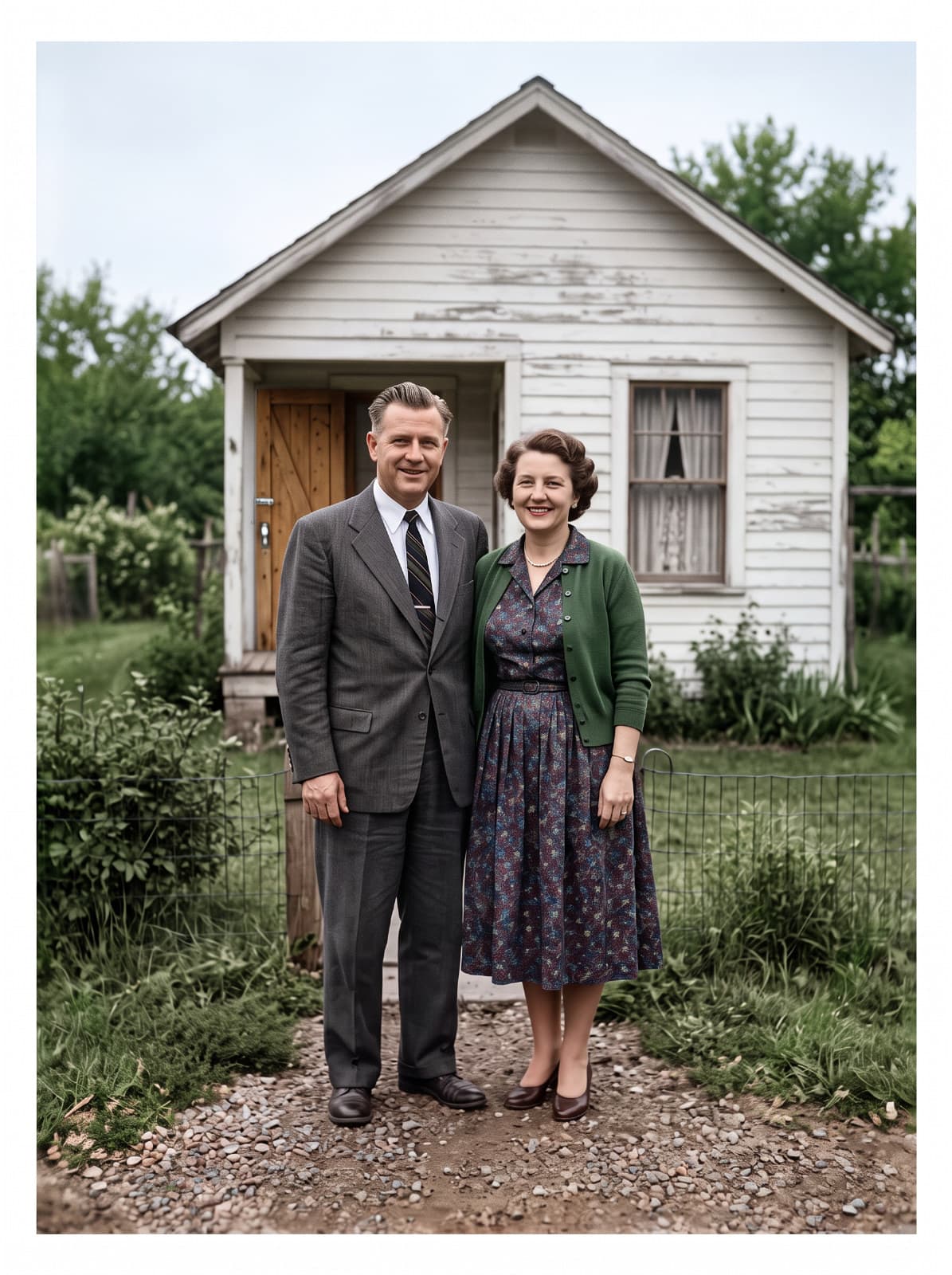
Restore & Colorize
Repair old photos: scratches, fading and grain, with optional color.
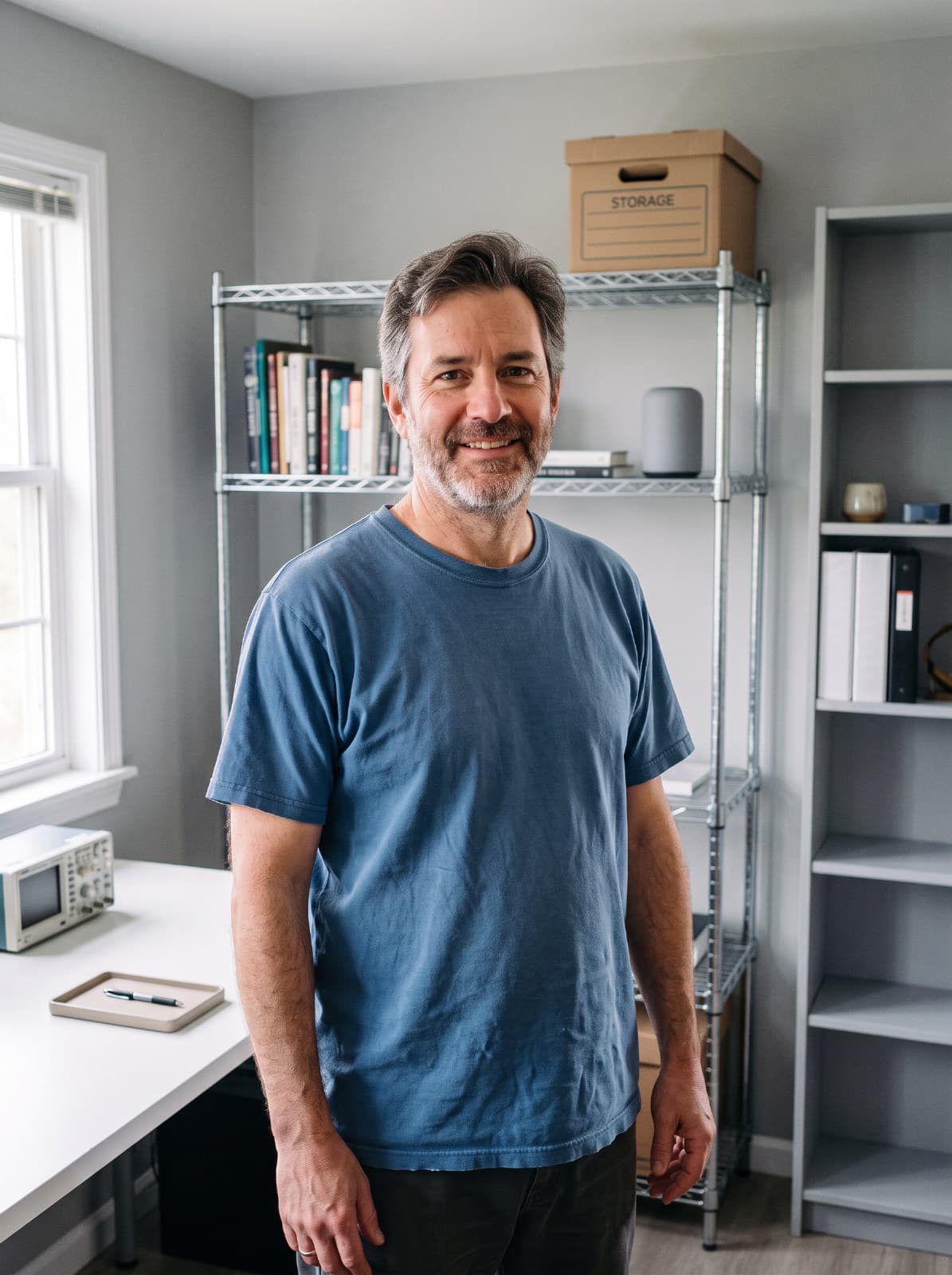
Clean Up Background
Remove clutter, people or wires, or softly blur the background.
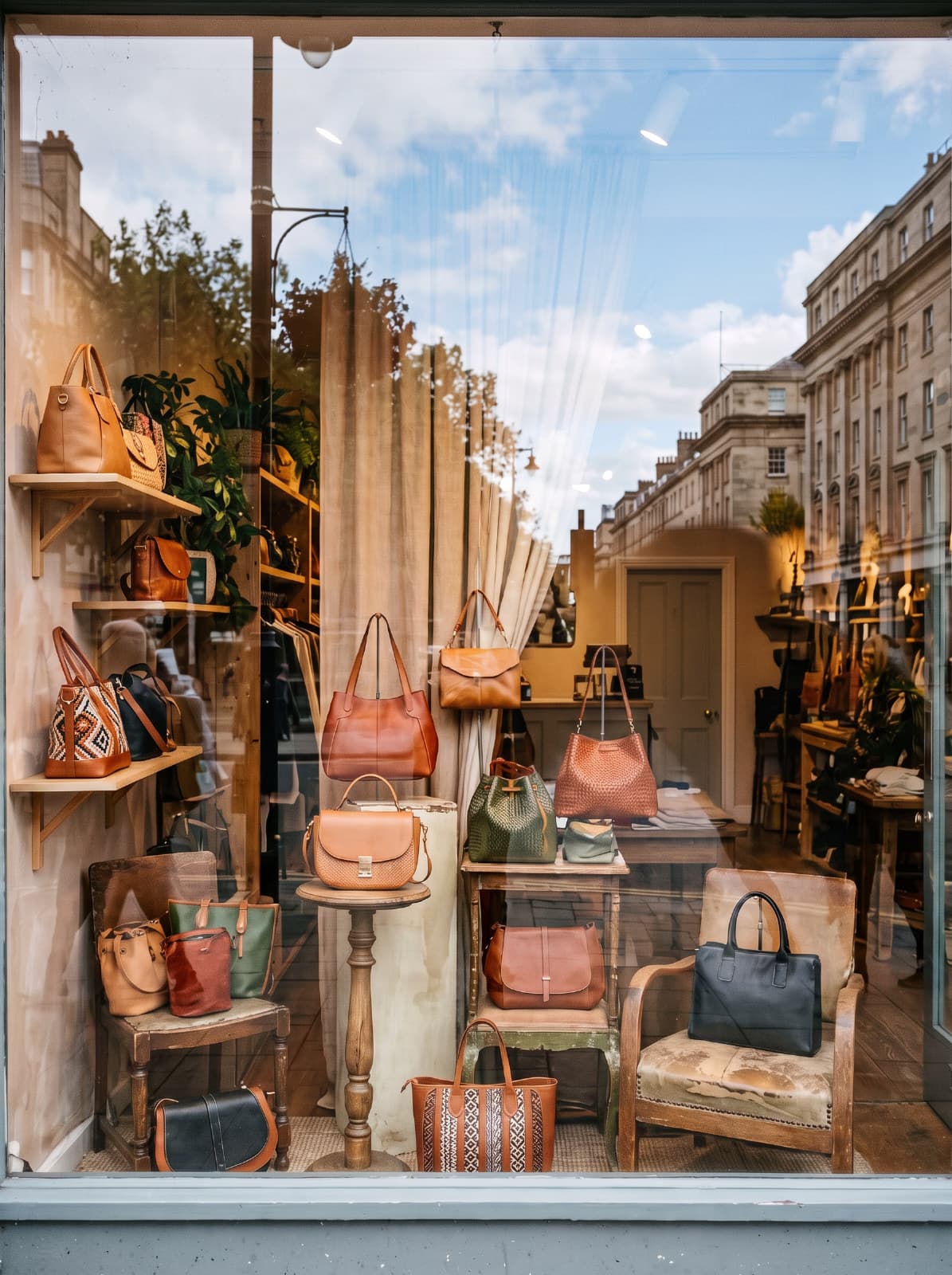
Reflection Removal
Remove reflections and glare from glass, glasses and screens.
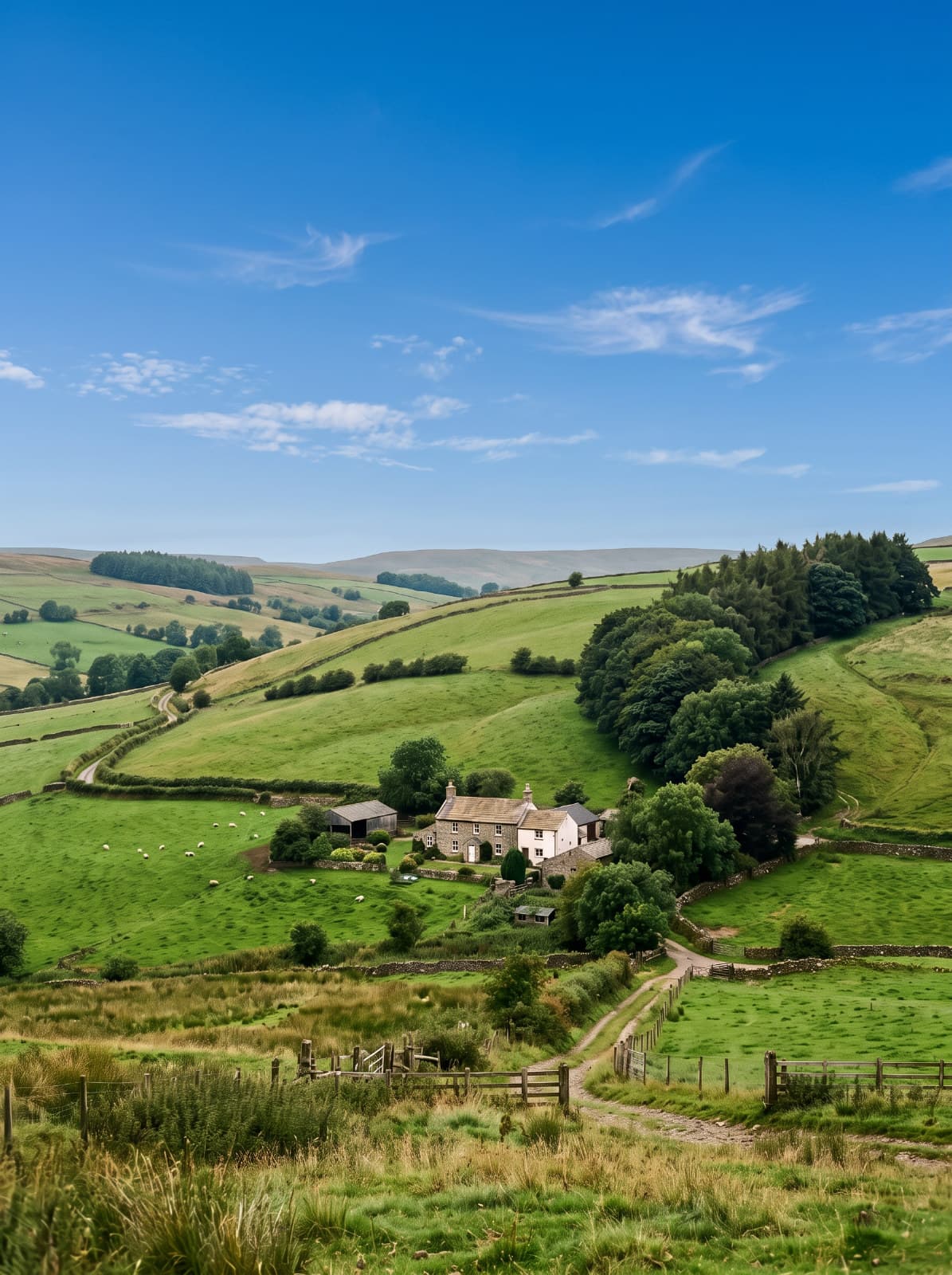
Sky Replace
Swap the sky for a clear blue day, a sunset, clouds or the stars.
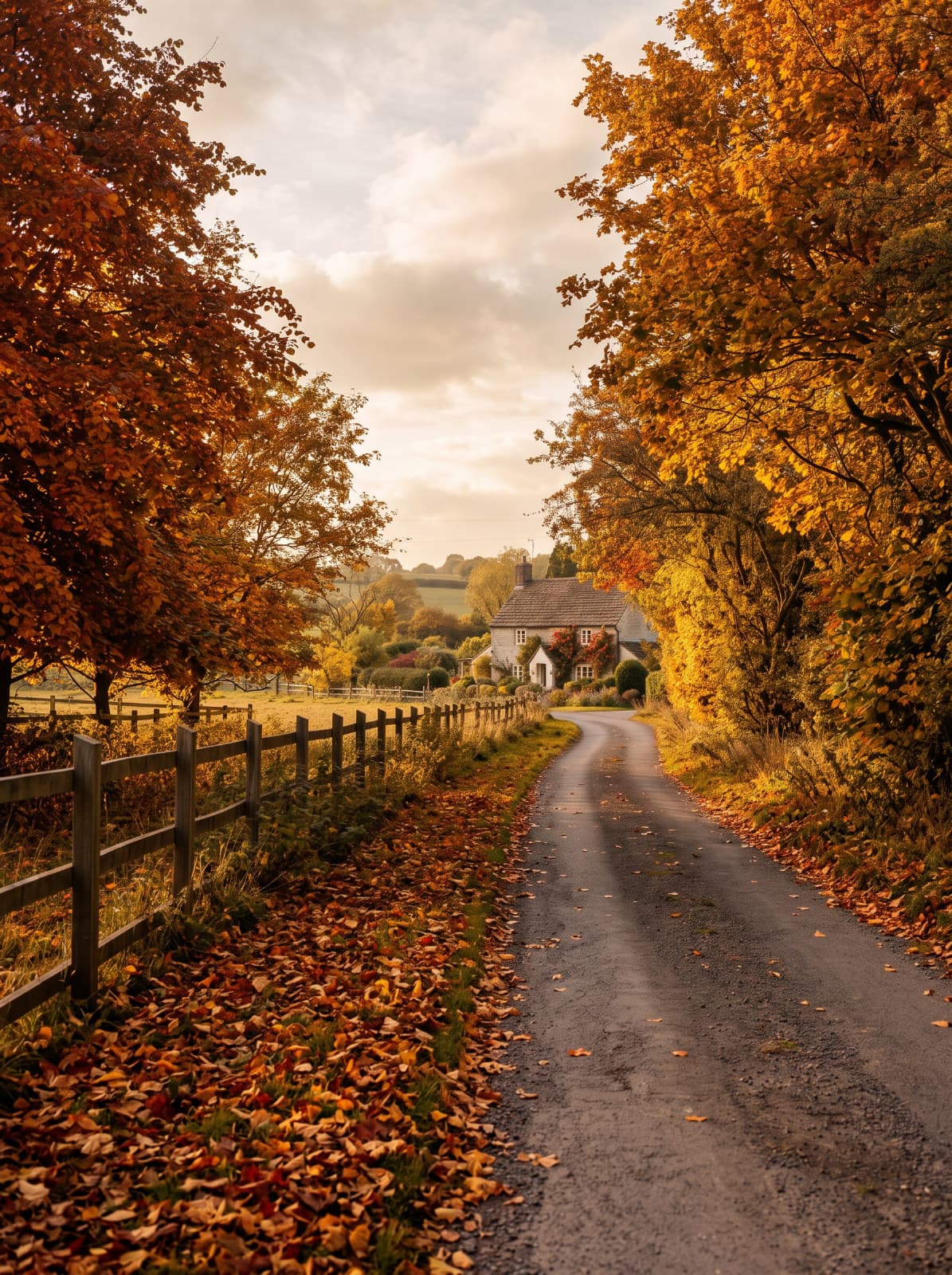
Season Change
Show the same place in spring, summer, autumn or winter.
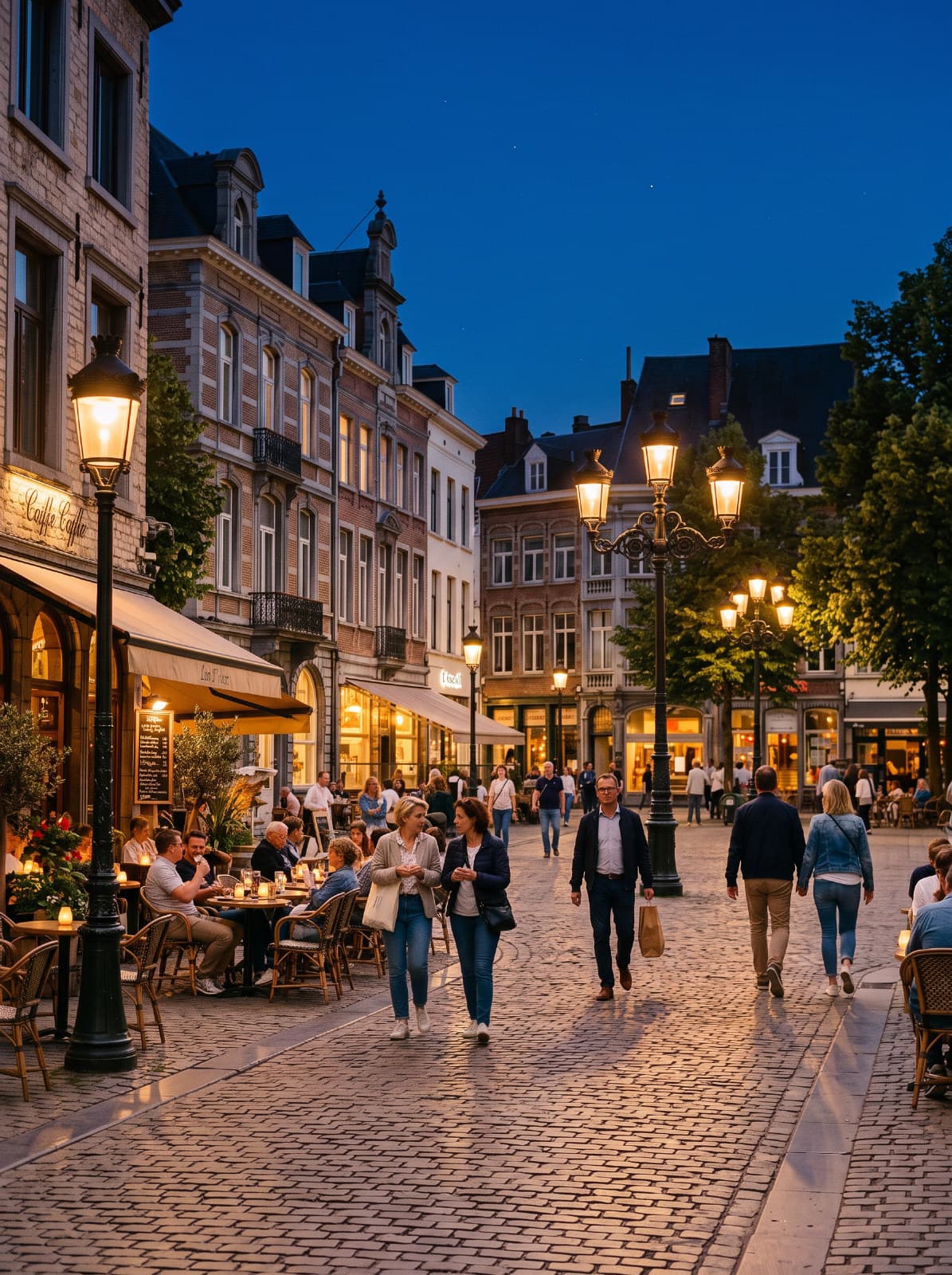
Day to Night
Turn a daytime scene into dusk, blue hour or a lit-up night.
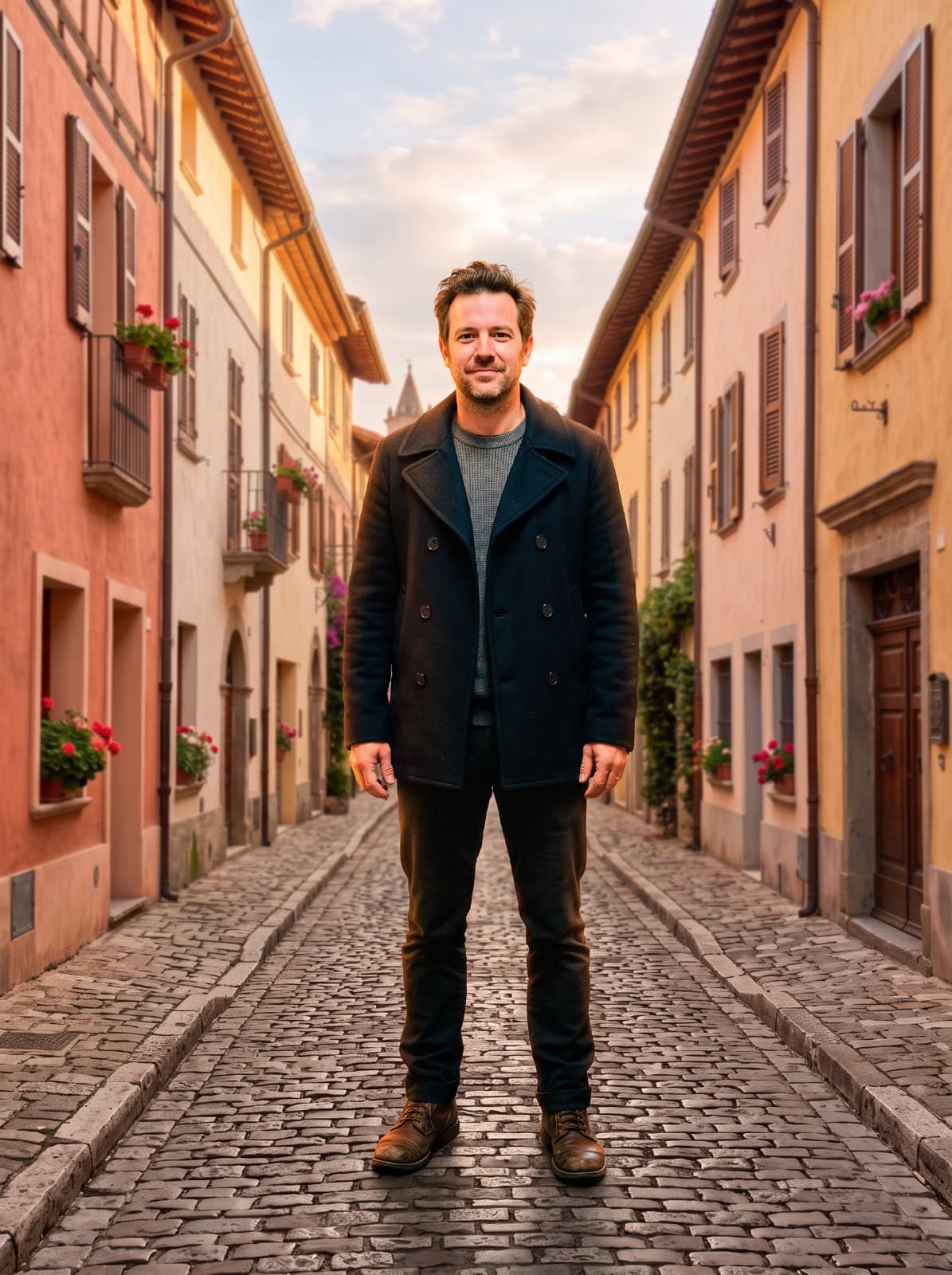
Background Replace
Put the subject in front of the background from a photo you choose.
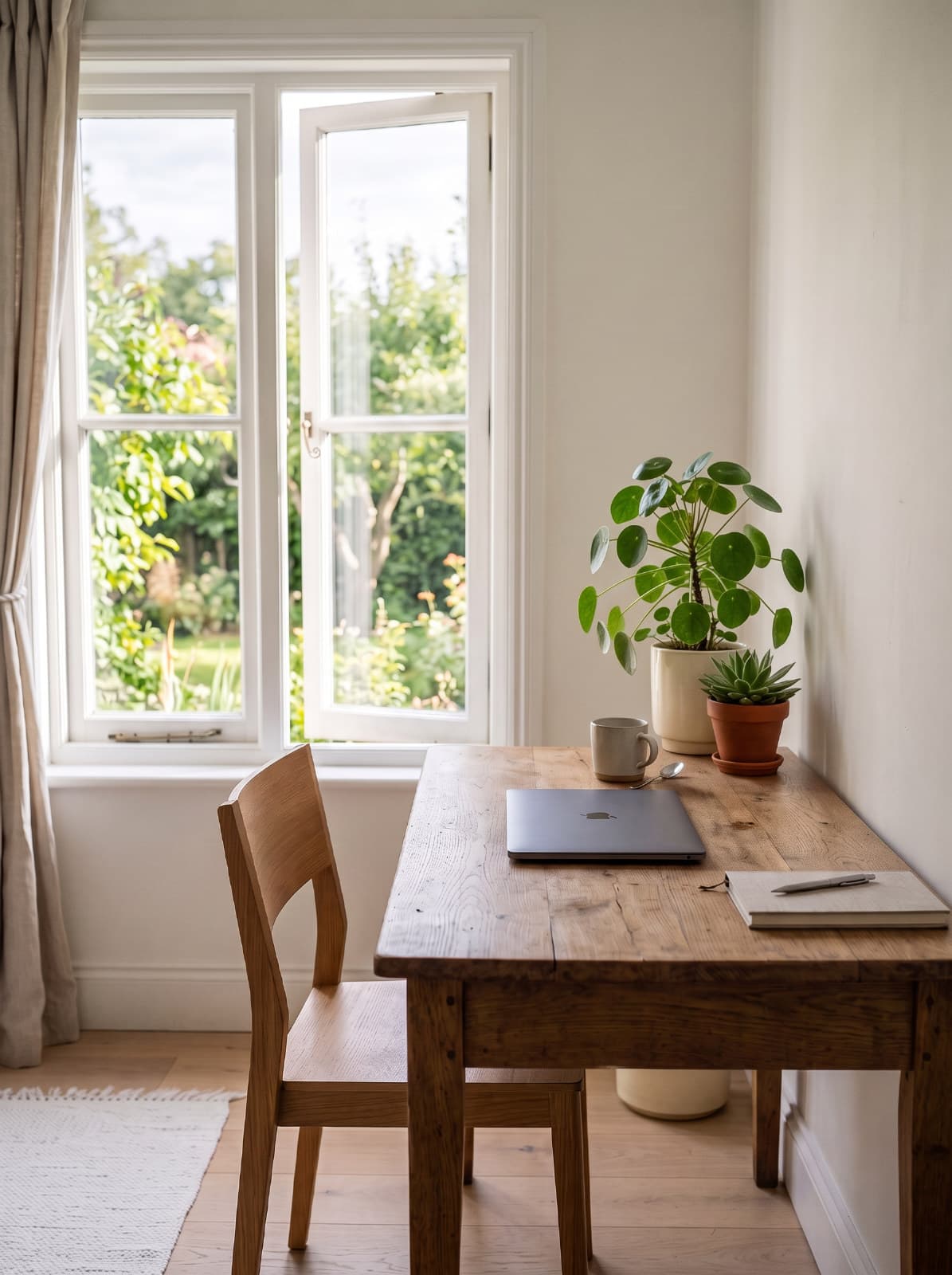
Add Object
Add an object to your photo and blend it into the scene.
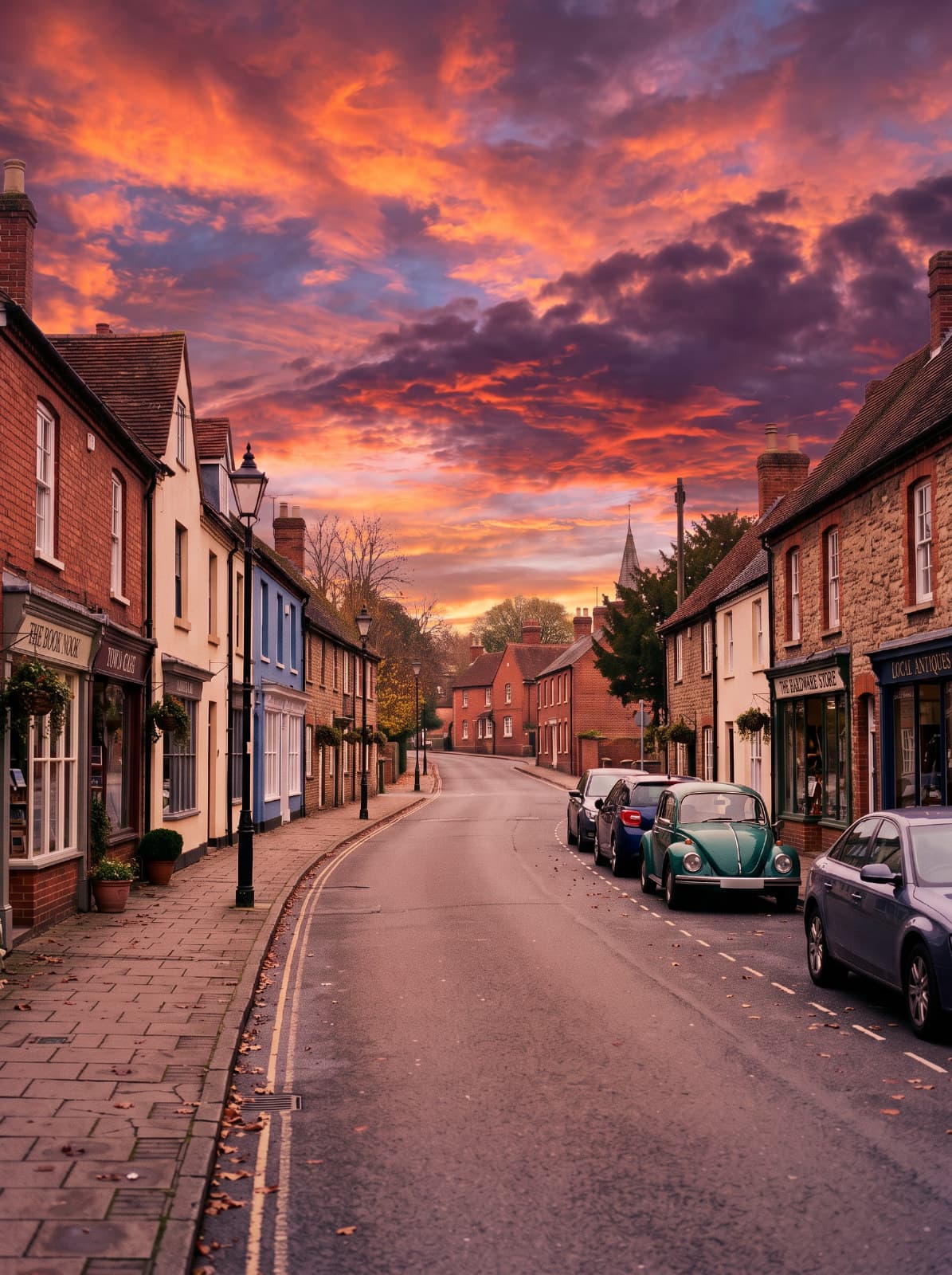
Match Sky
Swap in the sky from your own photo and match the scene to its light.
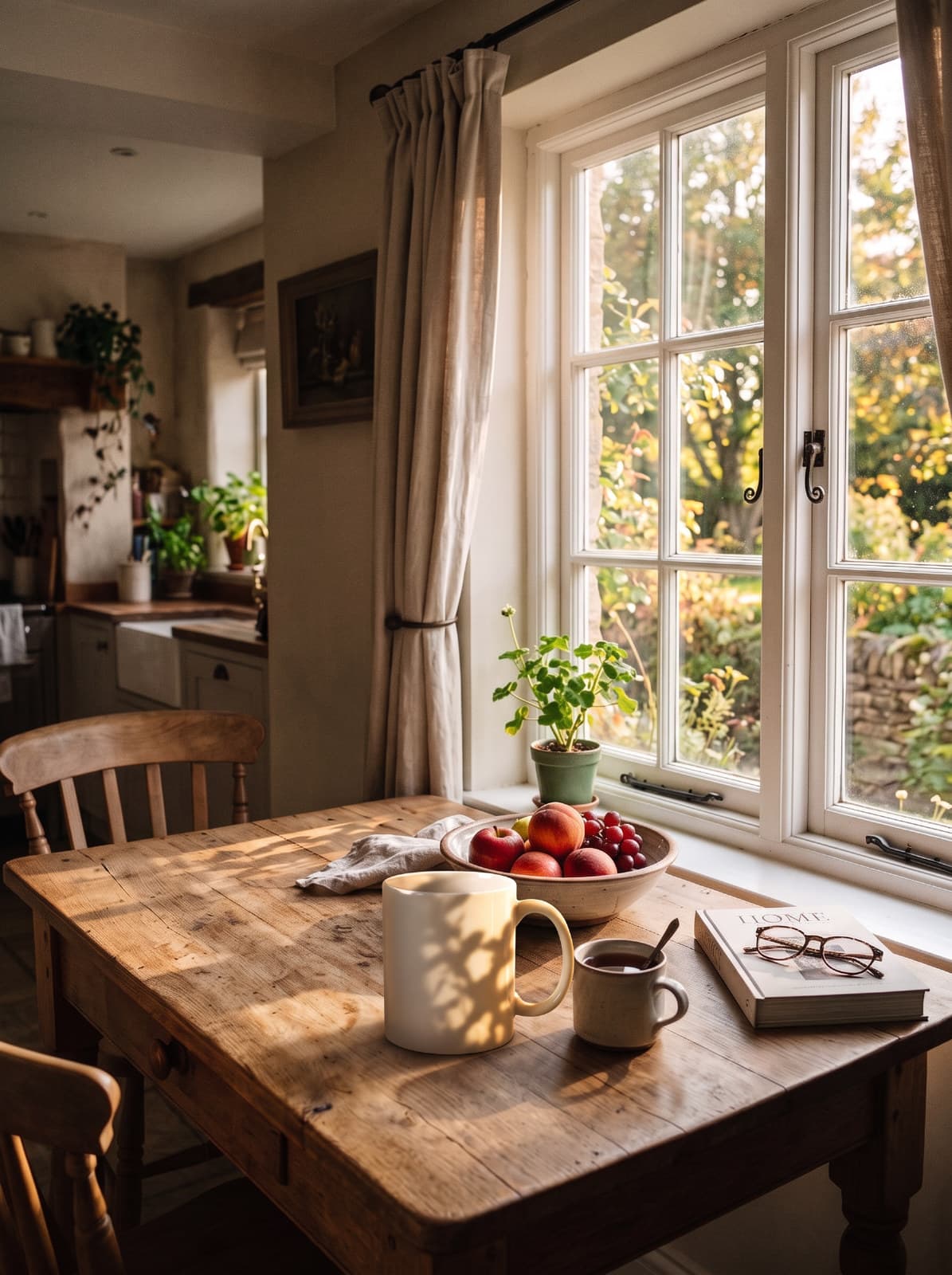
Harmonize
Make a placed object look like it was photographed in the scene behind it.
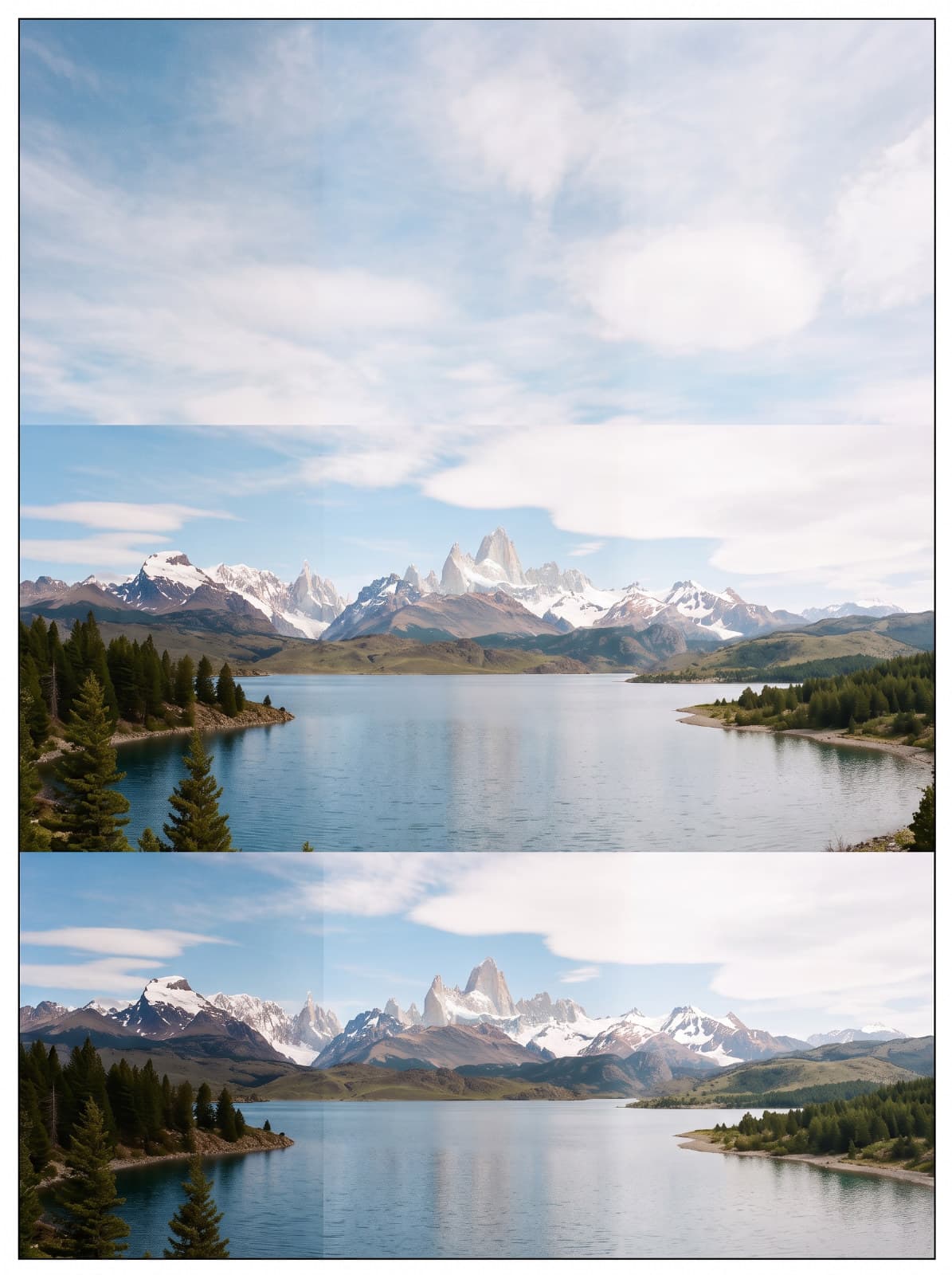
Panorama Fix
Hide seams, even out exposure and fill empty edges in a stitched panorama.
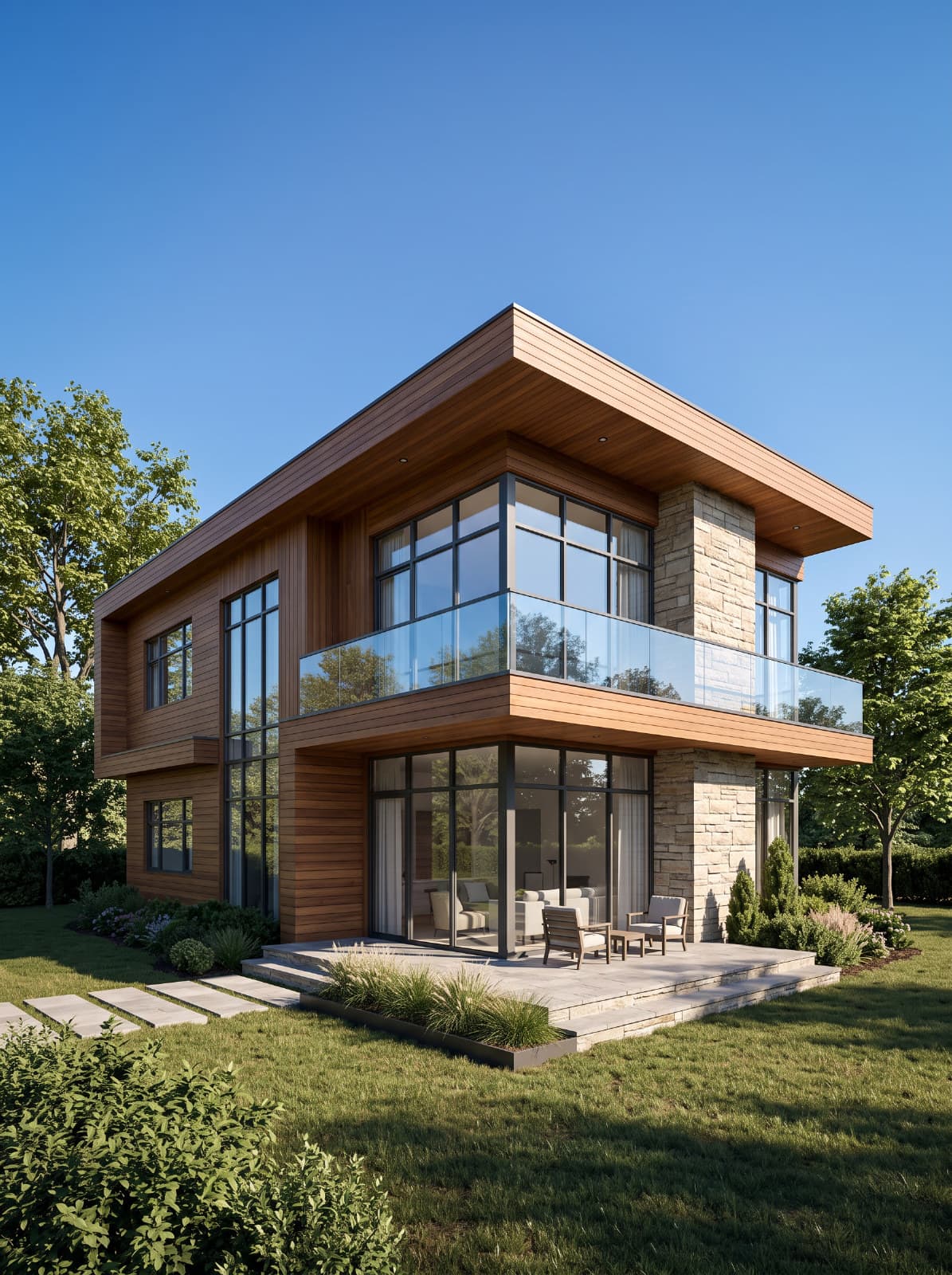
Sketch to Render
Turn an architectural sketch into a realistic render.
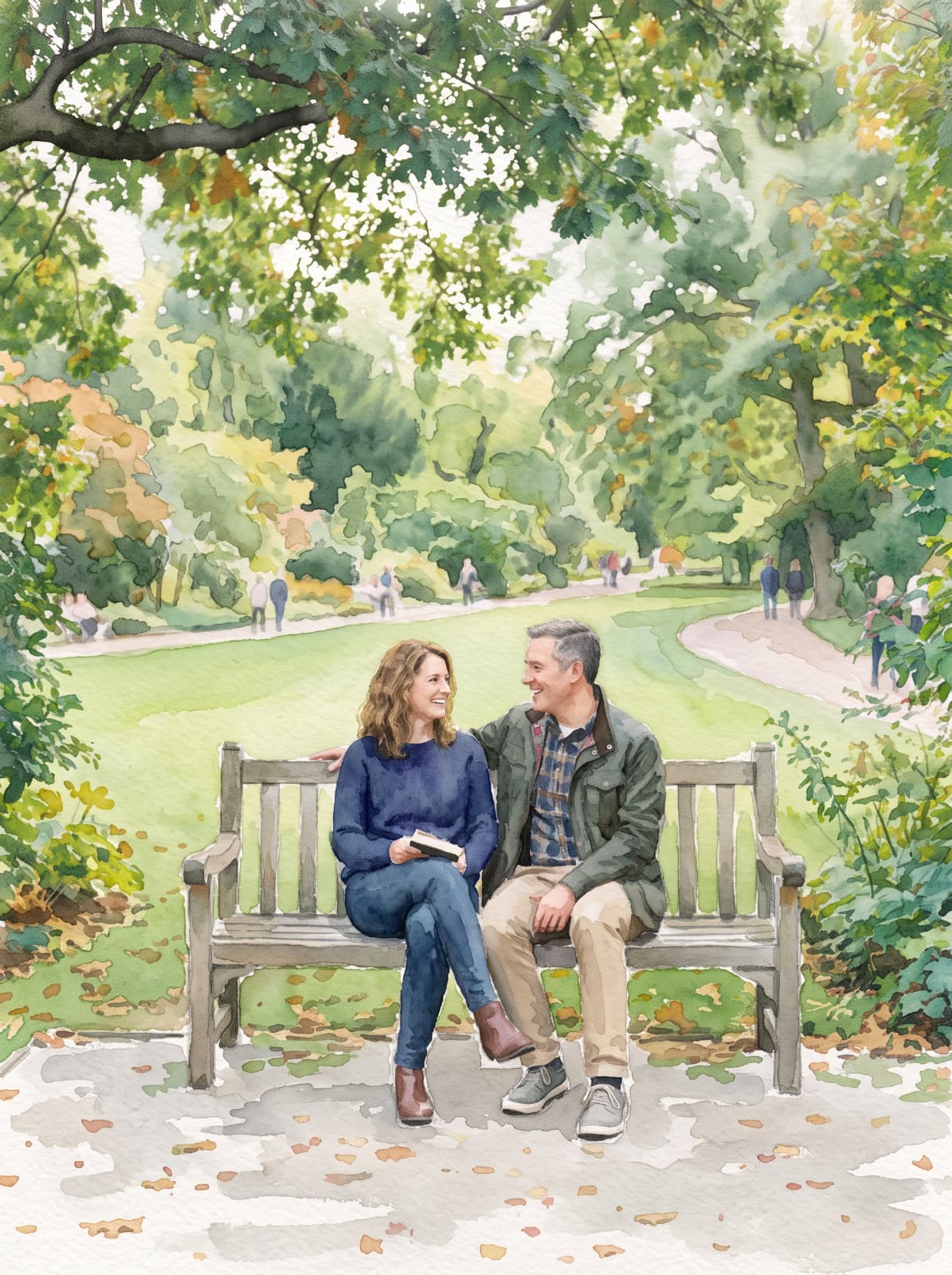
Art Style
Redraw a photo as a watercolor, oil painting, sketch and more.
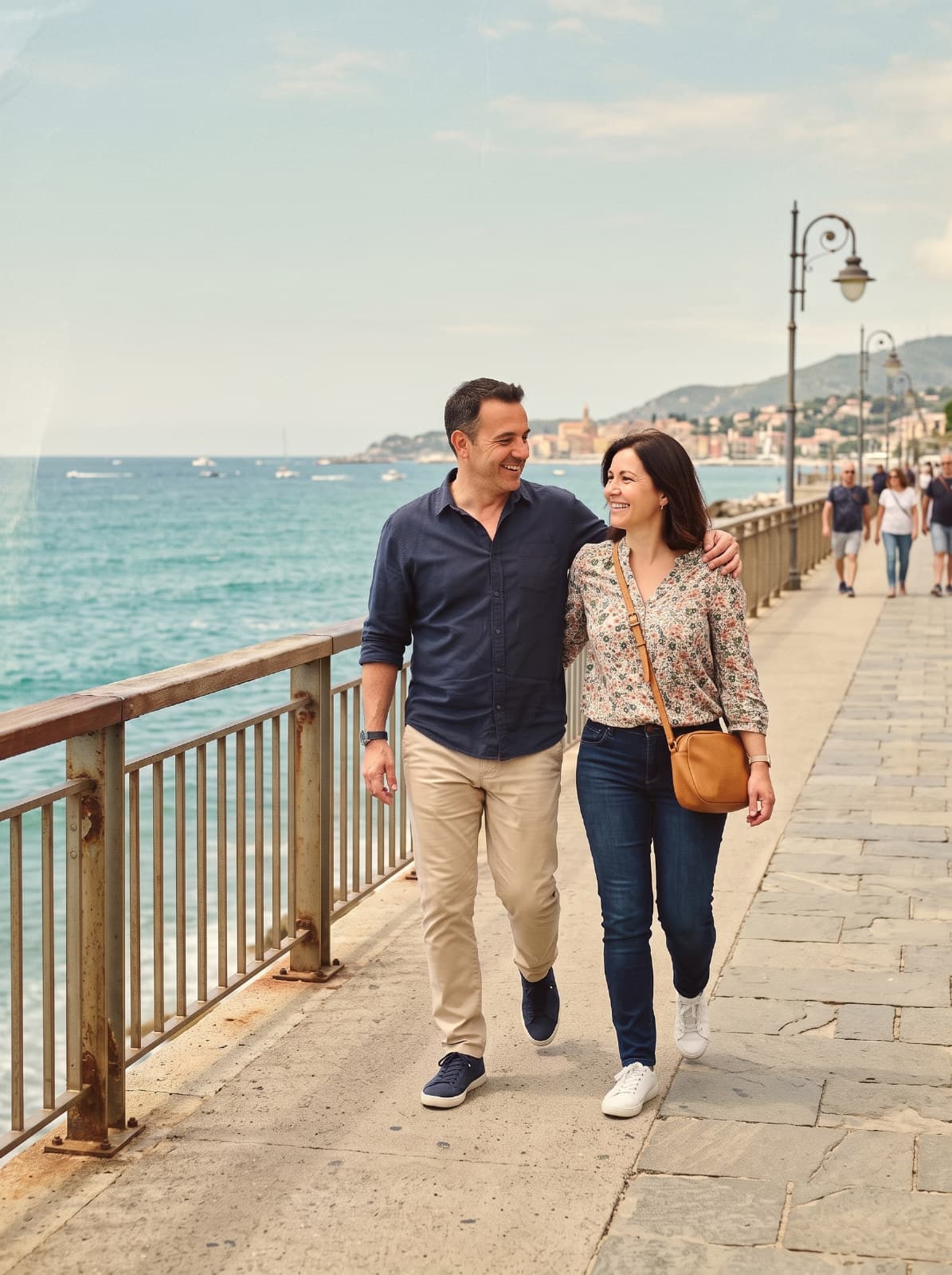
Vintage Film
Give a photo the look of old film, from the 70s to instant prints.
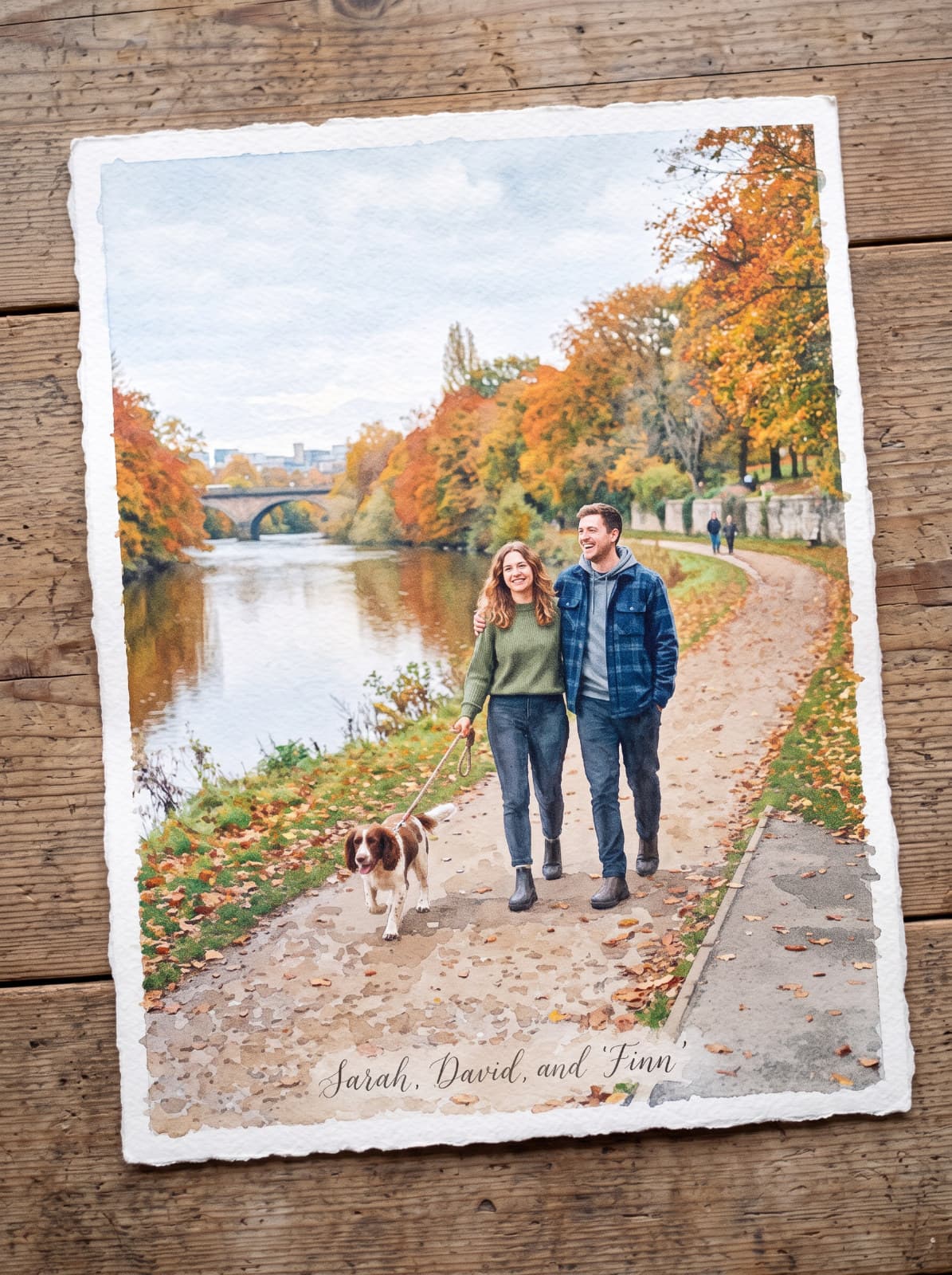
Style Match
Redraw your photo in the style of a reference image you pick.
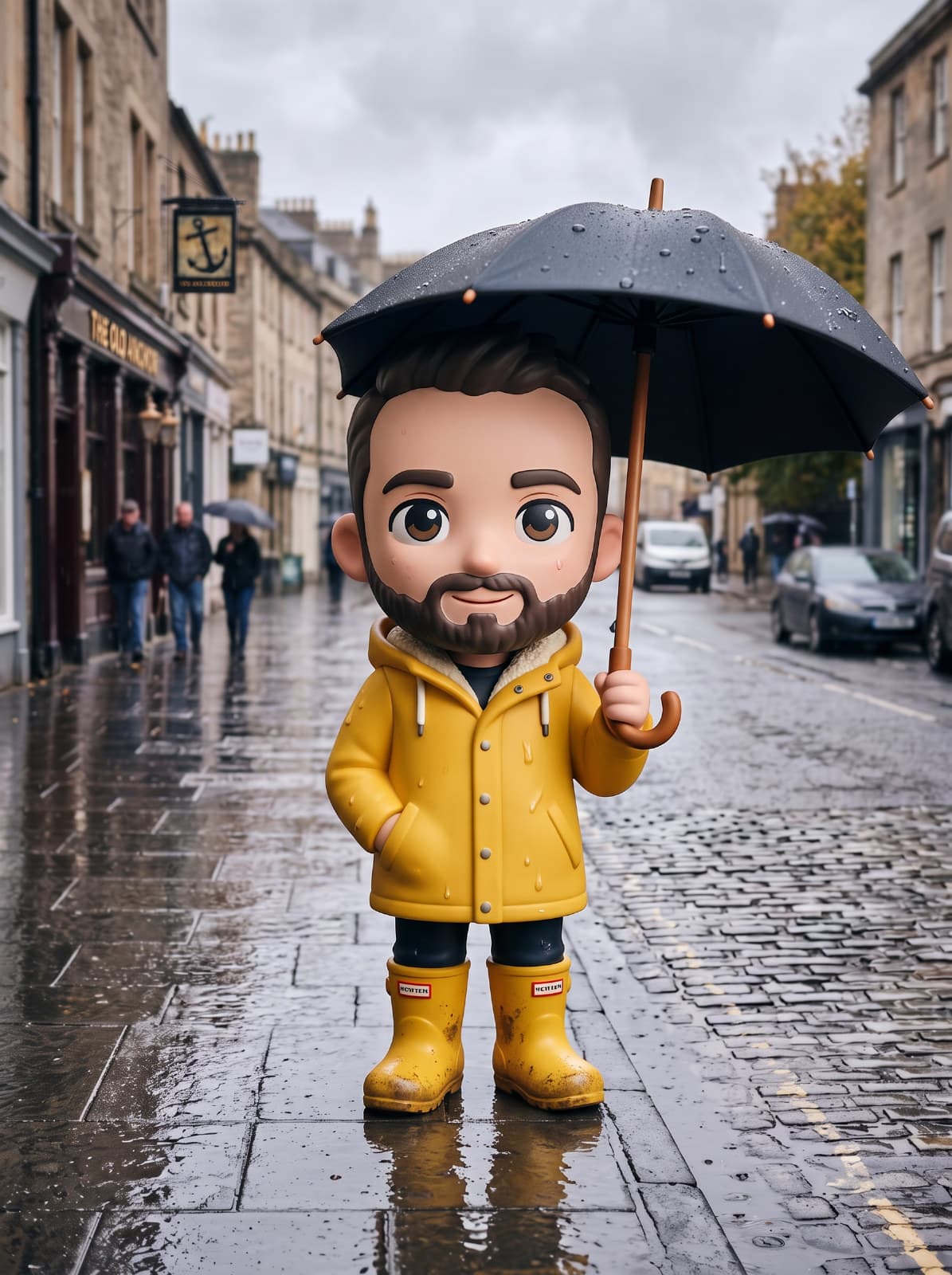
Photo to Figurine
Turn a person or pet into a collectible figure, toy or plush.
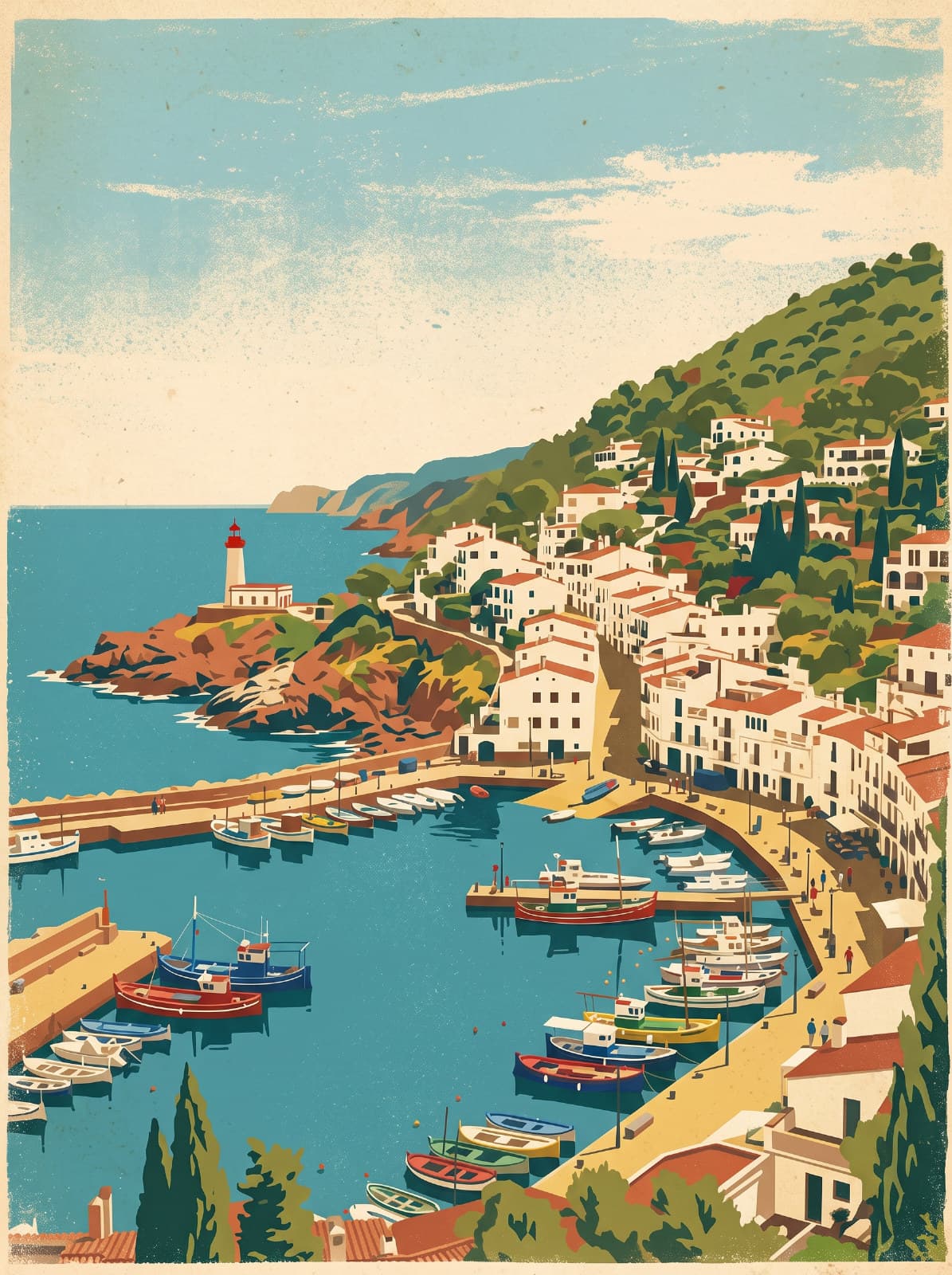
Poster Style
Redraw a photo as a printed poster - vintage travel, art deco, screen print and more.
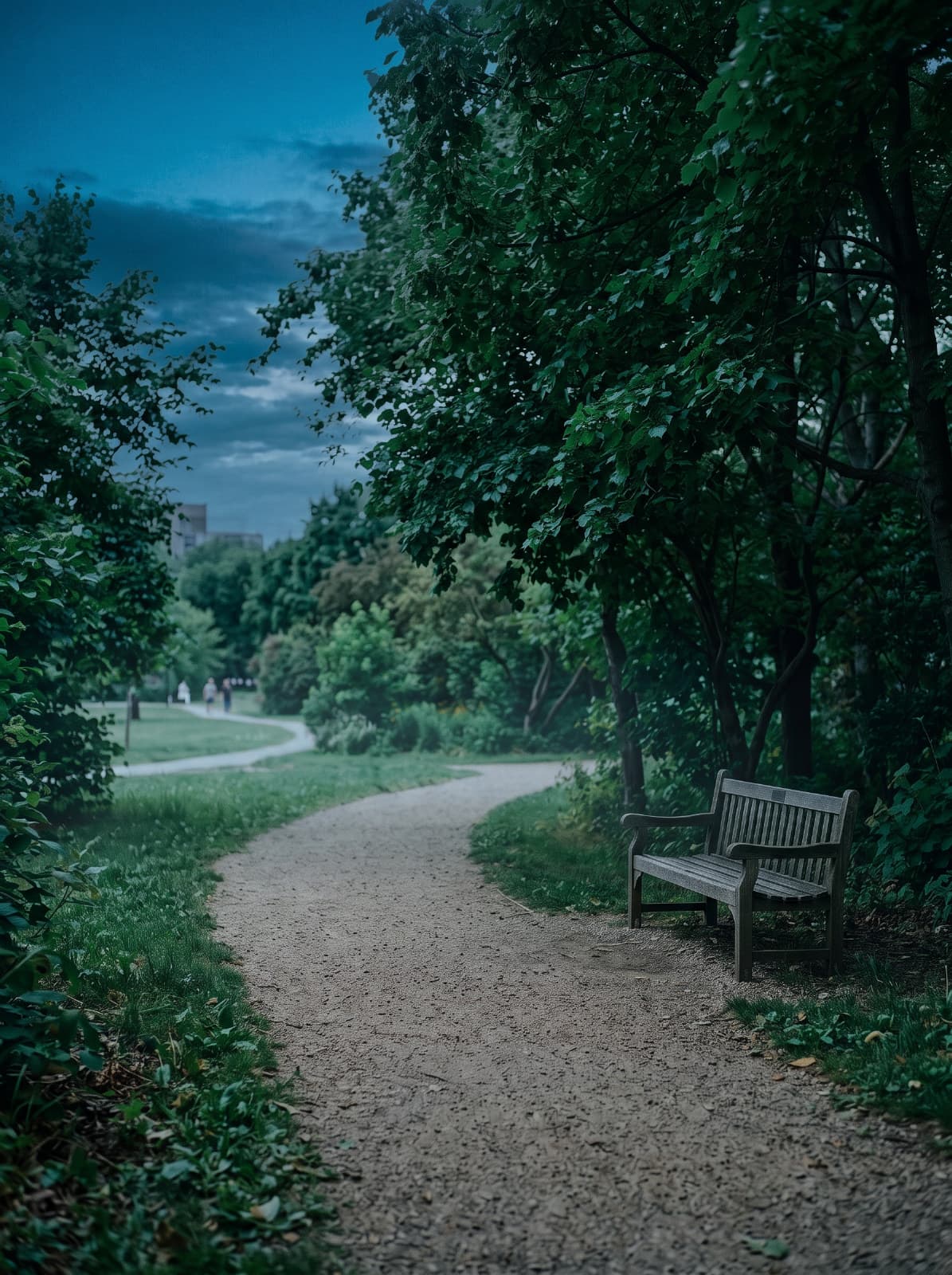
Match Look
Give your photo the colours and tone of another photo, and nothing else.
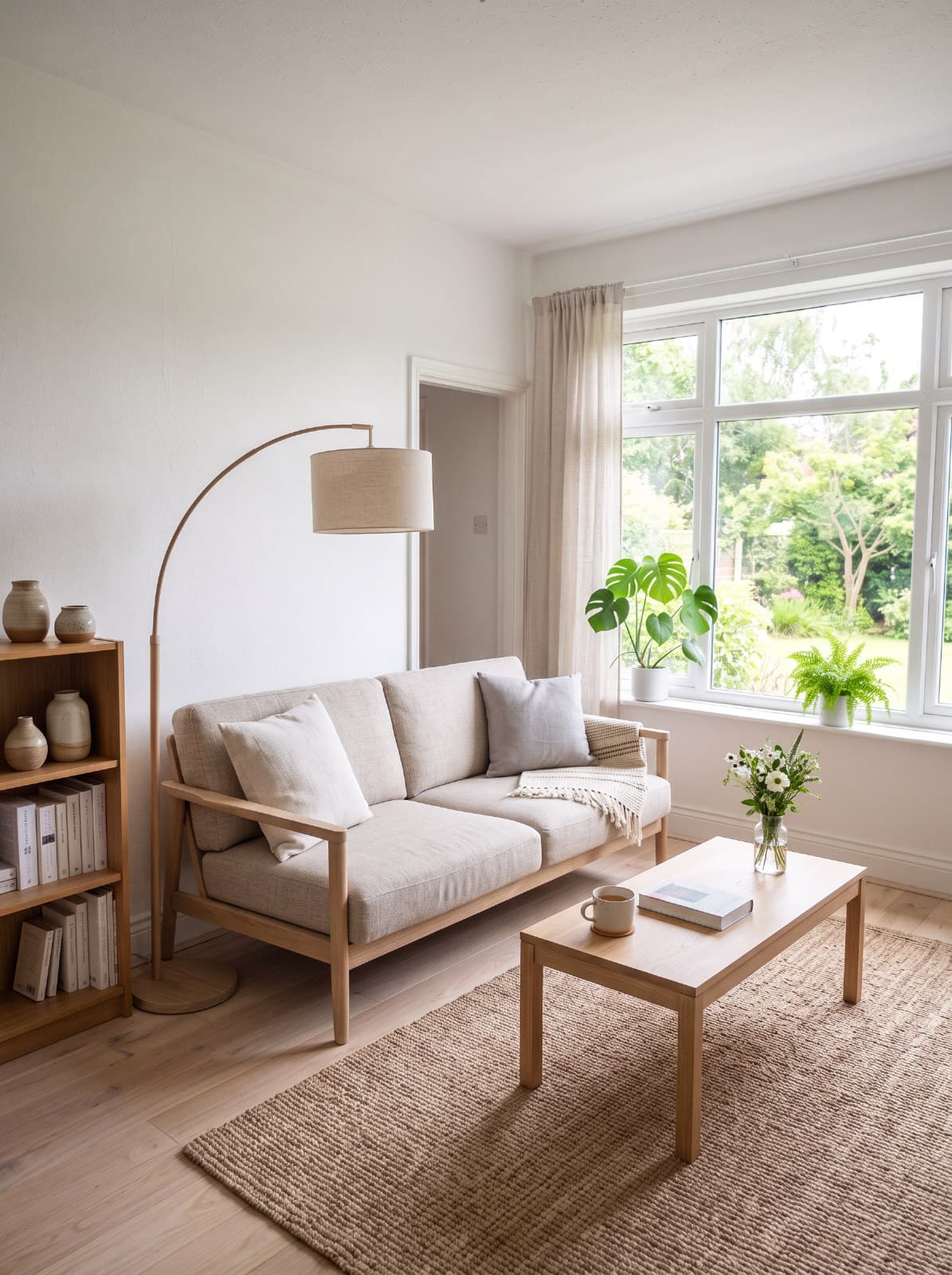
Interior Restyle
Restyle a room while keeping its layout, walls and windows.
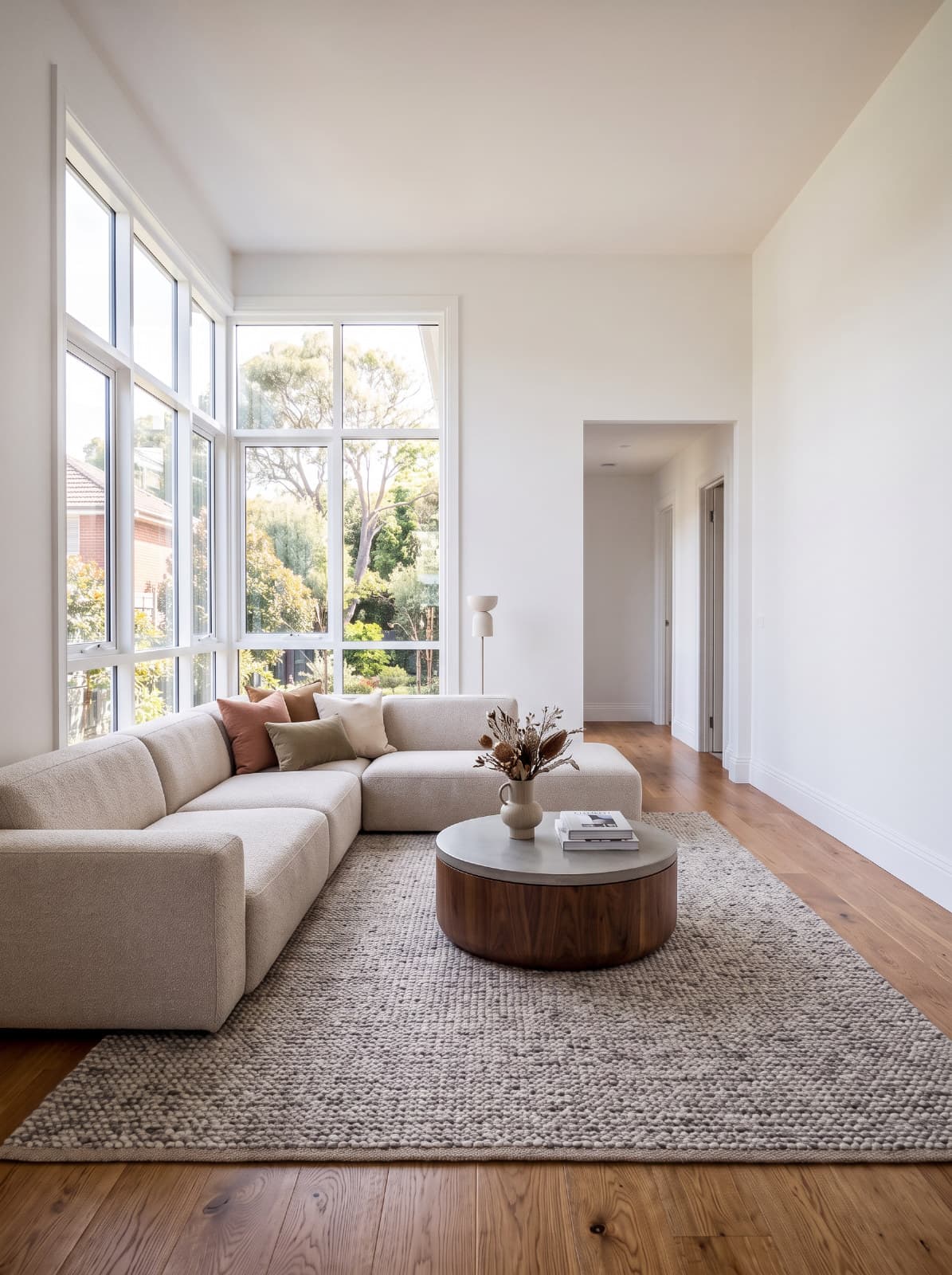
Room Staging
Furnish an empty room in the style you choose.
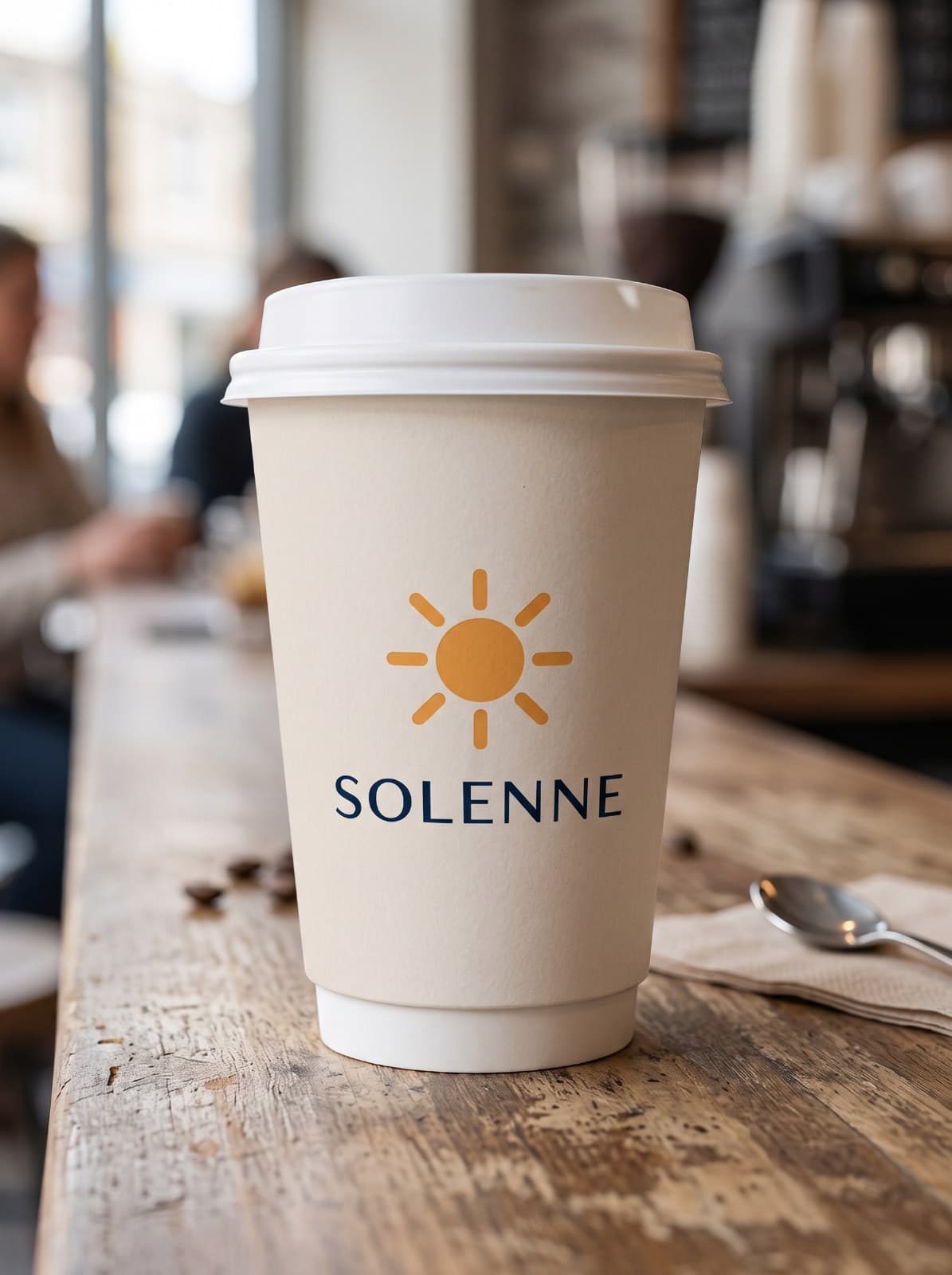
Packaging Mockup
Put your artwork or logo on a box, cup, can, bag or shirt.
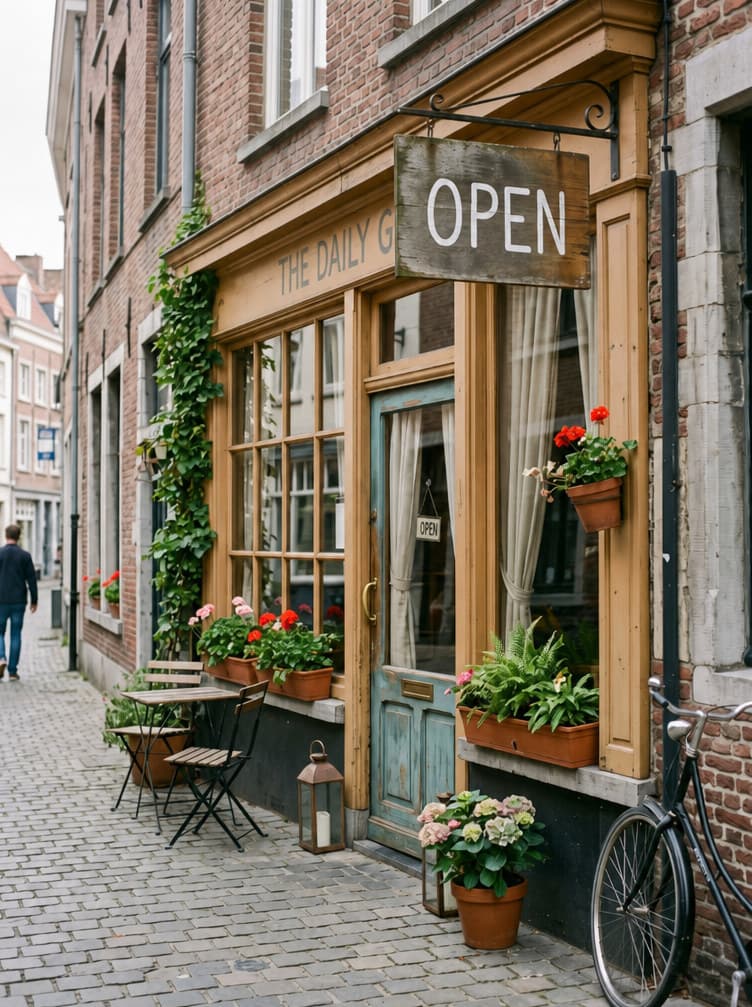
Change Text
Change the words on a sign, label or poster in your photo.
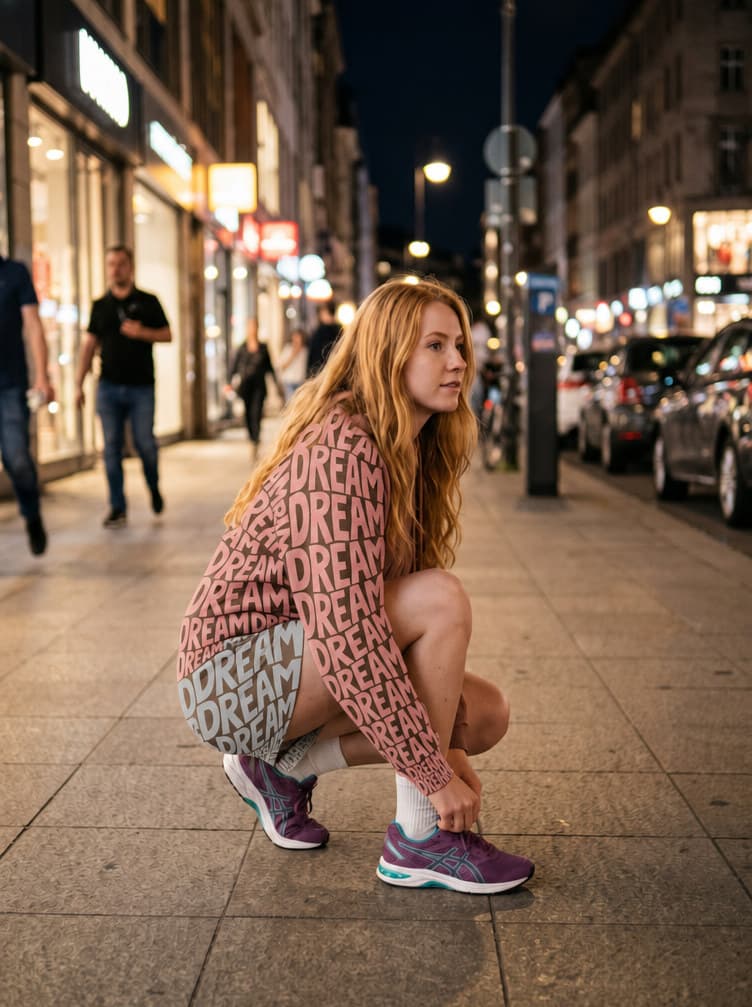
Text Outfit
Rebuild the clothes out of your own word, with the scene showing through the letters.
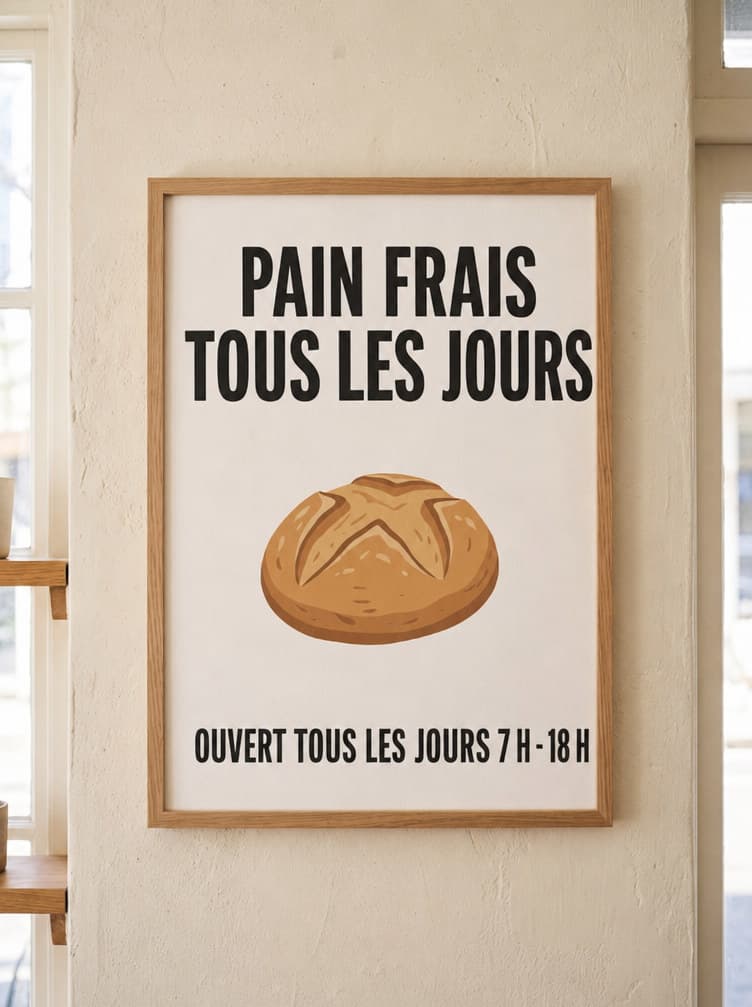
Translate Text
Translate the words in a poster, menu or sign into another language, keeping the layout.
Chỉnh ảnh
Mỗi việc một công cụ.
Thời tiết, ánh sáng, phục hồi, sản phẩm, nội thất, phong cách - mỗi công cụ làm thật tốt một việc.
- 1
Chọn công cụ
Duyệt theo nhóm hoặc tìm kiếm. Mỗi thẻ đều cho thấy ảnh trước và sau.
- 2
Thả ảnh vào
Kéo ảnh thả lên công cụ, hoặc chọn từ máy. Ảnh mở thành một tài liệu riêng.
- 3
Chọn preset, bấm Generate
Preset và vài trường tùy chọn định hình lần chỉnh. Không có gì chạy cho tới khi bạn bấm Generate.
Ảnh gốc vẫn còn nguyên. Kết quả được thêm thành một layer mới phía trên - ẩn đi, phủ mask hay hoàn tác chỉ một bước.
Tạo từ câu lệnh
Bắt đầu từ một bức ảnh đã đẹp sẵn.
Chọn một ý tưởng hoàn chỉnh, rồi biến nó thành của bạn.
- 1
Chọn ý tưởng
Poster, bài đăng mạng xã hội, logo, ảnh sản phẩm và nhiều hơn nữa.
- 2
Đổi vài chữ
Thay tiêu đề, màu sắc hay bức ảnh. Không cần viết câu lệnh - hoặc sửa dạng văn bản nếu bạn muốn.
- 3
Tạo ảnh, rồi thiết kế
Đưa kết quả lên canvas và làm tiếp với layer, chữ và template.
- Poster & chữ
- Bài đăng mạng xã hội
- Ảnh sản phẩm
- Logo & biểu tượng
- Minh họa
- Nhiếp ảnh
- Nhân vật
- Hình nền
- Infographic
Hoặc tự viết câu lệnh.
AI Generator tạo ảnh, ảnh chụp, minh họa, vật thể nền trong suốt và sticker. Chọn trong nhiều mô hình tạo ảnh - mỗi mô hình ghi rõ số credit - và mọi kết quả bạn đã trả credit đều nằm lại trong bảng cho tới khi bạn xong việc.
- Ảnh
- Ảnh chụp
- Minh họa
- Vật thể nền trong suốt
- Sticker
Không gian sáng tạo AI
AI Studio là cửa chính. AI có mặt ở khắp nơi trong app.
- Trên máy
Relight & chiều sâu
Dời nguồn sáng, làm mờ hậu cảnh hay thêm sương - Peakloom đọc khung cảnh 3D ngay trên máy bạn.
- Trên máy
Xóa vật thể
Tô lên chi tiết thừa và khung cảnh phía sau được dựng lại.
- Trên máy
Xóa nền
Một lượt là tìm ra chủ thể và để lại một layer trong suốt sạch sẽ.
- Cloud
Generative Fill & Expand
Vẽ thêm những thứ chưa từng có, hoặc kéo canvas rộng ra ngoài khung hình.
- Trên máy + cloud
Phục hồi & Siêu phân giải
Sửa vết xước, khôi phục màu phai và dựng lại chi tiết để in khổ lớn.
- Trên máy + cloud
Magic Layer
Biến một ảnh phẳng trở lại thành các layer di chuyển và chỉnh sửa được.
- AI agent của bạn
AI Connection
Để AI agent của bạn mở, chỉnh sửa và xuất file trong Peakloom qua MCP.
Câu hỏi về AI Studio
AI Studio có miễn phí không?
Duyệt thì miễn phí. Tạo một lần chỉnh hay một bức ảnh sẽ dùng credit AI và cần gói Pro.
Có cần kết nối internet không?
Khi tạo ảnh thì có - AI Studio chạy trên cloud. AI trên máy và các công cụ chỉnh sửa của Peakloom vẫn dùng được offline.
Ảnh của tôi được xử lý thế nào?
Chỉ ảnh, ảnh tham chiếu hoặc câu lệnh cần cho lần chỉnh được gửi đi, có mã hóa. Dữ liệu chỉ dùng cho yêu cầu của bạn, bị xóa sau khi xử lý và không bao giờ dùng để huấn luyện mô hình AI.
Tôi có chỉnh tiếp kết quả được không?
Được. Kết quả chỉnh ảnh nằm trên một layer mới phía trên ảnh gốc, còn ảnh tạo mới được đặt lên canvas bình thường với layer, chữ và mask.
Bao lâu thì có công cụ mới?
Thường xuyên. Đội ngũ Peakloom liên tục thêm công cụ và ý tưởng, và chúng xuất hiện mà không cần cập nhật app.
Mang một bức ảnh tới. Mang một thiết kế về.
AI Studio có sẵn trong Peakloom cho Mac và Windows. Tải miễn phí rồi mở AI Studio từ thanh bên.
Phiên bản 1.0.327 · 83.0 MB